WebGL 2.0 Activation
To check if WebGL is supported and activated in your browser, follow these steps:
-
Access the Diagnostic Page
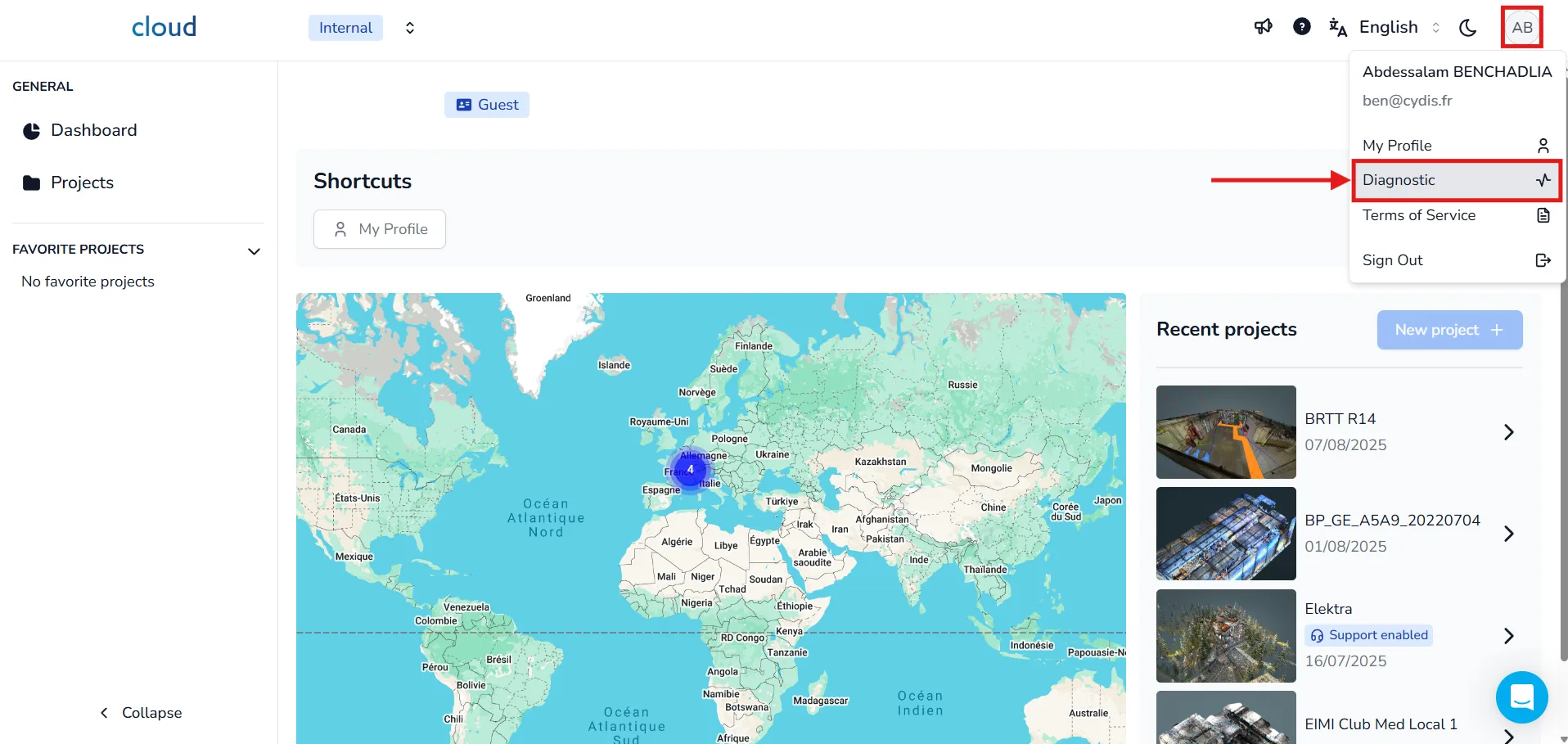
Go to the top-right of the interface and click on your profile initials to open the dropdown menu. Then click on the Diagnostic section.
-
Launch a New Diagnostic
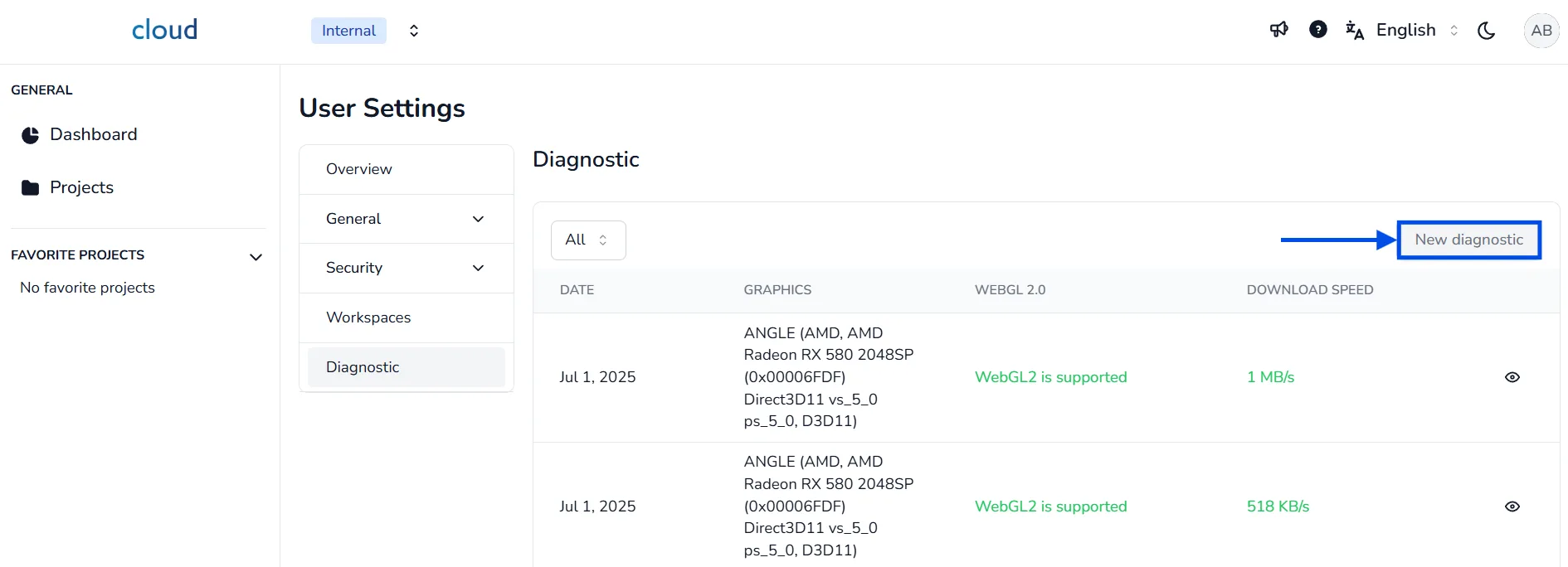
Once in the Diagnostic section, click the New diagnostic button to run a test on your current environment. This will check if WebGL and other required components are available.
-
Check WebGL 2.0 Compatibility
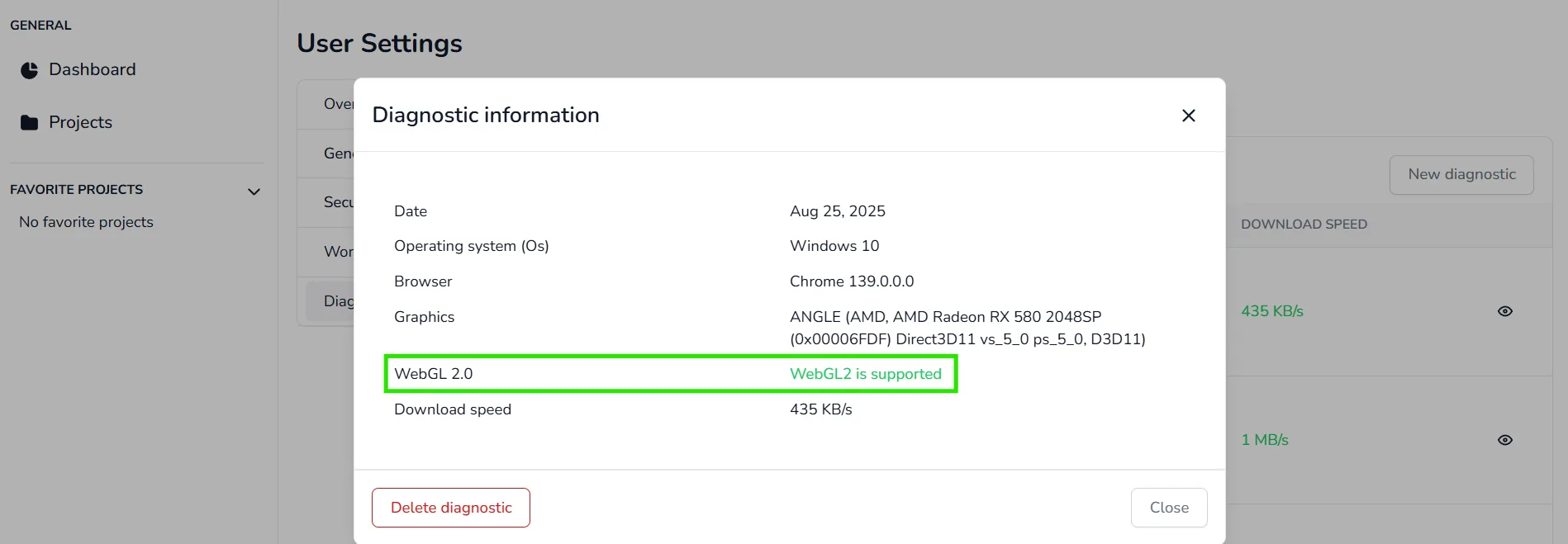
In the diagnostics list, under the WEBGL 2.0 column, you will see one of the following statuses:
- WebGL2 is supported → Everything is OK.
- WebGL not supported → You won't be able to use the 3D application.
Note: WebGL is mandatory to view 3D content, if a red message is displayed, you won't be able to join the 3D App and might have to make some changes, try to follow one of the following tutorials to fix this issue.
Chrome (Android/PC) tutorial to activate WebGL2
On some android devices, it is possible that WebGL would not be activated by default. Activating it could grant you access to the 3D application. To verify if WebGL can be activated, follow these steps (tutorial for Google Chrome):
1. Click on the following link : chrome:flags
2. Search for "WebGL" and enable it
3. Reload your browser
4. Go back to the diagnosis page to check if WebGL2 is now supported
iPhone/iPad tutorial to activate WebGL2
This tutorial is only useful if you are using IOS 15.0 or over, devices using IOS 14.x or under won't be able to use the 3D application even with WebGL activated. Also note that only Safari needs WebGL to be activated, other browsers uses it by default
First, head over to your phone's setting

Search for Safari and select it

Go all the way down and select "Advanced"

Select the last option, "Experimental features"

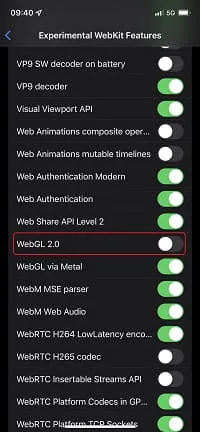
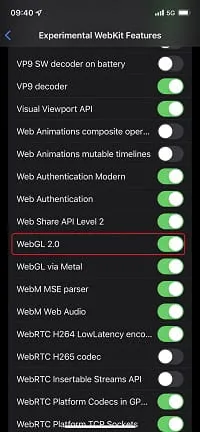
Look for WebGL 2.0 and activate it
In case of any problem or difficulty, please do not hesitate to contact the platform's team.