Analyzing a Diagnostic
The Diagnostic section allows you to check if your device, browser, and network meet the technical requirements to navigate the 3D Application properly.
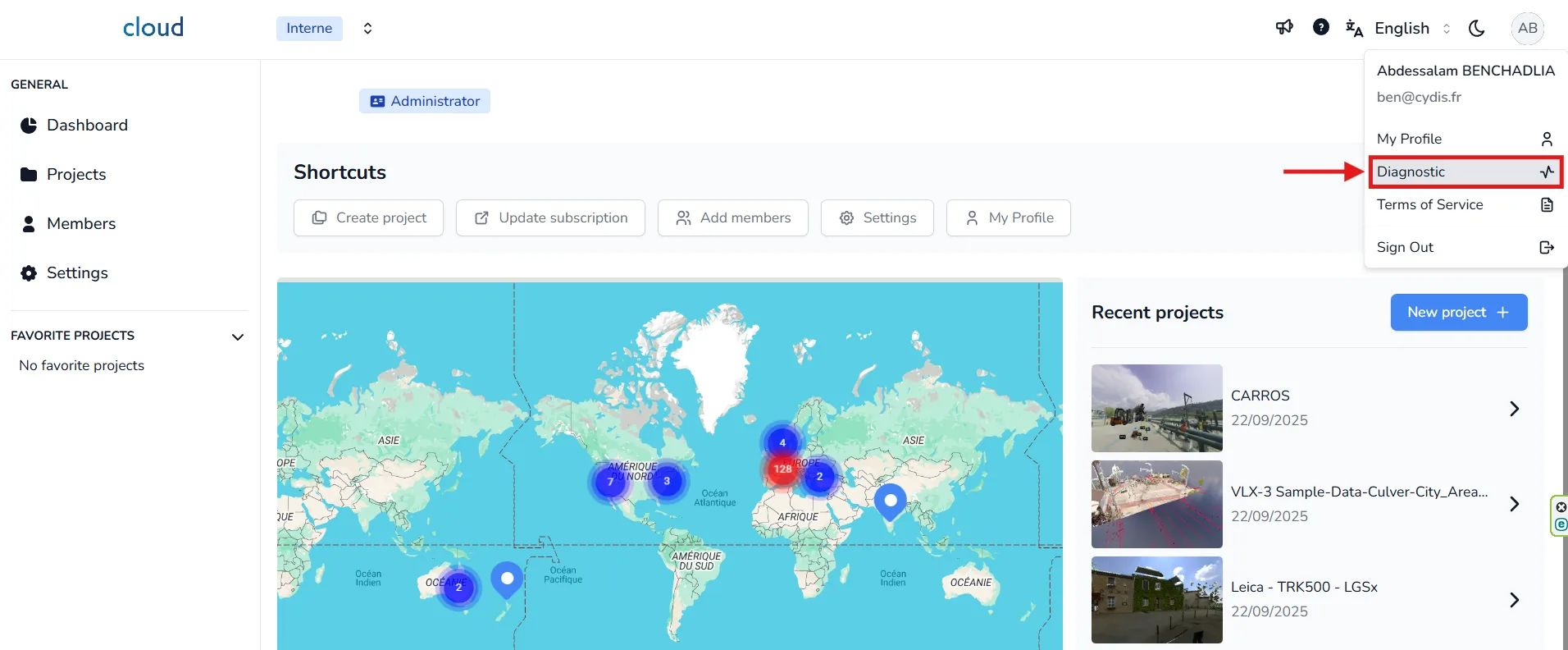
You can access this page from your profile menu:
On the Diagnostic page, you'll see:
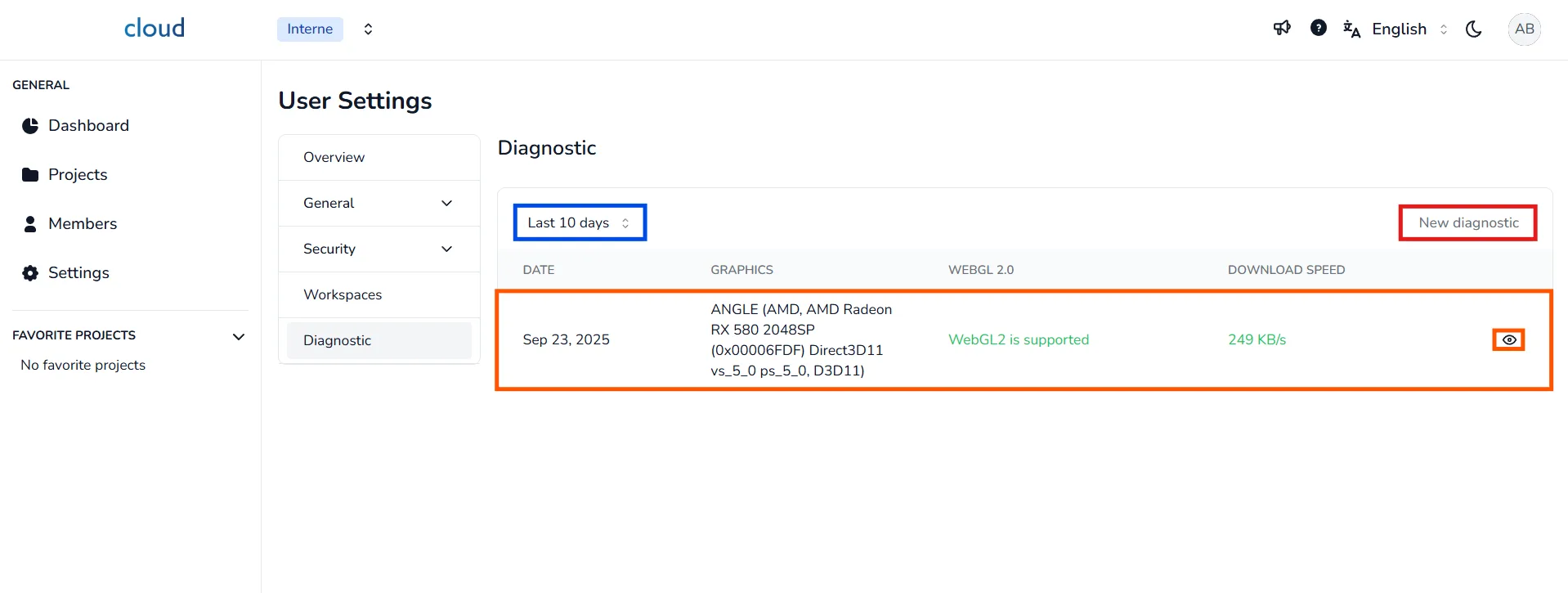
- A list of diagnostics performed in the last 10 days (you can also select Last 20, 30 days, or All).
- A summary of the key data for each diagnostic.
- Click the 👁️ eye icon to view full details.
- Click New Diagnostic to generate a new report.
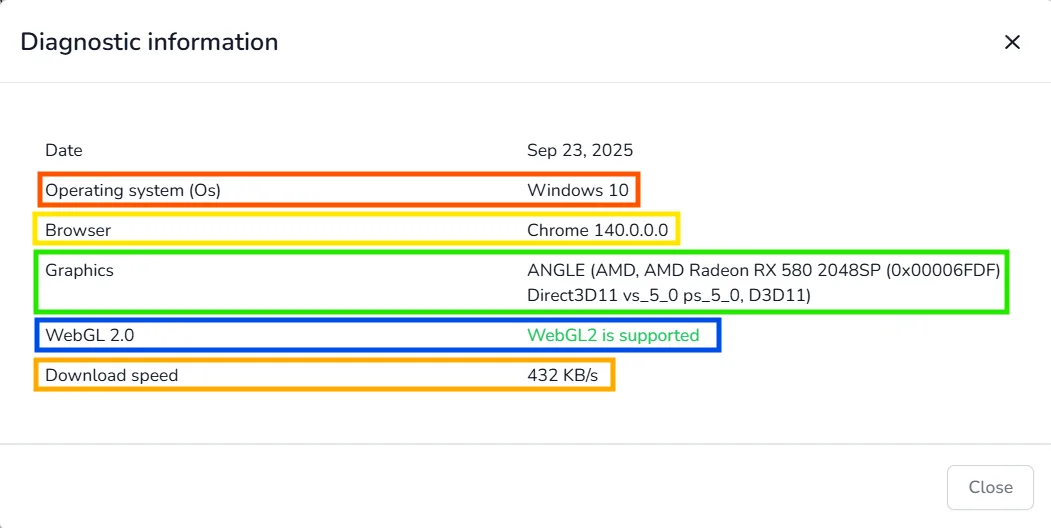
Once you open a diagnostic, you'll find the following details:
-
The first indicator is the OS you are using, basically the system of your device. Both desktop and mobile devices are supported, only exceptions for old devices and certain browsers, visit the browser/device compatibilities article for more information. You can learn more information about how to use the 3D Application with a mobile device in the index, just type "mobile" in the platform's search bar located on the help-center's index page.
-
Second on the list, the browser you are using, each browser has a different way of working, we recommend Chrome or any other chromium browser (such as edge or brave), Mozilla Firefox will also let you navigate the 3D Application, however the performances will be affected by that browser. Safari 15 is now supported in the 3D Application, however we do not recommend its use, and you will need to manually activate WebGL, visit the WebGL 2.0 activation article for more information.
-
You will then find your graphic card, this is used by the 3D Application to improve performances, make sure that your browser is currently using your graphic card. Computers without a graphic card can access the 3D Application, however it will be slower. To make sure you are using the correct one, visit this article.
-
You will find also the WebGL compatibility. If you are compatible with WebGL, you should be able to access the 3D Application. If WebGL is not compatible your device might be too old or your browser/browser version might not be compatible with WebGL, in this case, try another browser or update it. Ultimately, you might have to try with another device. To learn more about compatibility, see the dedicated article. Reminder: On Safari, WebGL must be activated manually, go to the WebGL 2.0 activation article to find the tutorial.
-
Finally, your internet speed, this is one of the most important information here, the faster your broadband, the faster your 3D Application will work, we consider that above 15Mbps your speed is good, it is ok between 5 and 15Mbps and low below 5Mbps. The same goes for the files upload/download, the faster your speed is, the faster you will finish these tasks.
In case of any problem or difficulty, please do not hesitate to contact the platform's team.