Enabling/Disabling the MFA
Before starting, please be aware that U.S. residents won't be able to use the MFA because the U.S. telecom providers will not support it.
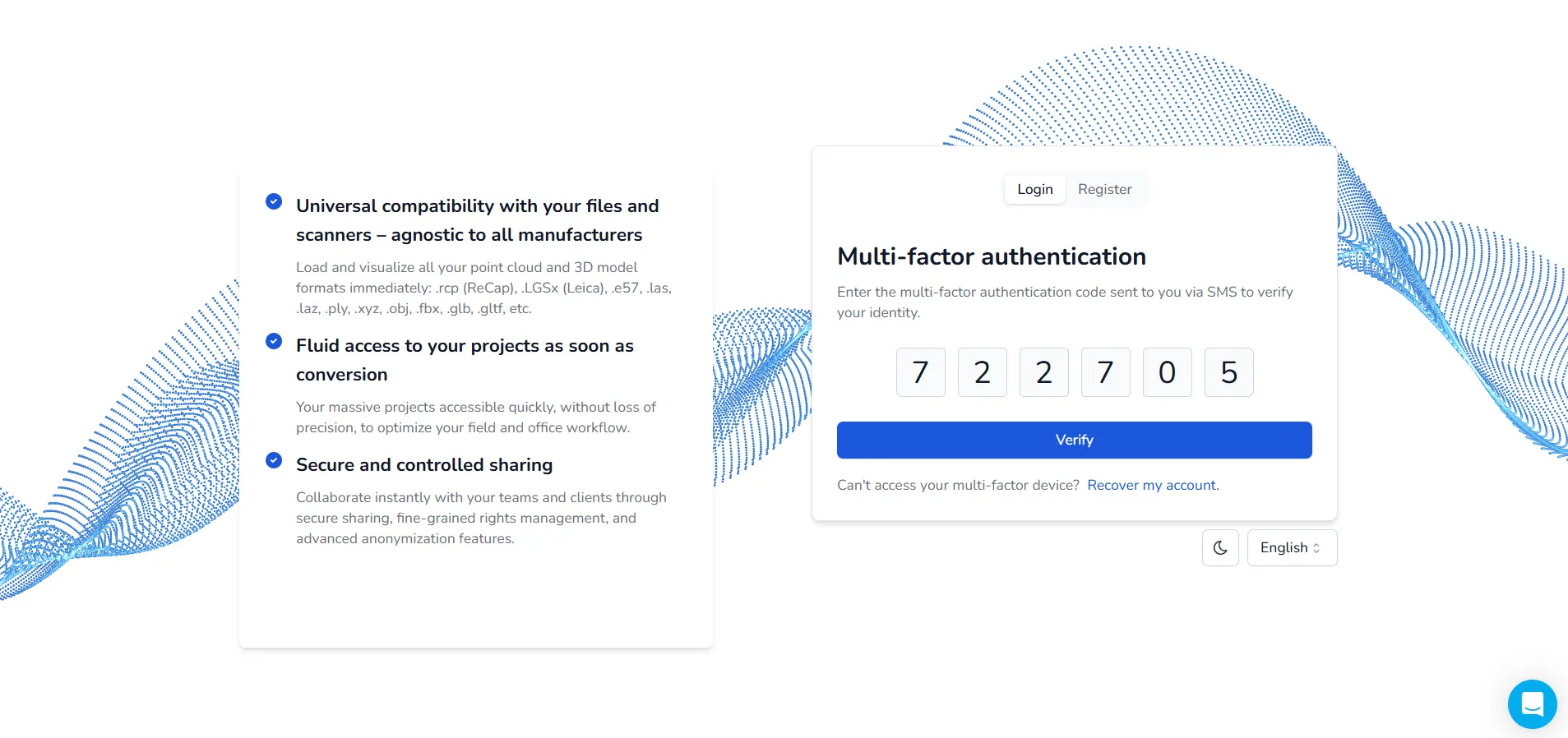
MFA allows you to protect your account, after logging in we will send you a code on your phone via SMS, you will then have to enter this code into the site. This allows us to verify your identity. Make sure to always have your phone with you, you won't be able to access the platform without it if the MFA is activated. If you can't access your phone for any reason, reach out to the platform's team. Using MFA is not mandatory but can be useful if you are working with sensitive data. It is a good way to protect your account and is therefore recommended.
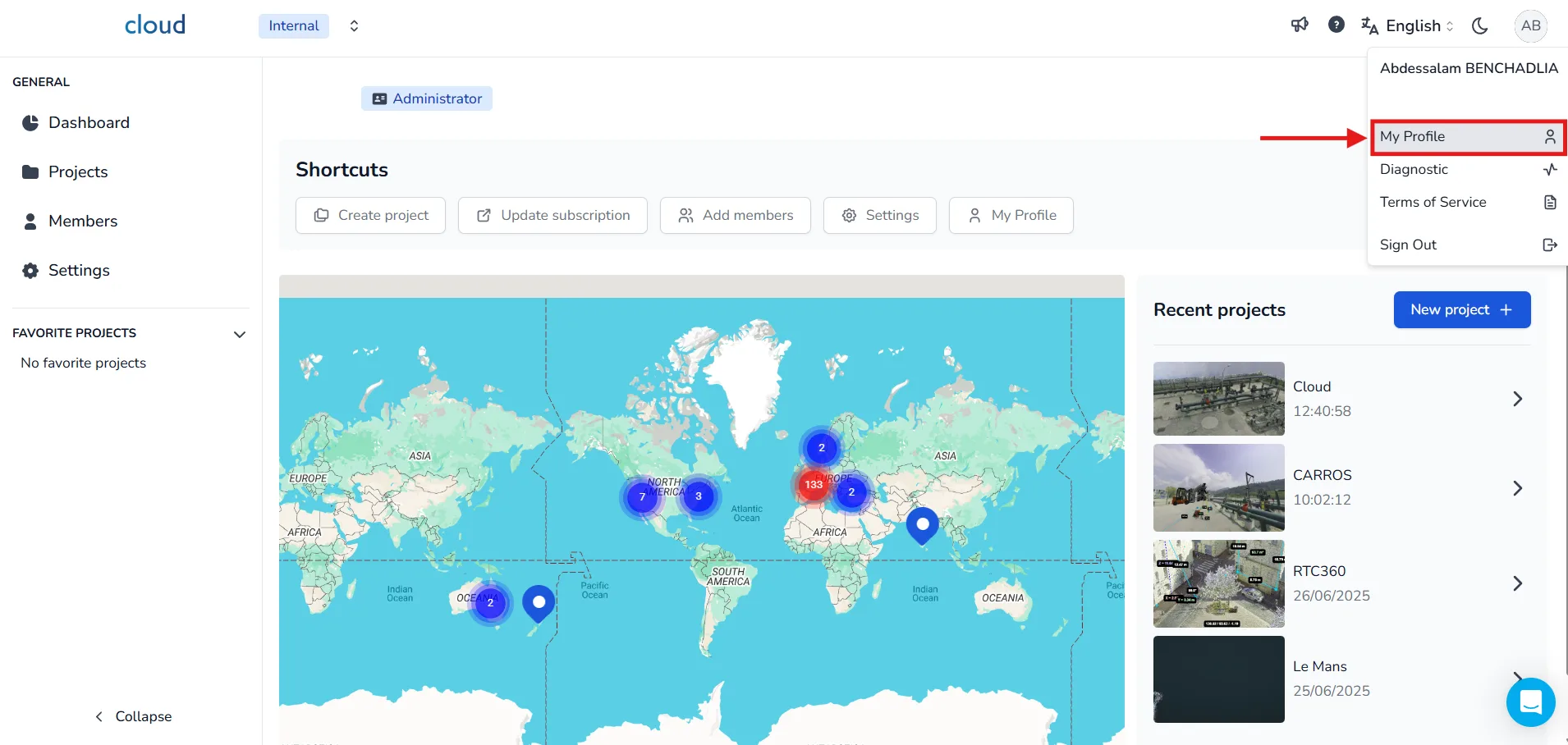
To activate the multi-factor authentication (MFA), go to your profile page by clicking on your icon in the top right corner, then select My Profile.
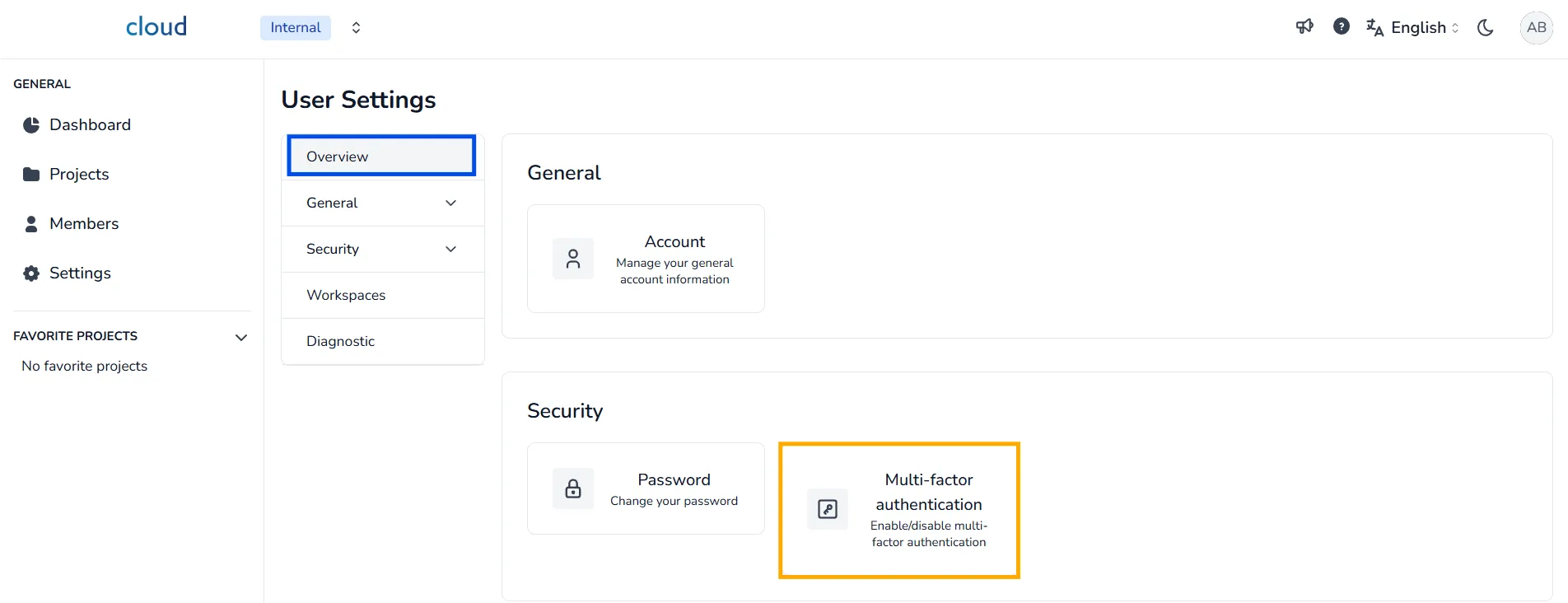
In the Overview section, click on Multi-factor authentication.
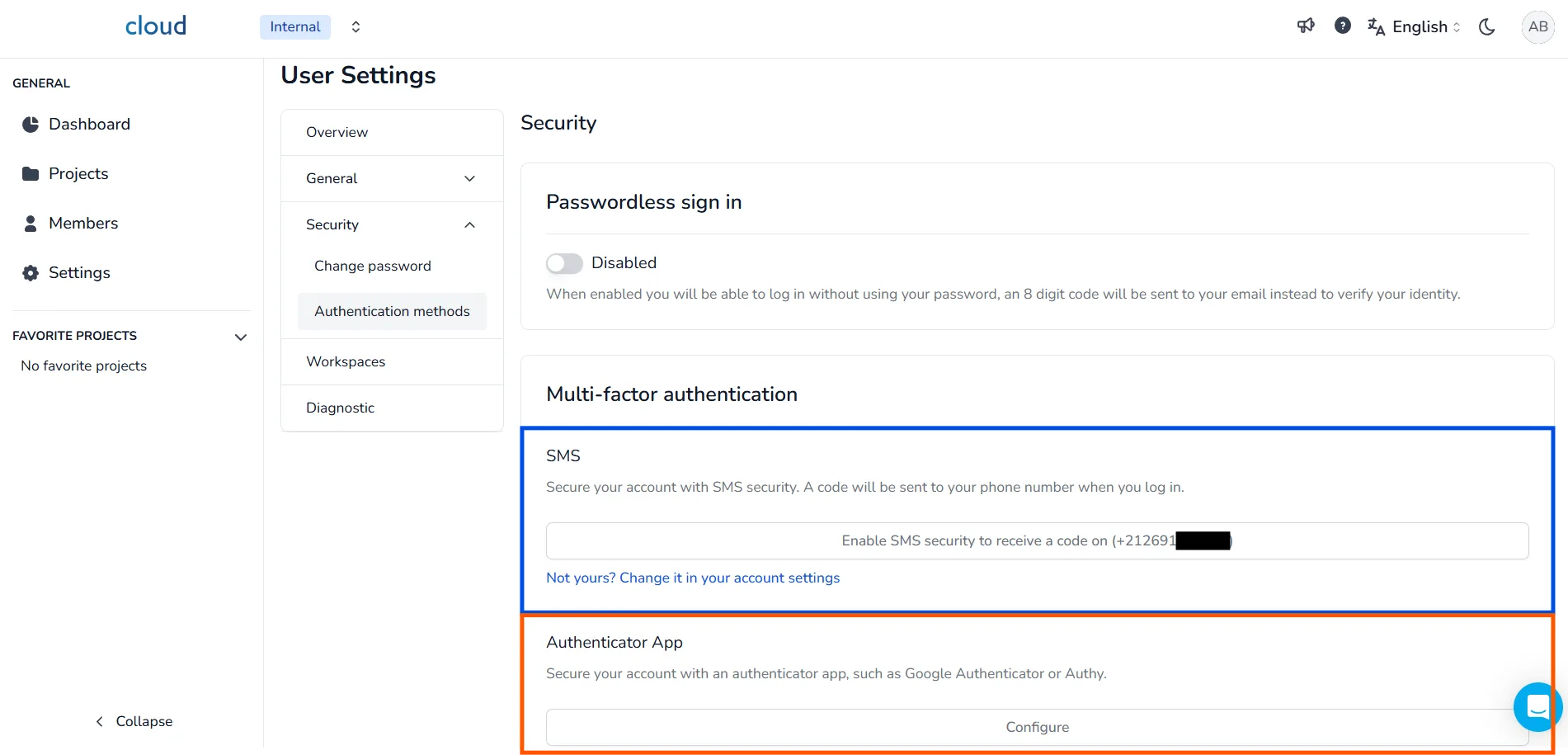
You can then choose between two options to secure your account:
-
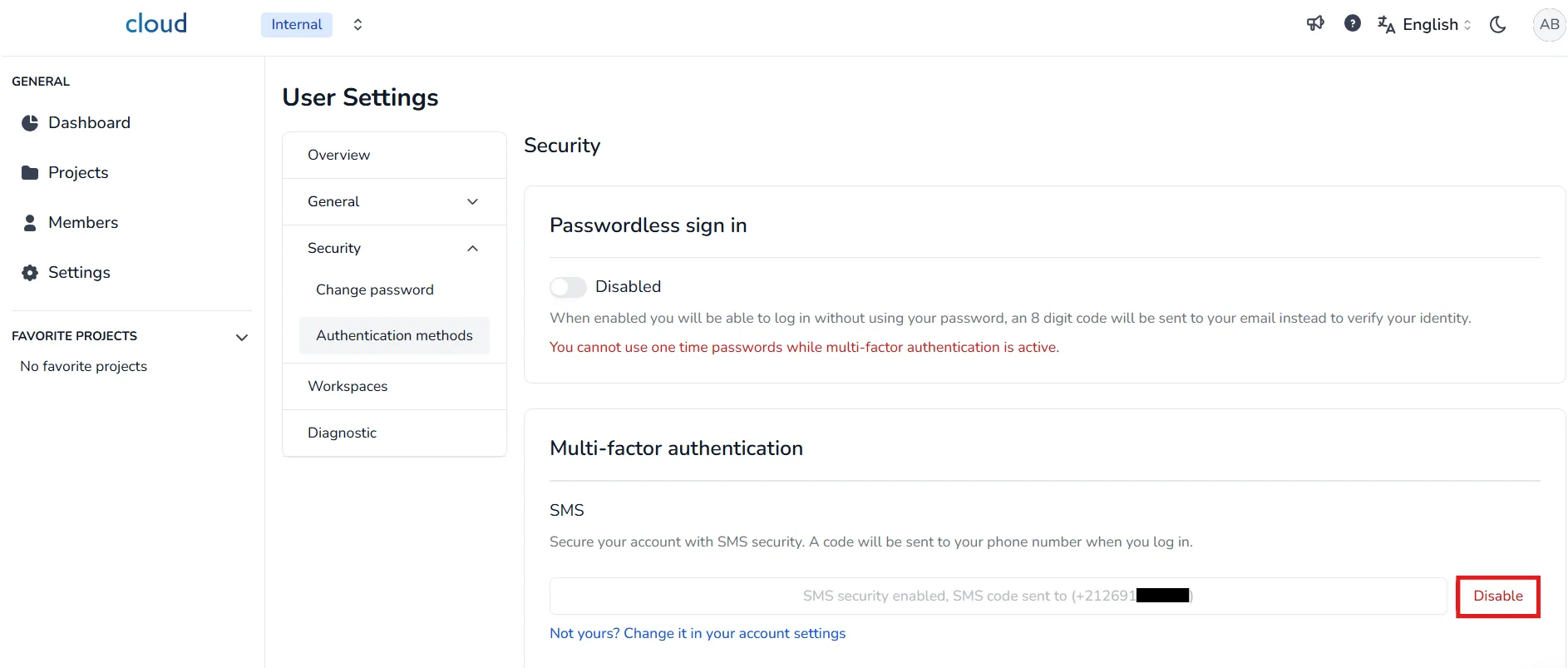
SMS : A security code will be sent to your phone number each time you log in.
If the number displayed is not yours, click on change it in your account settings. -
Authenticator App : Use an app such as Google Authenticator or Authy by clicking on the Configure button.
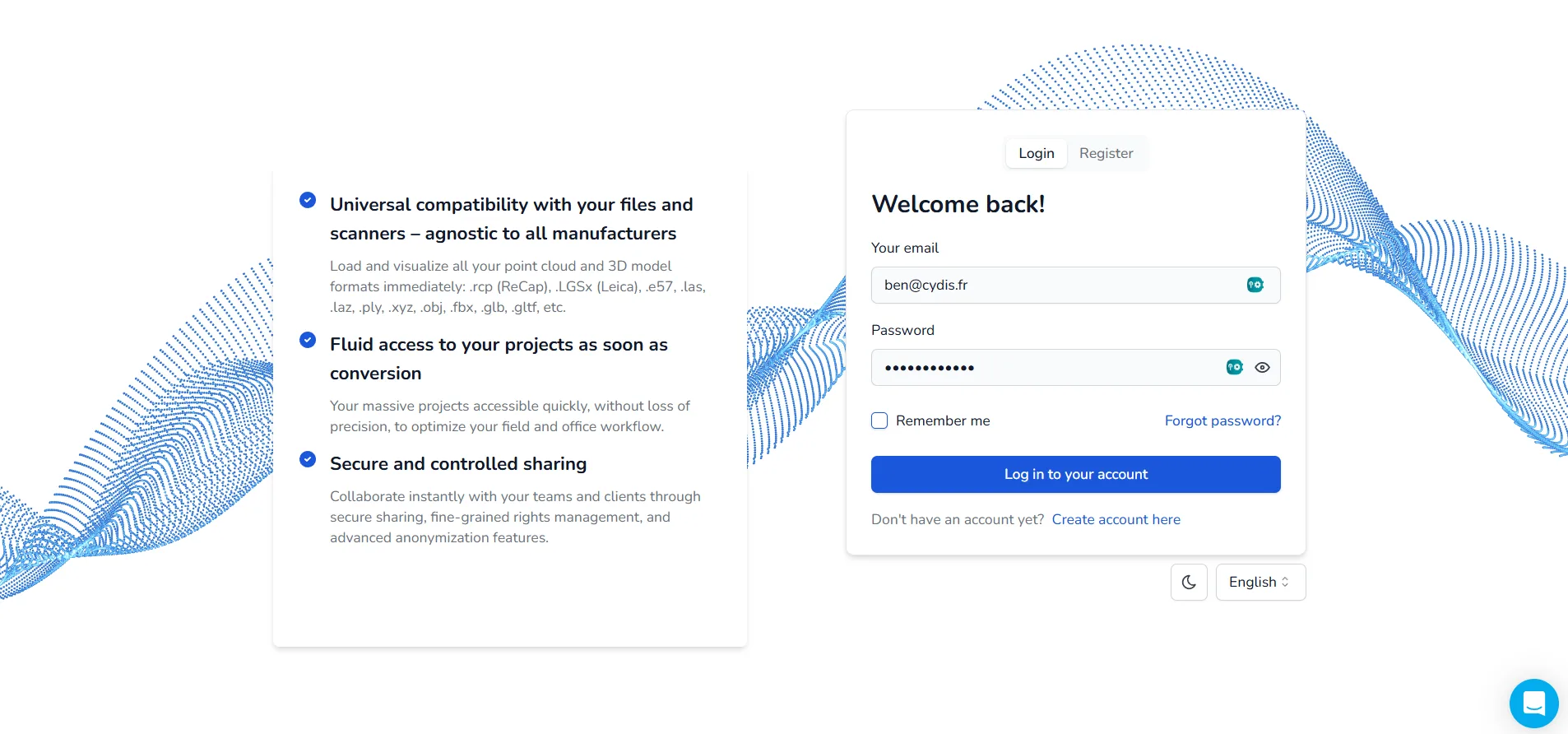
From now on, when logging in after entering your email and password, a code will be required to access the platform.
If you wish to deactivate the MFA, go back to your profile, open the multi-factor authentication tab and click on the Disable button.
In case of any problem or difficulty, please do not hesitate to contact the platform's team.