Complemento de Autodesk Revit - Instalación
Si experimenta problemas de instalación o mal funcionamiento del complemento, asegúrese de que está utilizando la versión más reciente del complemento. Puede encontrar la versión más actual en los enlaces de descarga a continuación. Si los problemas persisten, comuníquese con nuestro equipo de soporte para obtener asistencia.
Requisitos del complemento
Configuración mínima:
Procesador: Doble núcleo de 2 GHz o superior
RAM: Mínimo 8 GB o más
Tarjeta gráfica: Nvidia Quadro o GeForce de 1 GB + OpenGL 4.5 o versiones superiores (los controladores más recientes deben estar instalados)
Disco duro: 1 GB o más de espacio de almacenamiento libre
Configuración recomendada:
Procesador: Intel® i-Series, Xeon®, AMD® Ryzen, Ryzen Threadripper PRO. 2.5 GHz o superior
RAM: Mínimo 16 GB o más
Tarjeta gráfica: Nvidia Quadro o GeForce de 1 GB + OpenGL 4.5 o versiones superiores (los controladores más recientes deben estar instalados)
Disco duro: 5 GB o más de espacio de almacenamiento libre
Instalar el complemento de Autodesk Revit
Solo la última versión principal de cada complemento (actualmente Autodesk Revit 2027) recibe nuevas funcionalidades y mejoras. Las versiones anteriores permanecen disponibles para su descarga, pero reciben solo correcciones de seguridad y ya no se actualizan con nueva funcionalidad. Recomendamos usar la versión más reciente para beneficiarse de todas las últimas funcionalidades.
- Descargar complemento de Autodesk Revit (2027)
- Descargar complemento de Autodesk Revit (2026)
- Descargar complemento de Autodesk Revit (2025)
- Descargar complemento de Autodesk Revit (2022, 2023, 2024)
Una vez que reciba el instalador, ábralo (haga doble clic en el archivo) para mostrar la siguiente interfaz:
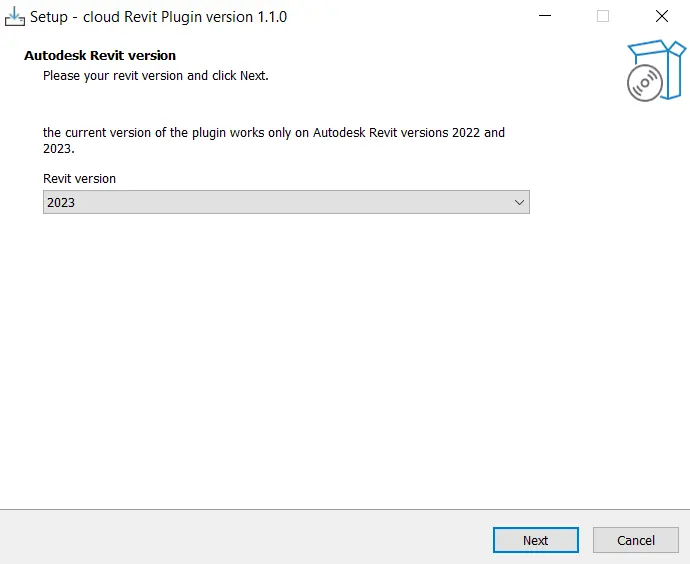
En esta ventana, seleccione la versión de Autodesk Revit en la que desea instalar el complemento (2022 o 2023). Haga clic en la versión deseada en el rectángulo de selección (rectángulo rojo) de la foto a continuación:
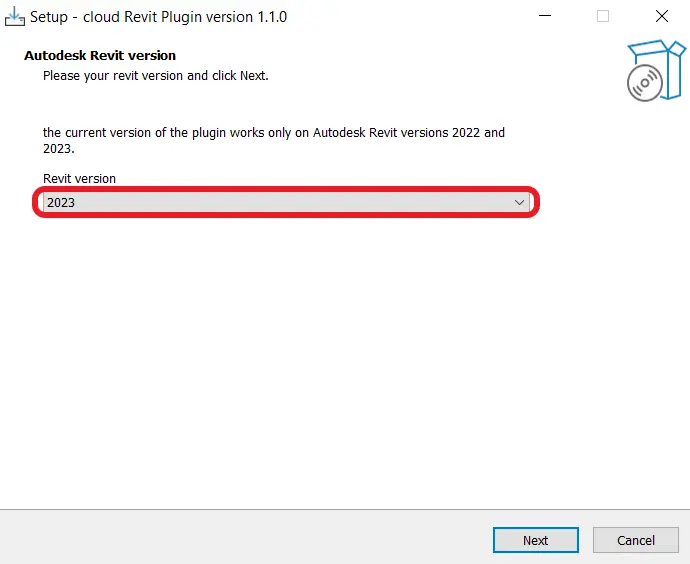
Después de elegir la versión, haga clic en "Siguiente" ubicado en la parte inferior derecha de la interfaz. La interfaz cambiará para mostrar la siguiente foto:
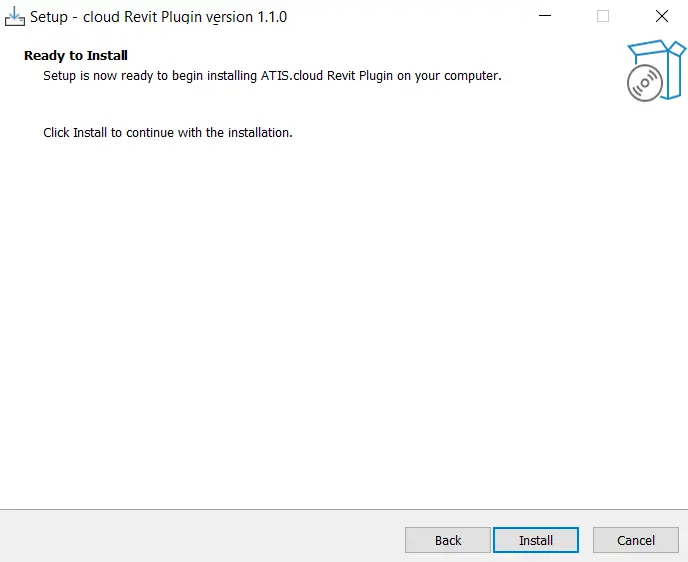
En cualquier momento, puede regresar a su selección anterior haciendo clic en "Anterior", o cancelar la descarga actual haciendo clic en "Cancelar". Para continuar con la instalación, haga clic en "Instalar".
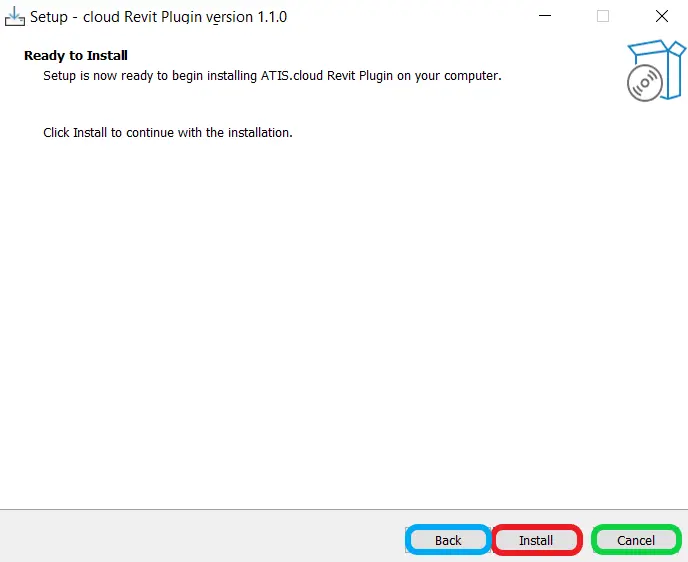
Para obtener más información sobre cómo cancelar la descarga, consulte la sección "Cancelar la descarga en progreso". Si ocurre un conflicto durante la instalación, consulte "Conflicto de Autodesk Revit".
La descarga comenzará automáticamente y llegará a esta interfaz:
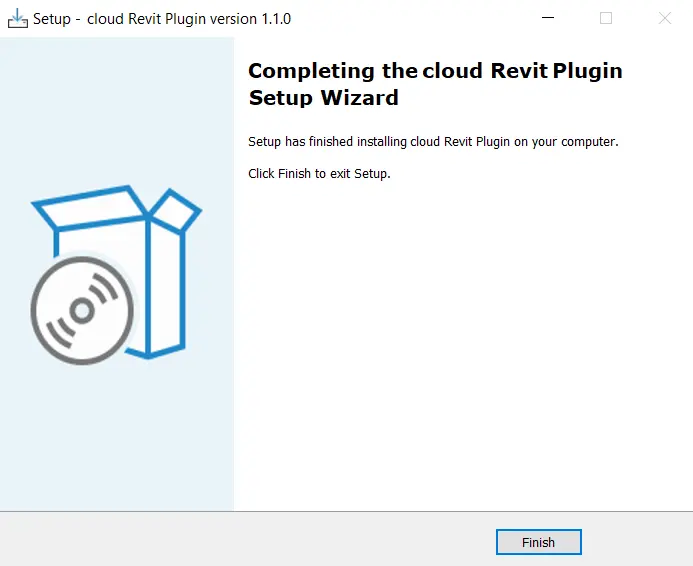
¡Felicidades! Ha terminado de instalar el complemento de Autodesk Revit. Haga clic en el botón "Finalizar" (marco azul) en la parte inferior derecha de la interfaz para finalizar el proceso.
Cancelar la descarga actual
Si hizo clic en el botón "Cancelar" ubicado en la parte inferior derecha de cada interfaz de instalador, verá la siguiente interfaz:

Tiene dos opciones: haga clic en "Sí" para cancelar la instalación del complemento de Autodesk Revit, o haga clic en "No" para volver a la interfaz anterior.

Conflicto, Autodesk Revit está en ejecución
Si ocurre un conflicto durante la instalación, aparece una ventana de conflicto.
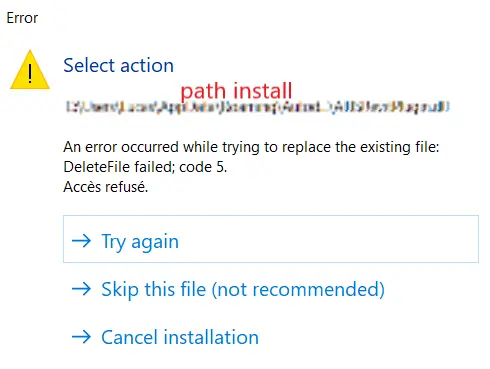
En este caso, puede optar por continuar la descarga cerrando automáticamente la aplicación de Autodesk Revit. Tenga en cuenta que cualquier proyecto actualmente abierto en Autodesk Revit no se guardará y se perderá. Asegúrese de haber guardado su trabajo antes de continuar. También puede optar por continuar la instalación sin cerrar las aplicaciones en conflicto. Sin embargo, esto hará que la instalación falle con el siguiente mensaje:
Finalmente, puede hacer clic en "Cancelar" para cancelar la instalación. Para obtener más información sobre cómo cancelar, consulte la sección "Cancelar la descarga actual". También puede hacer clic en "Siguiente", que por defecto realizará la misma acción que continuar la instalación cerrando la aplicación de Autodesk Revit.
Si se encuentra con problemas, nuestro equipo de soporte está aquí para ayudarle. ¡Feliz exploración!