Editing an Annotation in the Project Edition Page
To edit an annotation, first access your project and go to the Annotations tab, where all annotations created in the project are listed.
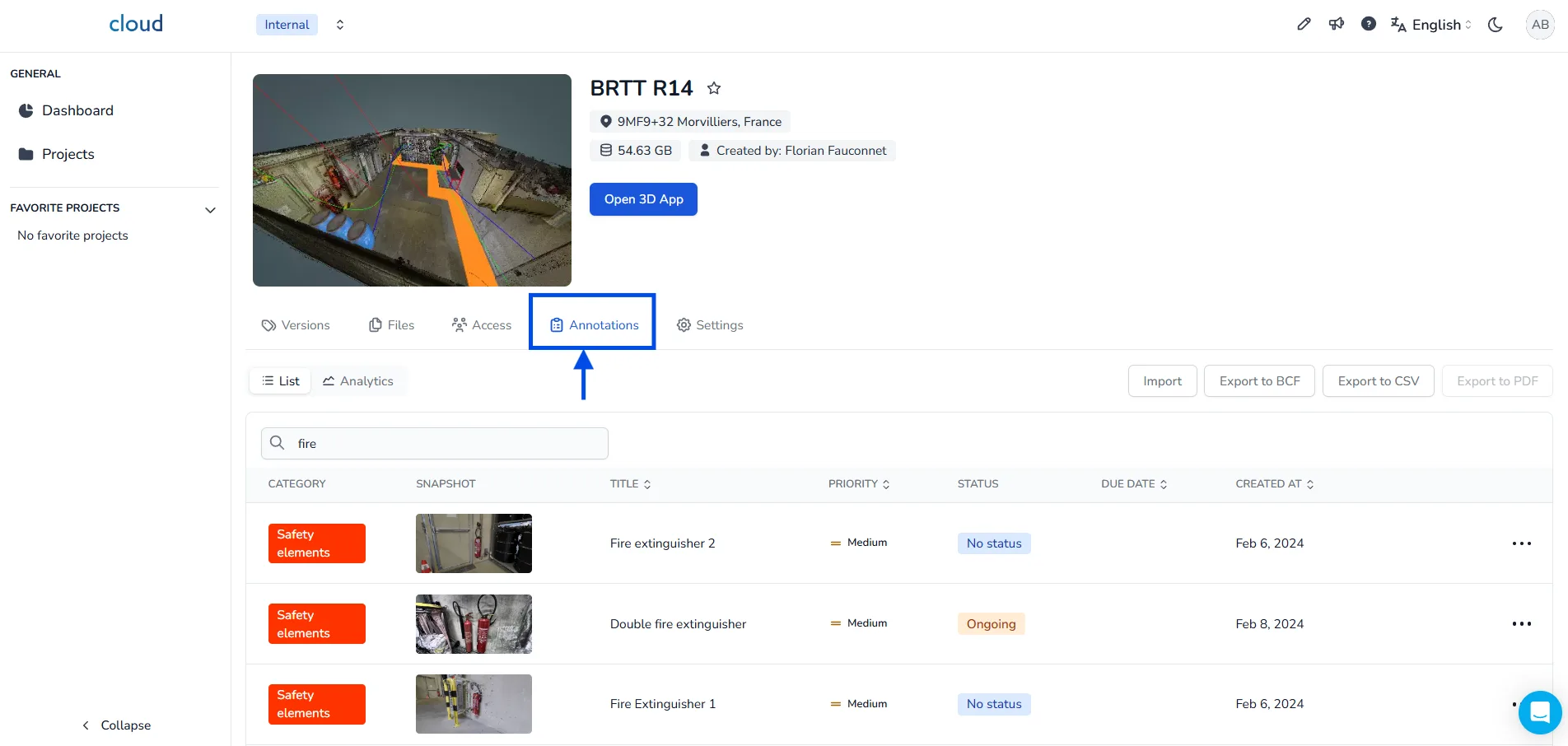
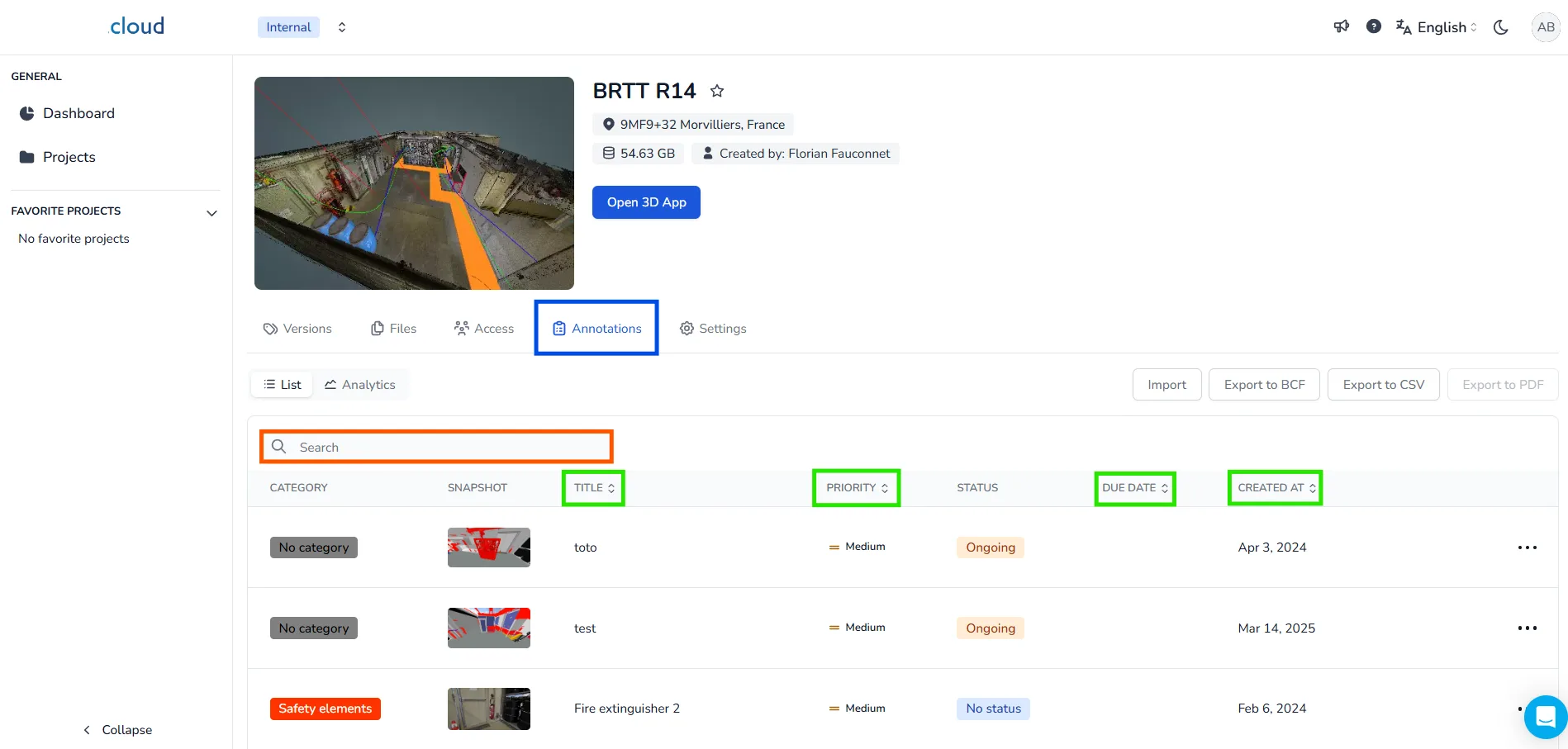
You can quickly locate an annotation by:
- Typing its name in the Search bar
- Or by sorting via Title, Priority, Due Date, or Created At
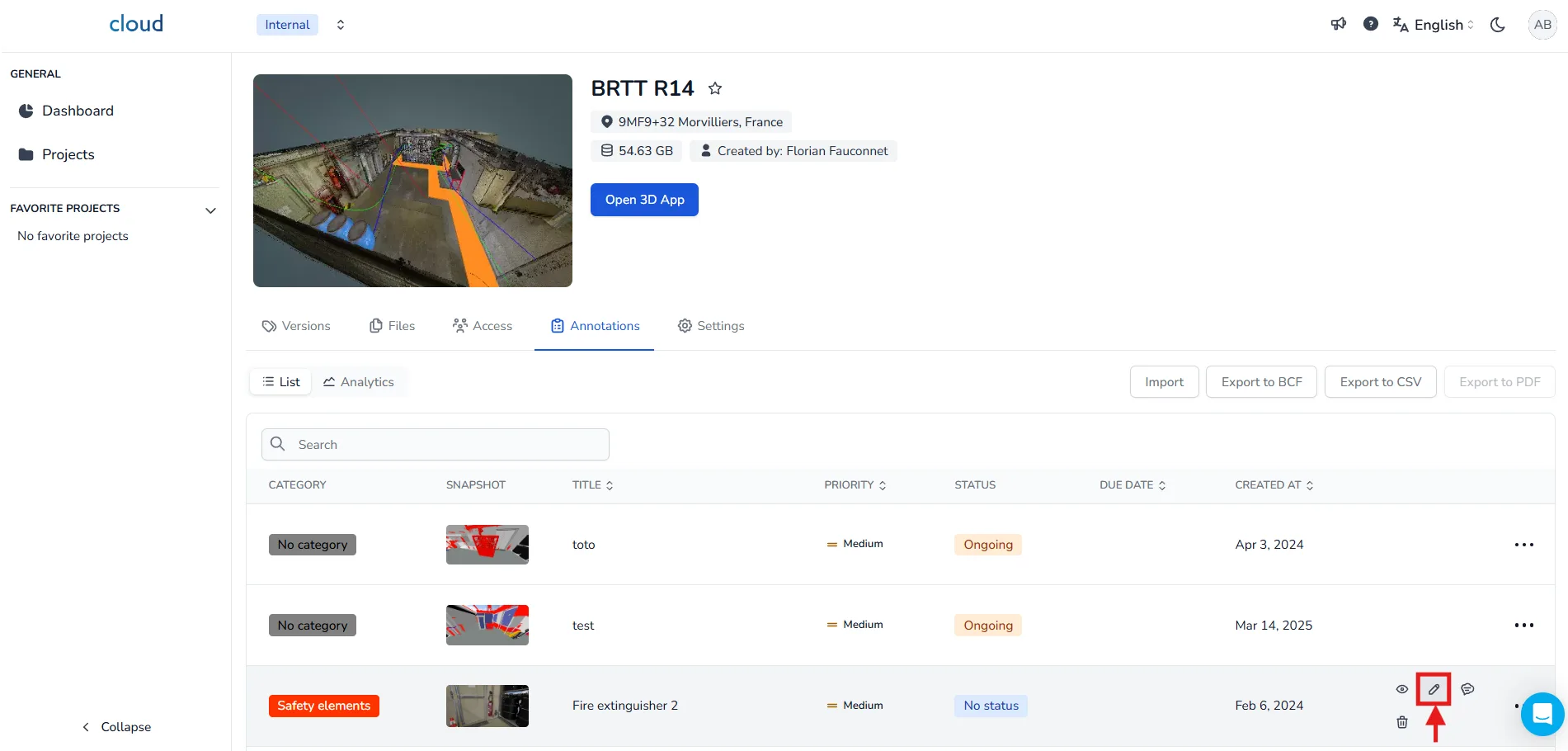
Once you've found the annotation, click on the Edit icon (🖉).
This will open a detailed window with all editable information:
🔹 Left Section
- You can update the description by clicking the Edit button.
- You may add, delete, or download attached files using the 3-dots icon.
- The Comments section allows you to add or read messages visible to all users.
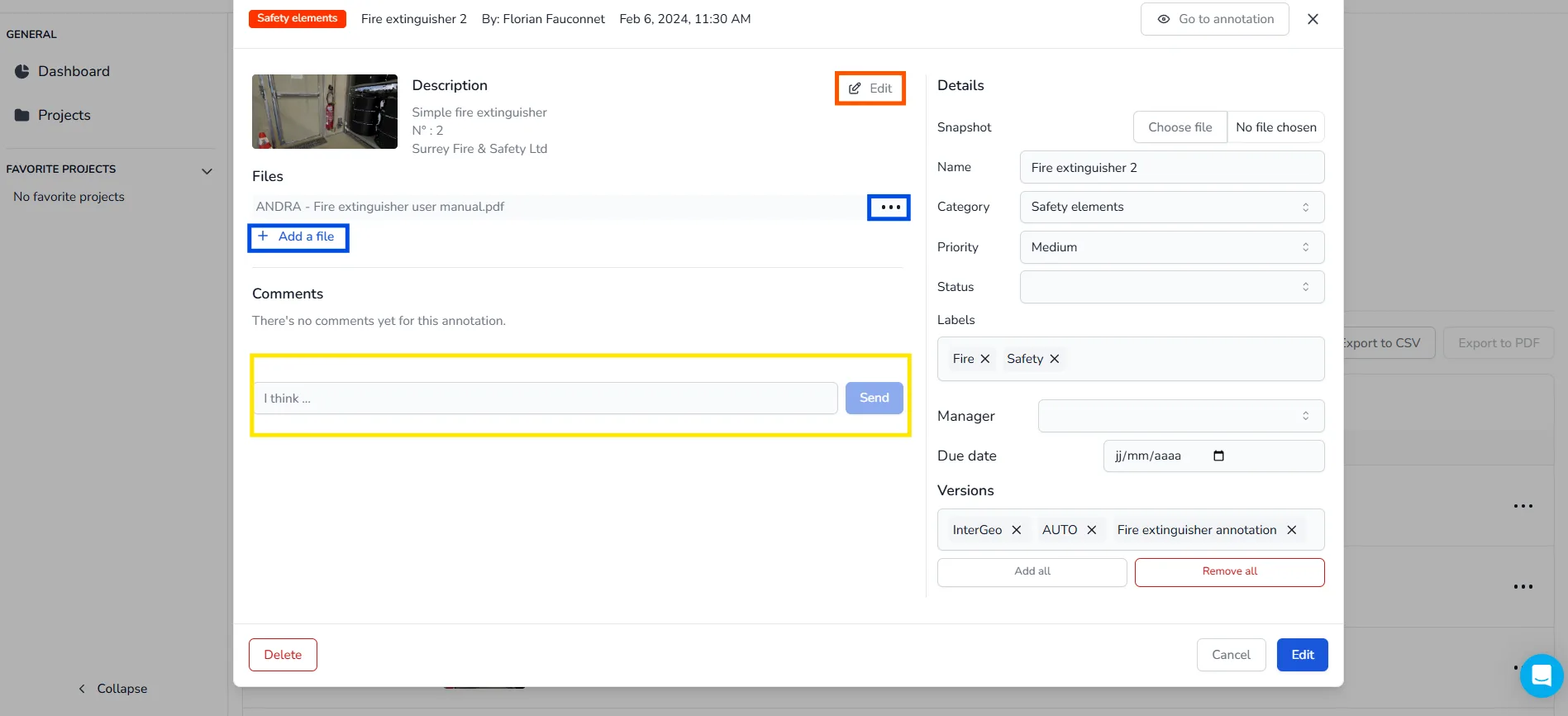
🔸 Right Section - Details
Here you can modify:
- Snapshot - Update the cover image for the annotation.
- Name - Change the title of the annotation.
- Category, Priority, and Status - Use the dropdowns to change.
- Labels - Add or remove tags.
- Manager - Assign the annotation to a project user.
- Due Date - Edit the deadline.
- Versions - Choose to assign the annotation to:
- One or more specific versions of your project by name
- All versions
- Or remove it from all
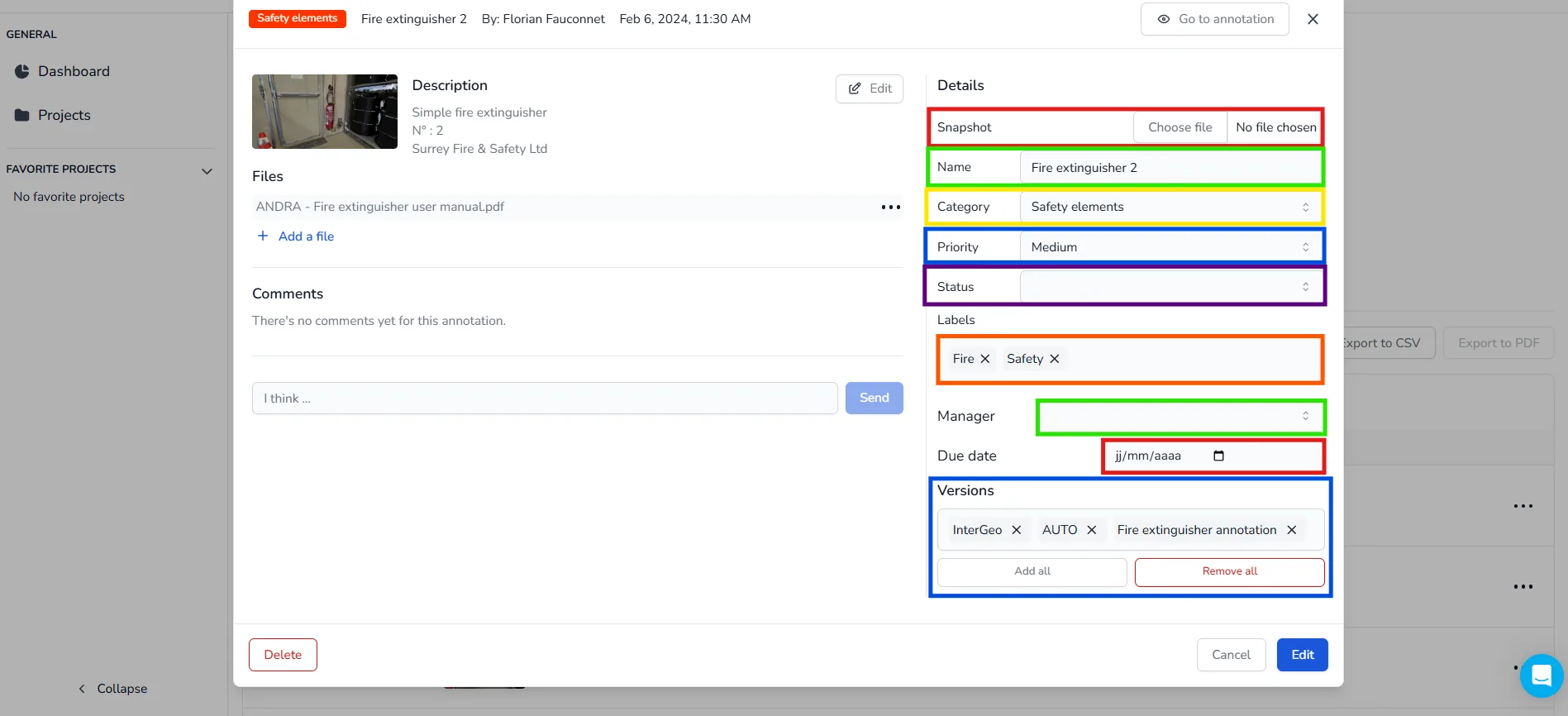
Once finished, click Edit to save your annotation changes.
If you have any problem or difficulties, please do not hesitate to contact the platform's team.