Exporting Point Clouds and 360° Images from XGRIDS LixelStudio
LixelStudio is a point cloud and image capture software developed by XGRIDS. It allows 3D laser scanning professionals to process data, including point clouds and panoramic images.
This article explains how to correctly process data from XGRIDS LixelStudio and prepare it for further use.
Processing Data in XGRIDS LixelStudio
-
Process Your Project:
Open the Project Processing tab and use the Map Fusion functionality to process your project. -
Set Output Options:
In the Project Processing tab, enable the Output panoramic images option and define the desired image resolution.

-
Start the Process:
Begin the processing. -
Locate the Result Data:
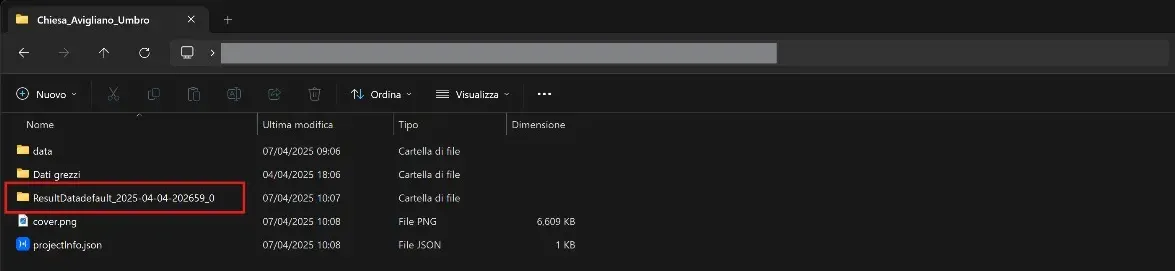
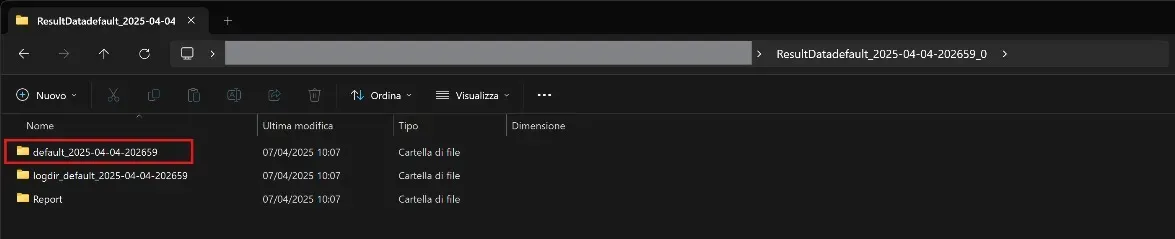
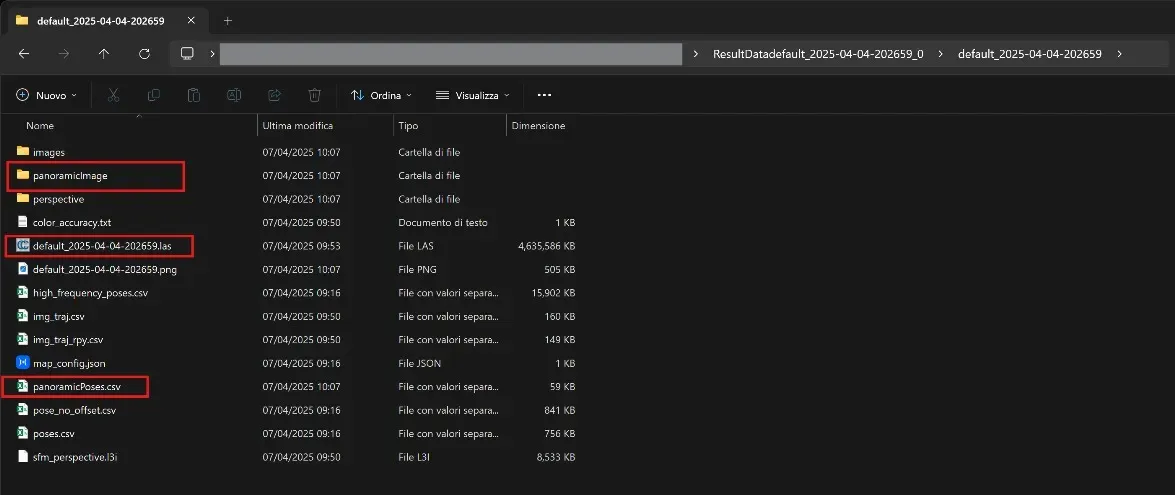
Once the process is complete, navigate to the project root folder (e.g.,default_2025-04-04-202659). Open theResultDatafolder (e.g.,ResultDatadefault_2025-04-04-202659_0) and find the following files:- The
.lasfile (e.g.,default_2025-04-04-202659.las) - The
panoramicImagefolder - The
panoramicPoses.csvfile
- The
Uploading the Point Cloud
-
Locate the
.lasFile:
Use the.lasfile from theResultDatafolder. -
Upload the Point Cloud:
Upload the.lasfile directly to your project using the Add files to project functionality.
For further details, see this article.
The following steps should be performed after the point cloud has been uploaded and processed.
Uploading the 360° Panoramic Images
-
Create a New ZIP Archive:
From theResultDatafolder, compress thepanoramicPoses.csvfile and the entirepanoramicImagefolder into a new ZIP file.
Ensure the structure remains intact (do not rename the CSV file or folder). -
Upload the Panoramic Images:
Upload this new ZIP archive to your project. The platform will automatically parse the CSV file and correctly link each panoramic image.
For more information on uploading 360° images, see this article.
If you have any questions or need further assistance, please contact our technical support team.