Export an e57 file with 360° images from FARO SCENE
FARO SCENE is a point cloud processing and analysis software for 3D laser scanning professionals. This guide will help you ensure your panoramic images are properly integrated and readable when exporting from FARO SCENE.
General Information
The .e57 format can store point cloud data from laser scanners and other 3D imaging systems, as well as associated 2D imagery and core meta-data. To better understand the e57 format, please make sure to read the article "Better understand e57 files".
With FARO SCENE, you will be able to export:
- A structured e57 with all the stations inside (recommended for the platform)
- Structured e57 for each station (not recommended for the platform)
- Unified e57 (not recommended, you will lose the structure, no bubble view possible)
Export Process
Follow these steps to export your e57 file with 360° images:
- From the top bar of FARO SCENE, select the Export Scans tab to begin the export process.
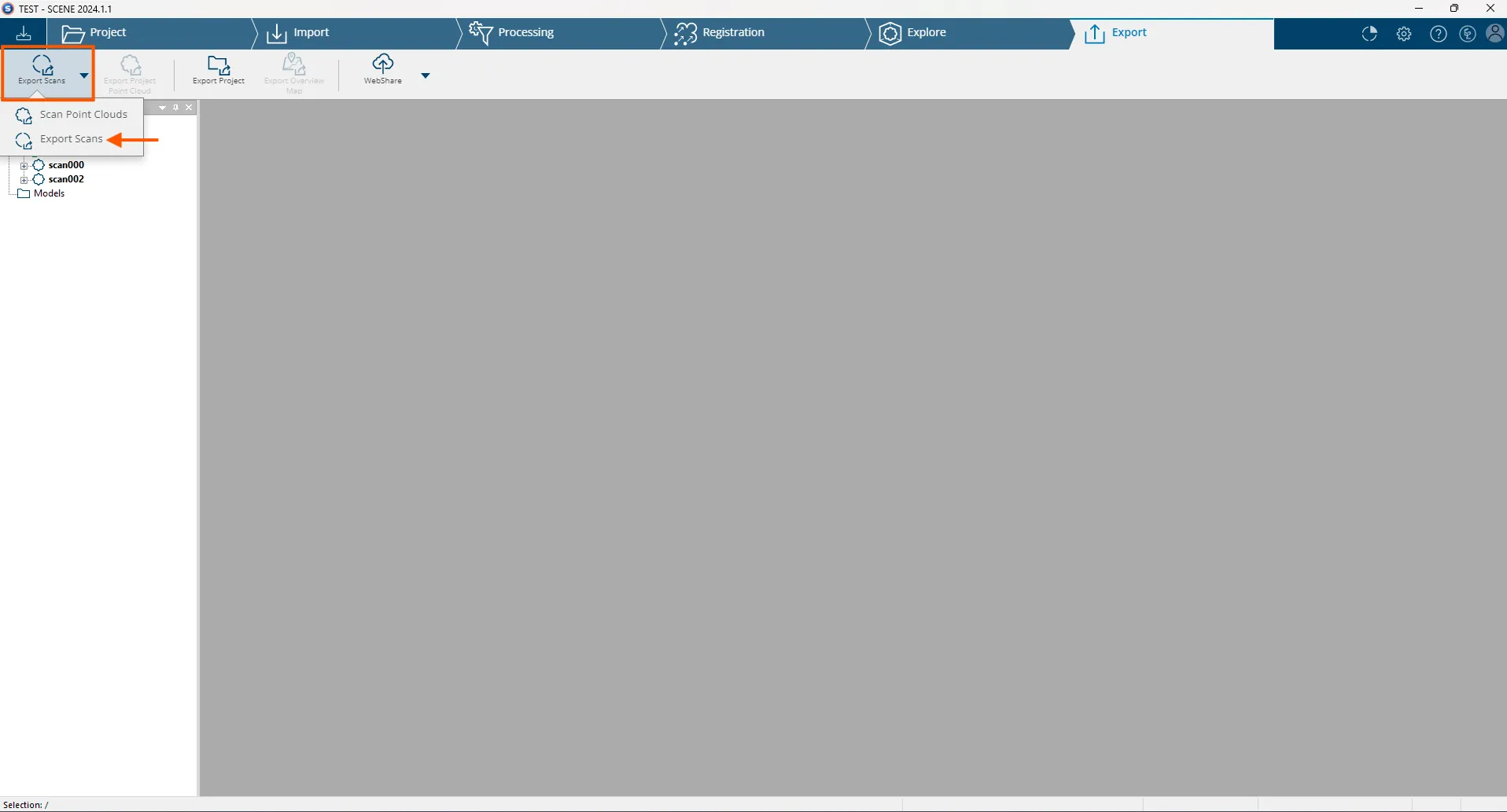
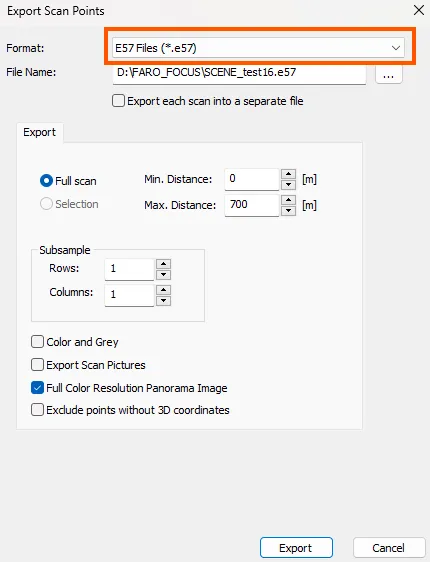
- In the Export Scan Points window, select e57 Files from the Format dropdown menu. This format is ideal for maintaining both point cloud data and panoramic images.
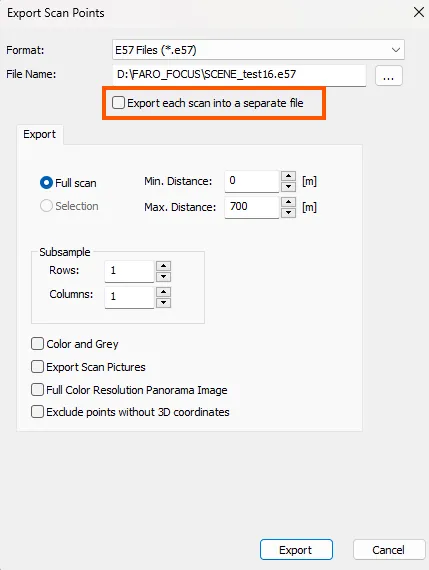
- Make sure to uncheck the option Export each scan into a separate file. This allows you to group all scans into a single .e57 file containing all scan positions, which is recommended for optimal performance on the platform.
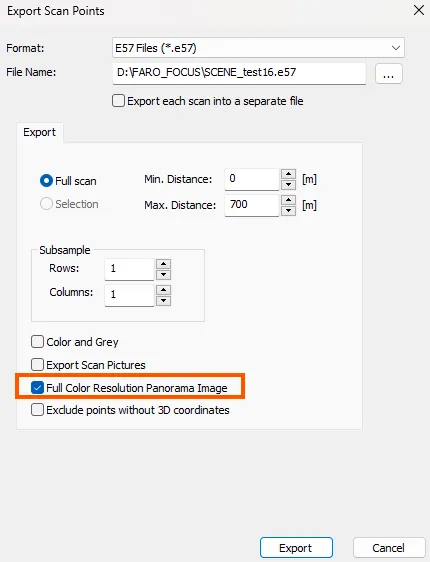
- Check the Full Color Resolution Panorama Image option. This is essential for the 360° images to be visible when importing to the platform. Without this option, the panoramic images will not be included in the export.
Once the file is exported, you can add it to a project on the platform to view both the point cloud and the captured 360° images. The structured e57 format will maintain all scan positions and their associated panoramic views, so you can navigate between scan positions in the application.
The export process duration depends on your project size. Once finished, you need to add the e57 file to your project. Find out how to upload files to a project.
If you have any questions or need further assistance, please contact the technical team.