Set Up Your Computer for the 3D Application
The 3D application displays point clouds with your computer's graphics card. Most slowness comes from a browser that does not use that card. The five checks below take about five minutes and only need to be done once per computer. If a setting is greyed out or marked as managed by your organization, ask your IT department to change it.
1. Use Chrome or Edge, up to date
Open the 3D application in Google Chrome or Microsoft Edge. To update the browser, type chrome://settings/help (Chrome) or edge://settings/help (Edge) in the address bar: the update starts on its own, then click Relaunch (Chrome) or Restart (Edge).
2. Turn on graphics acceleration
- Type
chrome://settings/system(Chrome) oredge://settings/system(Edge) in the address bar. - Turn on Use graphics acceleration when available.
- Click Relaunch (Chrome) or Restart (Edge).
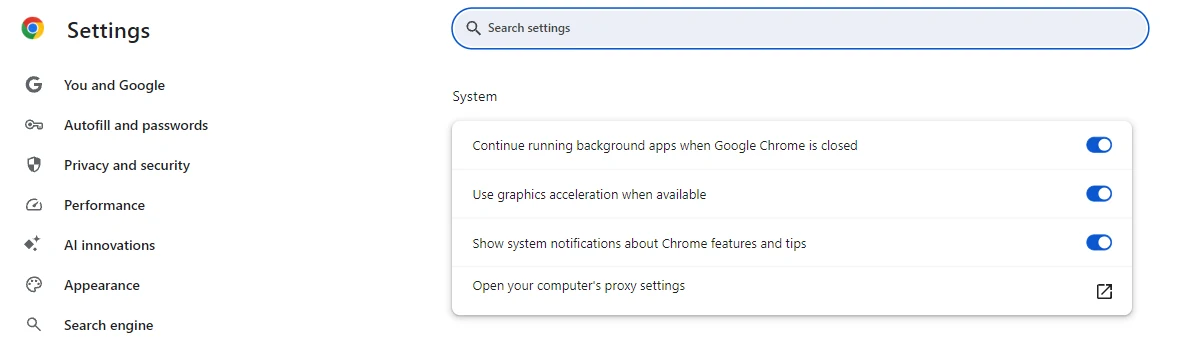
This is the setting that matters most. Without it, the browser draws the 3D on the processor and the display is slow whatever the graphics card.
3. Use the high-performance graphics card (laptops with two cards only)
Open the Task Manager (Ctrl + Shift + Esc), then the Performance tab. If you see only GPU 0, your computer has one graphics card: skip this step. If you see GPU 0 and GPU 1, Windows must give the browser the more powerful one (NVIDIA or AMD):
- Open Settings > System > Display > Graphics.
- If your browser is not in the list, click Add desktop app and select it:
- Chrome:
C:\Program Files\Google\Chrome\Application\chrome.exe - Edge:
C:\Program Files (x86)\Microsoft\Edge\Application\msedge.exe
- Chrome:
- Select the browser, open its options (the Options button or the GPU preference drop-down, depending on your version of Windows) and choose High performance.
- Restart the browser: type
chrome://restart(Chrome) oredge://restart(Edge) in the address bar.
4. Plug in the charger and choose performance
- On a laptop, keep the charger plugged in. On battery, most laptops slow down the graphics card.
- Open Settings > System > Power & battery (Power on a desktop computer) and set Power mode to Best performance.
5. Check the result in the Diagnostic page
- In the platform, click your initials or your profile picture at the top right, then Diagnostic.
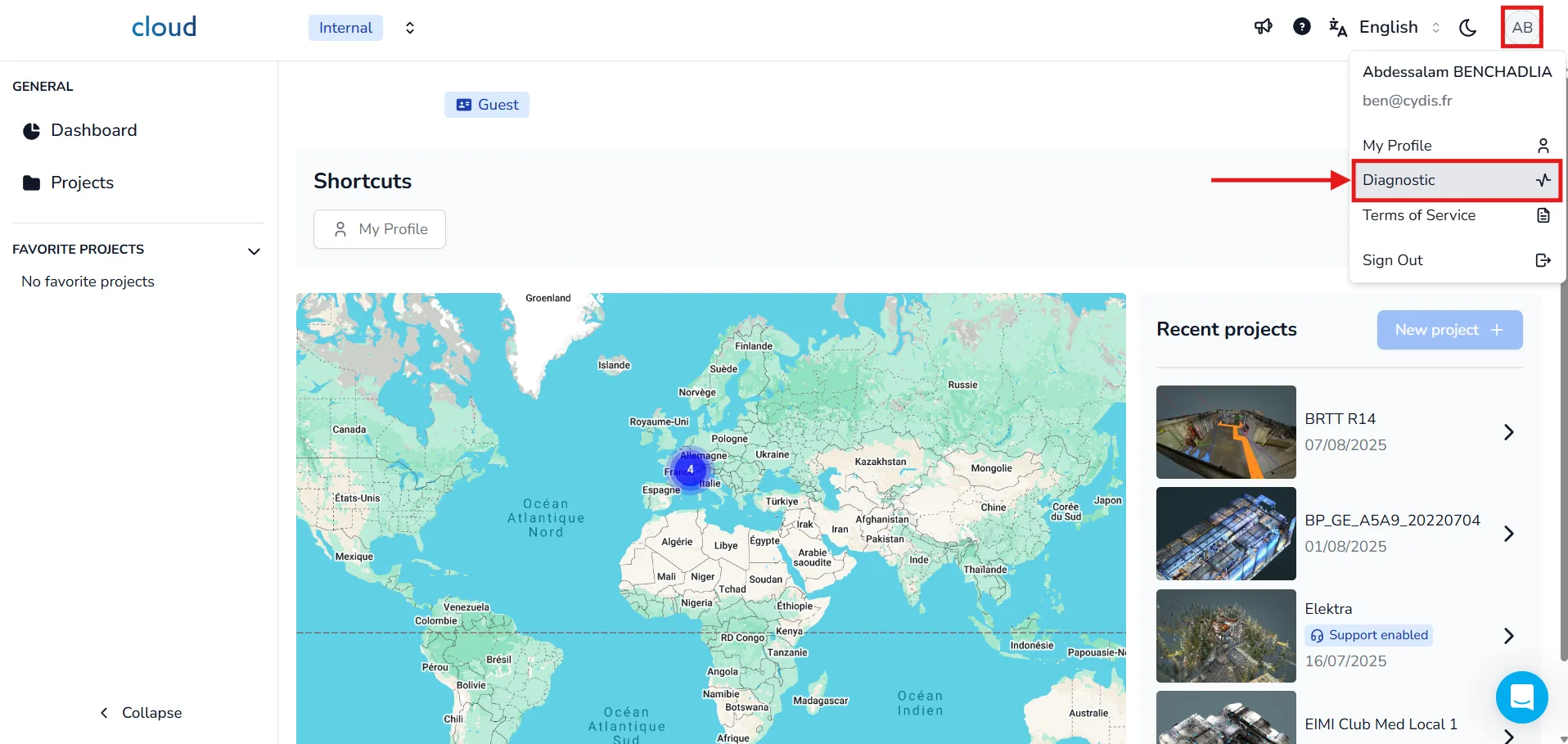
- Click New diagnostic. The Graphics and WebGL 2.0 lines appear at once: you do not need to wait for the Download speed measurement.
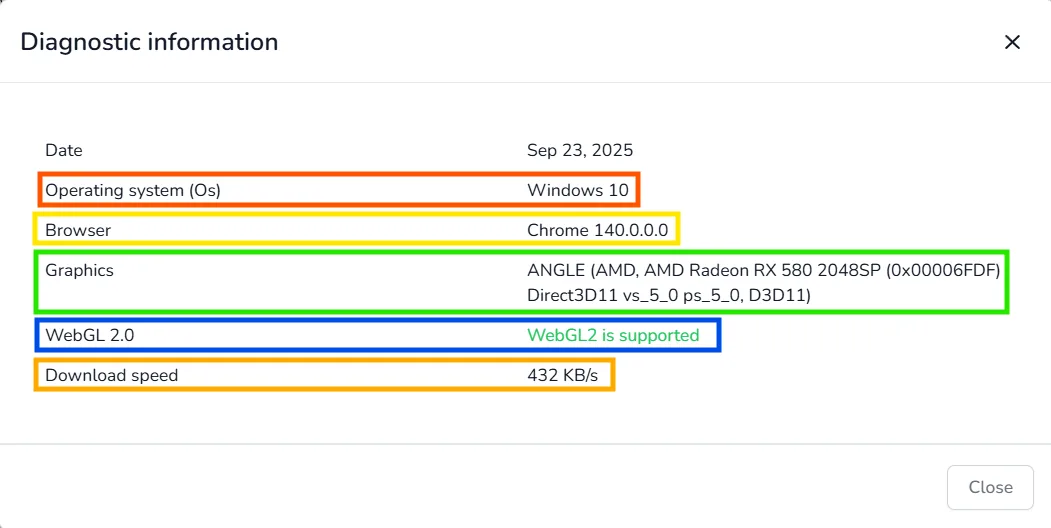
Your computer is ready when:
- WebGL 2.0 reads WebGL2 is supported.
- Graphics names your graphics card, for example Intel, NVIDIA or AMD. On a laptop with two cards, it must name the card shown next to High performance in step 3.
If WebGL 2.0 reads WebGL2 is not supported, or if Graphics reads Unknown or mentions SwiftShader or Microsoft Basic Render Driver, the browser is not using the graphics card: check step 2. If step 2 is already done, you are probably working in a remote session (Remote Desktop, Citrix) or the graphics driver is blocked: send the diagnostic to your IT department.
If you present the 3D application in Microsoft Teams
- Use the Teams desktop application, not Teams in a browser tab.
- Turn off your camera and the background effects (blur, virtual backgrounds).
- Share only the browser window, not your whole screen.
- Close the other 3D software and the other tabs that display 3D content.
On a laptop with two graphics cards, also set Microsoft Teams to High performance in step 3 (with Add Microsoft Store app). The full setup for demonstrations is in Recommended PC Setup for Presenting the 3D Application in Microsoft Teams.
Still slow?
- An outdated graphics driver can also prevent the browser from using the card. If your computer is managed by your IT department, ask them to install the latest driver.
- If a project takes long to load but moves smoothly once loaded, the network is the cause, not the computer.
- Contact the platform team with a screenshot of your diagnostic and the report of
chrome://gpu(oredge://gpu): click Download Report to File at the top of that page.
Key points
- Use Chrome or Edge with graphics acceleration turned on.
- On a laptop with two graphics cards, give the browser the high-performance card and keep the charger plugged in.
- The Diagnostic page must show WebGL2 is supported and the name of your graphics card.
- If a setting is locked or the check fails, ask your IT department.