Recommended PC Setup for Presenting the 3D Application in Microsoft Teams
The 3D application draws point clouds through WebGL, so it runs on the graphics card (GPU). When you share your screen in a Microsoft Teams meeting, Teams also uses the GPU to encode the video it sends to the other participants. If Chrome lands on the wrong GPU, or falls back to software rendering, the two compete for the processor and the demo stutters for the audience even when it looks fine on your own screen.
This article describes the configuration we recommend on a Windows 11 PC used for demonstrations. Apply it once, then keep it as the reference setup for every machine that presents the platform. For the minimum hardware itself, see Hardware Recommendations.
Chrome: make sure the GPU is in use
- Type
chrome://settings/systemin the address bar. - Turn on Use graphics acceleration when available, then click Relaunch.
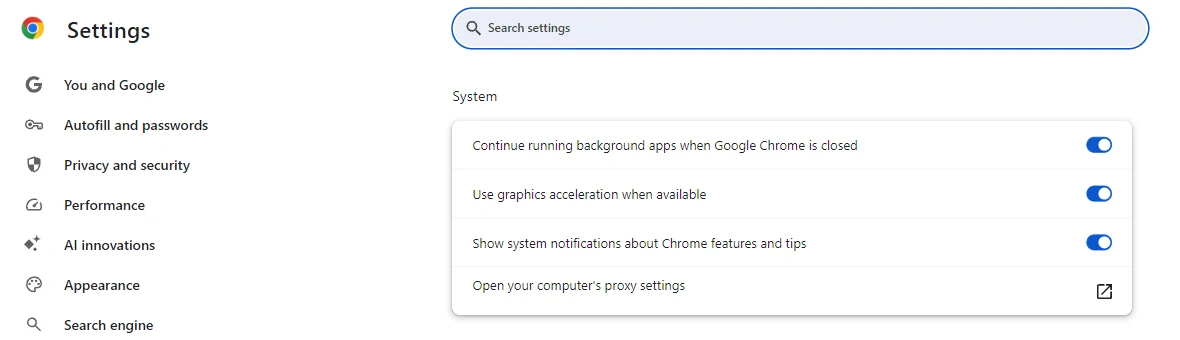
- Once Chrome is back, open
chrome://gpu. The Graphics Feature Status list at the top of the page tells you, feature by feature, whether Chrome uses the GPU.
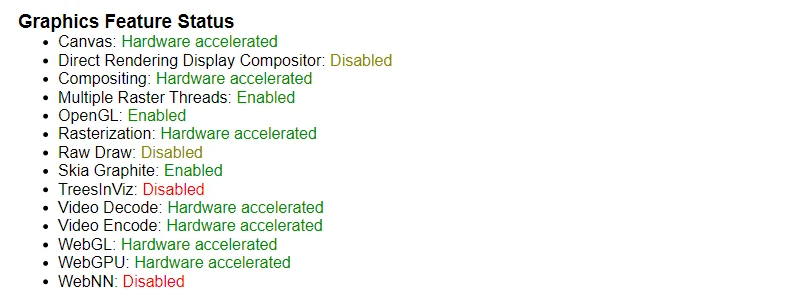
WebGL, Compositing and Rasterization must read Hardware accelerated. Older versions of Chrome list WebGL and WebGL2 on two separate lines, and both must be accelerated. Video Decode and Video Encode should be accelerated as well: Teams and Chrome draw on the same video engines of the card.
If WebGL reads Software only, Chrome is rendering on the processor. The usual causes are an outdated graphics driver, a driver that Chrome has blocklisted, or a laptop that hands Chrome to its integrated GPU instead of the discrete card. Update the driver first (see below), then check the GPU assignment in Windows.
- Scroll down to Driver Information. The GPU marked ACTIVE is the one Chrome renders on, and the GL_RENDERER line names it again together with the driver version.
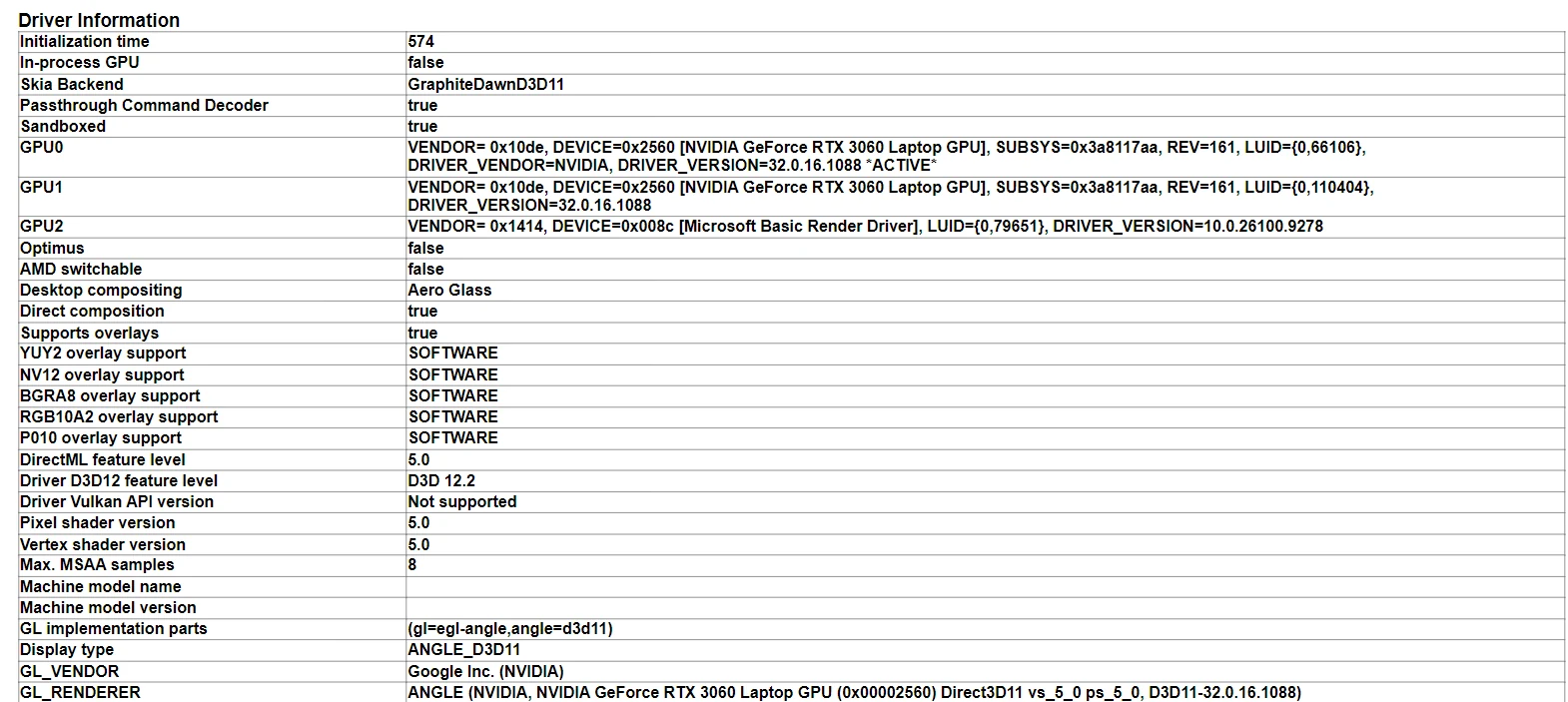
On a laptop that has both an integrated GPU and an NVIDIA or AMD card, the active GPU must be the discrete card. If the integrated GPU is active, or if the line reads Microsoft Basic Render Driver, fix the assignment in Windows before going any further.
Windows 11: assign the high-performance GPU
Windows decides which GPU each application runs on, and its default choice for a browser is often the power-saving GPU. Force the choice for Chrome and for Teams:
- Open Settings > System > Display > Graphics.
- If Google Chrome is not in the list, click Add desktop app and select
C:\Program Files\Google\Chrome\Application\chrome.exe. - Select Google Chrome, open its options (the Options button or the GPU preference drop-down, depending on your Windows build) and choose High performance.
- Do the same for Microsoft Teams. The current Teams is a Store app, so use Add Microsoft Store app instead. Chrome and Teams should end up on the same GPU.
The screenshots in Selecting the Correct Graphic Card for Your Browser show these steps on Windows 10, where the page is called Graphics settings.
- Open Settings > System > Power & battery and set Power mode to Best performance. If the drop-down is greyed out with the message "Power mode cannot be set when energy saver is on", turn off Energy saver on the same page first.
- On a laptop, present with the charger plugged in. Most laptops cap the discrete GPU on battery, whatever the power mode says.
Graphics driver
- Install the latest driver from NVIDIA, AMD or Intel, using the manufacturer's site or application. Windows Update often ships an older driver.
- After the update, open
chrome://gpuagain and check that WebGL is still hardware accelerated and that the driver version has changed. - To confirm which card Chrome really uses during a session, open the 3D application, then open the Task Manager and look at the GPU engine column of the Processes tab. The Chrome processes should show the discrete card, for example GPU 1 - 3D, where the number matches the list in the Performance tab. If the column is not visible, right-click a column header and tick GPU engine.
Microsoft Teams
- Use the Teams desktop application rather than Teams in a Chrome tab. A second tab encoding video competes with the 3D application inside the same browser.
- Turn off background blur and virtual backgrounds before a large 3D demo. These effects run on the GPU for the whole meeting, not only while you talk.
- Turn your camera off when you want the smoothest possible share. Your face costs the same encoder time as the point cloud.
- Teams sends the shared screen at up to 30 frames per second, and lowers the frame rate or the resolution on its own when the PC or the network is under pressure. Everything in this article works toward keeping that budget available for the demo.
During the demo
- Close the other tabs that show 3D content and any GPU-heavy software: CAD, ReCap, video editing, games.
- Open one project at a time. Two instances loaded with large point clouds share the same GPU memory and the same bandwidth.
- Prefer a 1920 x 1080 screen for the share. A 4K screen means four times more pixels for Chrome to draw and for Teams to encode. If your monitor is 4K, lower the display resolution for the meeting or share the Chrome window rather than the whole screen.
- Share only the window or the screen you need, never all the screens.
- Avoid several 4K monitors on a demo laptop. Every extra monitor takes its share of the card, even when nothing is happening on it.
Compare two machines
When one PC gives a smooth demo and another does not, the difference is almost always visible in chrome://gpu or in the Windows GPU assignment. To compare them, or to pass the details on to the platform team:
- On
chrome://gpu, take a screenshot of Graphics Feature Status and Driver Information, or click Download Report to File at the top of the page. - Take a screenshot of Settings > System > Display > Graphics showing the entries for Chrome and Teams.
- Note the GPU model, the driver version and the screen resolution.
Keep this information together with a short description of the meeting setup: Teams desktop or web, camera on or off, number of screens, and which other applications were open. It is the first thing the platform team will ask for.