Text and leaders
Text
- In Annotate (or Home > Annotations), click Text (shortcut T).
- Click where the note should sit.
- Type the content in the prompt. Use
\ninside the text to force a line break, which turns the note into a multi-line text.
Select a text to edit its content and position later in the Properties panel.
Leaders
A leader is an arrow that points at something, with a note at the other end.
- Click Leader in the Annotate tab.
- Click the point to indicate (the arrow tip).
- Click where the text should sit.
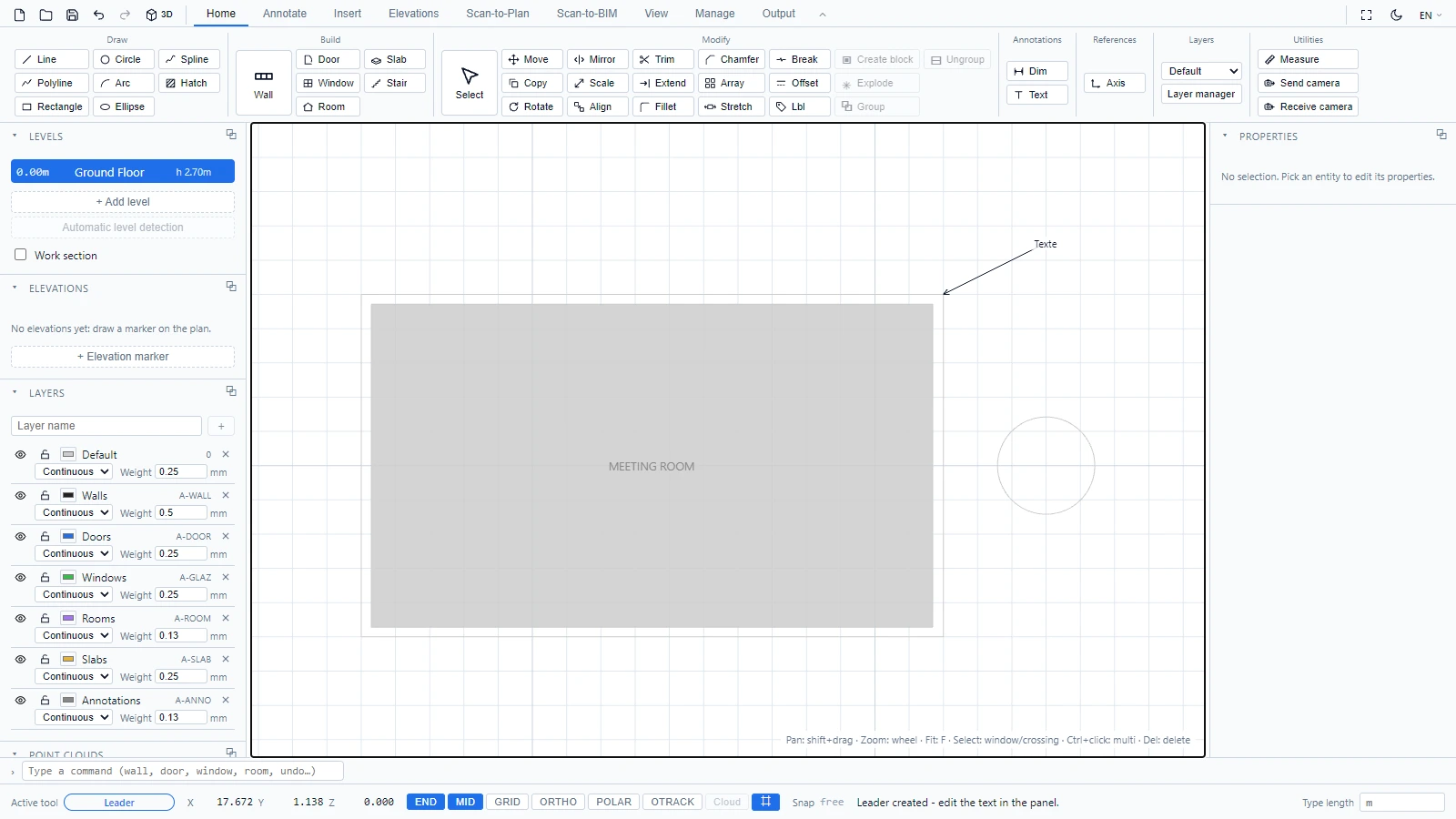
The leader is created with an empty note: the status bar reminds you to type the content in the Properties panel while it is selected.
Room labels
Room name and area labels are not text entities, they belong to the room. To reposition one, use the Lbl tool described in Rooms and slabs.
If you have any questions or need further information, please contact the technical team.