Dimensions
All dimension tools live in the Annotate tab (the most used ones are also mirrored in Home > Annotations).

Linear dimensions
- Click Dim (shortcut H), or type
dim. - Click the first point, then the second. Snapping to END and MID gives you exact wall dimensions.
- Move the cursor to choose the side of the dimension line, and click to place it.
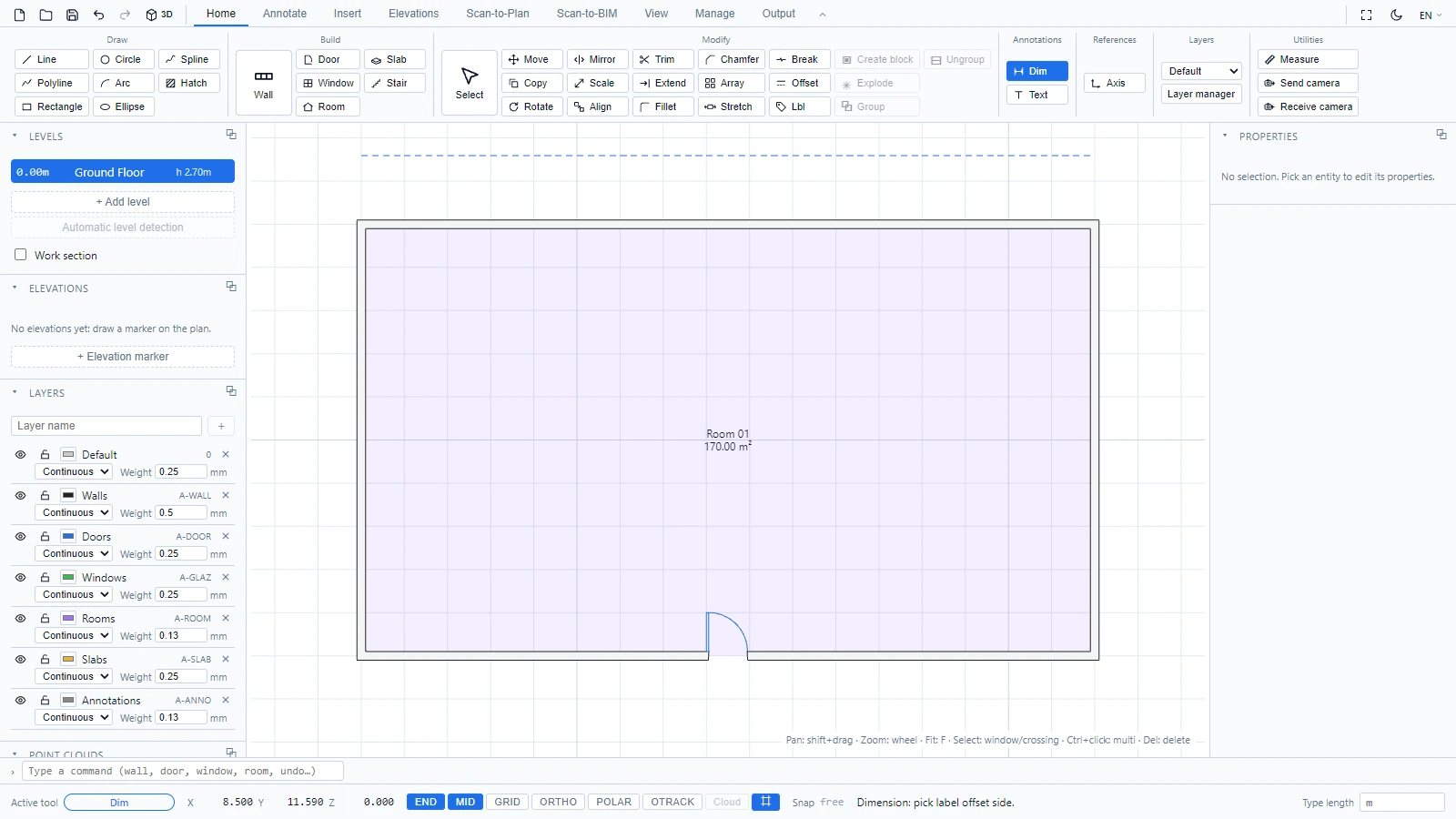
The tool chains: after each dimension, it waits for the first point of the next one. Escape stops it.
- Continue places the next dimension starting where the previous one ended, for a run of aligned dimensions.
- Baseline stacks dimensions that share the same first point.
Radius, Diameter, Angular
- Radius and Diameter: one click on a circle.
- Angular: click the vertex of the angle, then a point on each side.
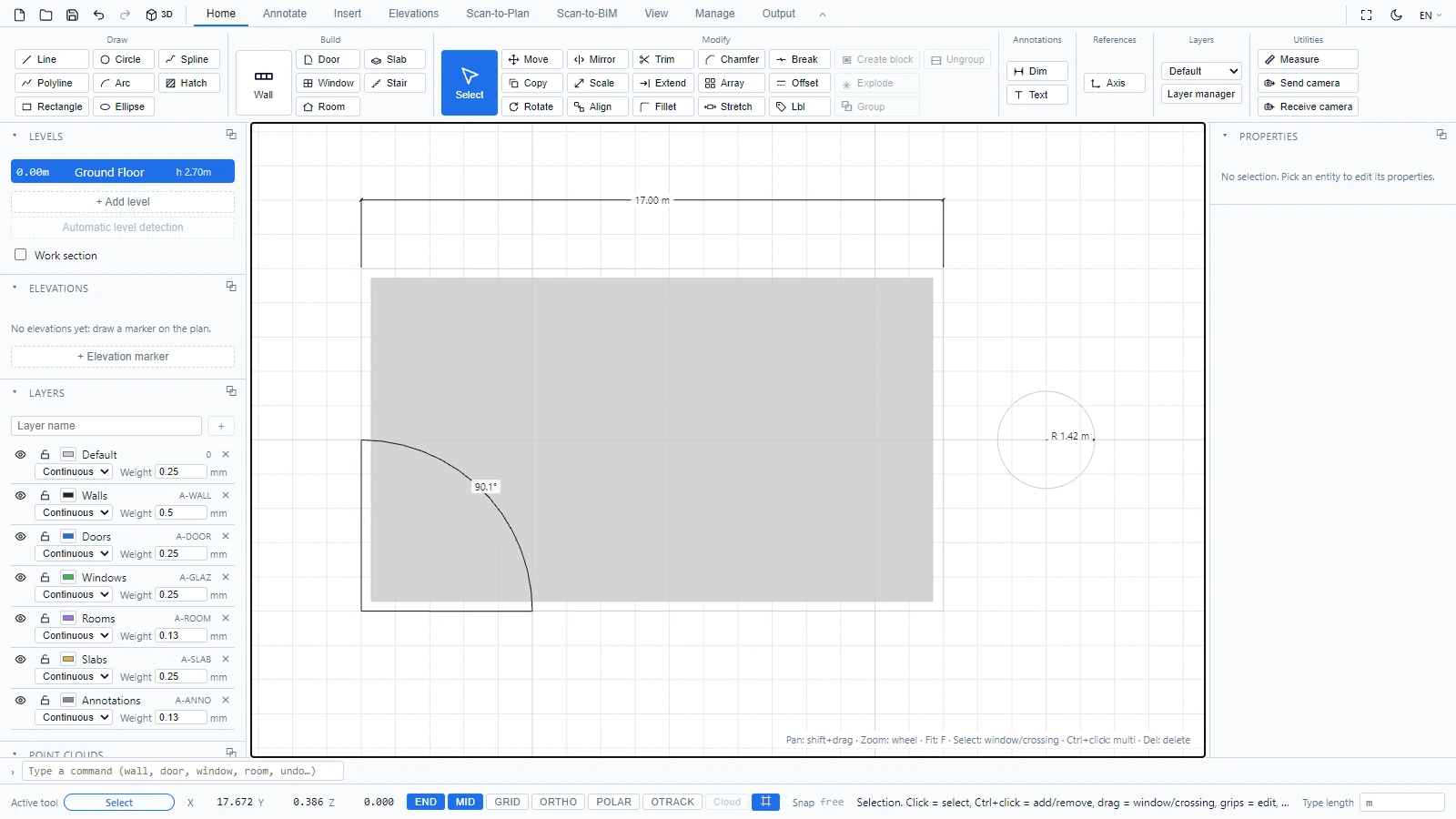
Dimensions are real entities: select one to move or delete it, like anything else. They live on the Annotations layer (A-ANNO), so you can switch the whole annotation set on and off in one click (see Layers).
If you have any questions or need further information, please contact the technical team.