Groups and blocks
When a set of objects belongs together (a desk with its chair, a kitchen unit, a repeated detail), stop manipulating the parts one by one. ATIS.cad gives you two levels of packaging, both in Home > Modify.
Create a block
- Select the objects (window selection is the fastest, see Select and edit objects).
- Click Create block and give it a name.
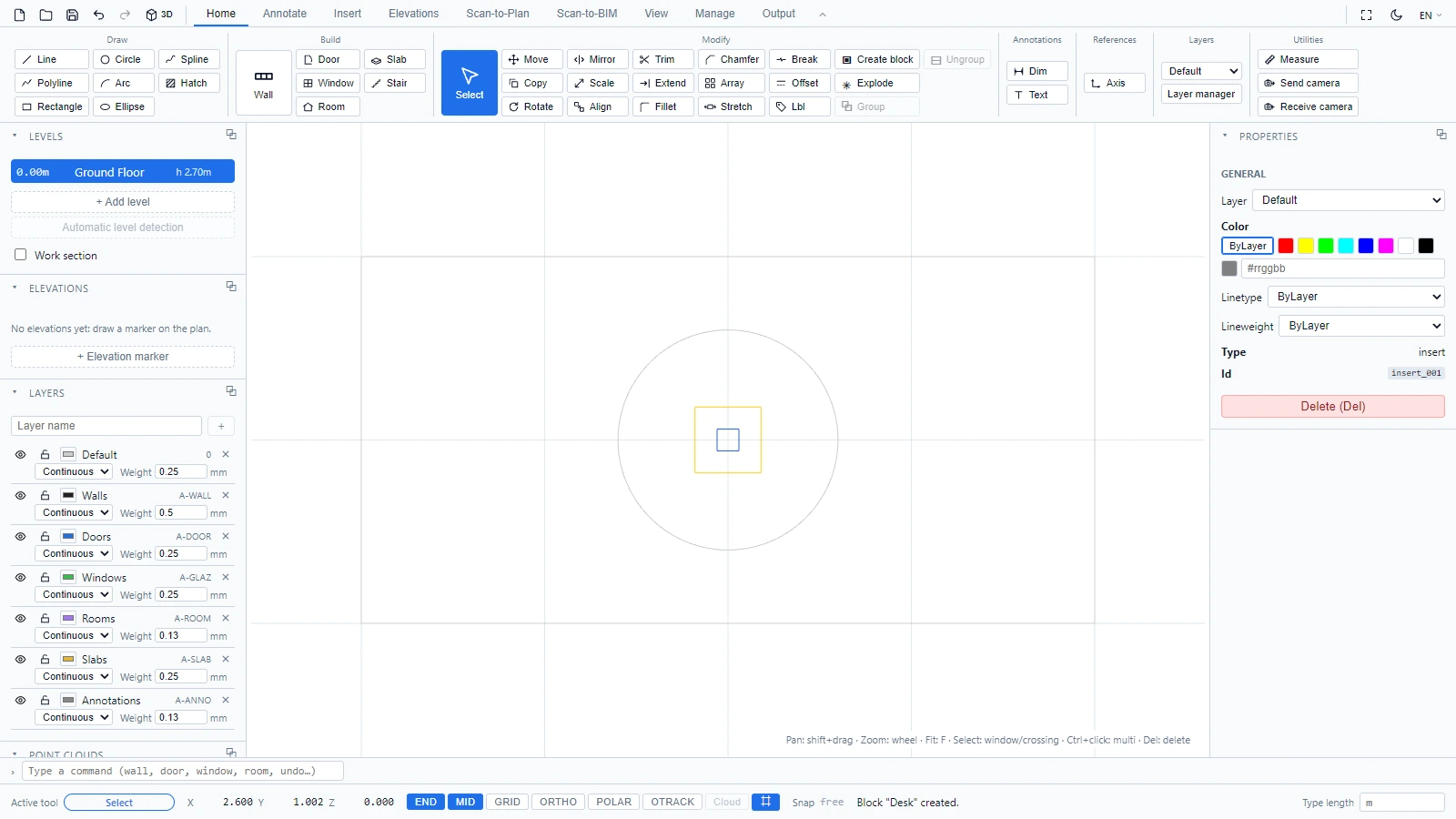
The selection becomes a single block instance. It selects, moves and copies as one unit, which is exactly what you want for furniture and repeated symbols:
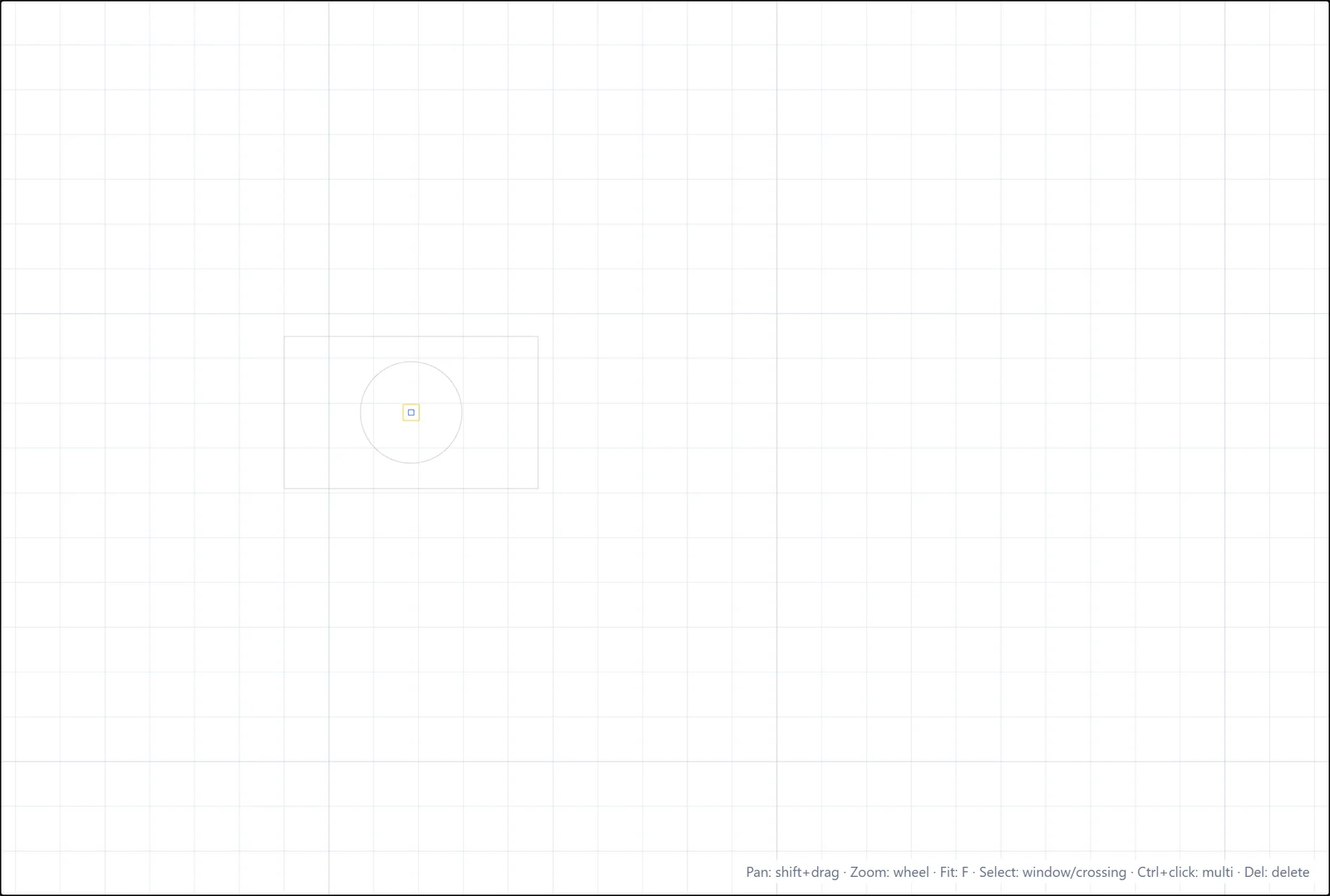
Explode a block
To edit the inside of a block instance, select it and click Explode in Home > Modify. The instance is replaced by its component entities, and the status bar counts them, for example "Exploded: 2 entities created."
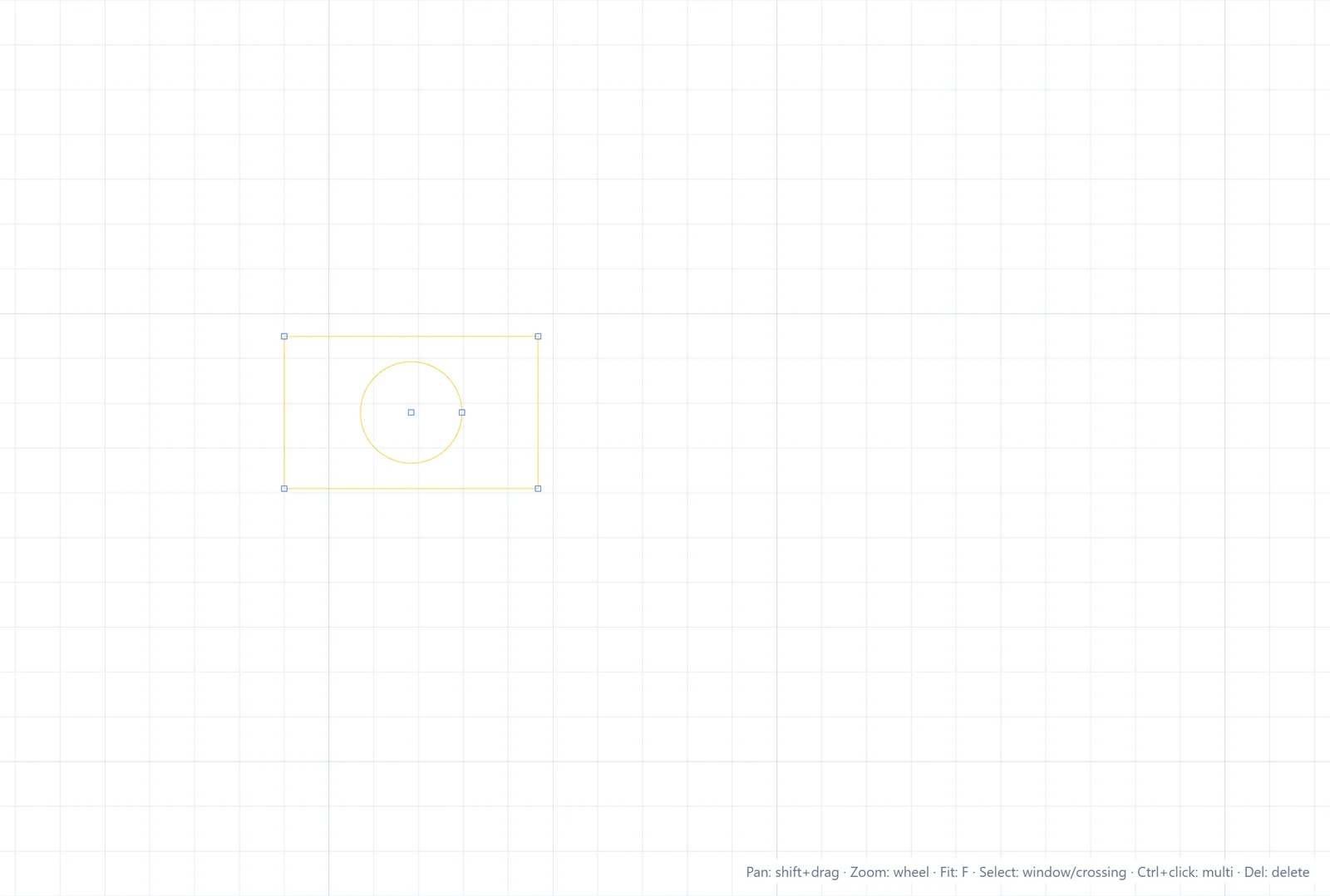
Explode also matters for imported DWG files: some AutoCAD objects arrive as block instances you cannot edit directly, and Explode is the way to open them up.
Groups
A group is a lighter association: click Group to tie the selected objects together under a name, and Ungroup to dissolve the association. Unlike a block, a group does not create a reusable definition, it just keeps companions together.
If you have any questions or need further information, please contact the technical team.