Trim, Extend, Offset, Fillet and Break
These five tools of Home > Modify do the junction work. They operate on walls and lines, and the status bar narrates each step.
Trim
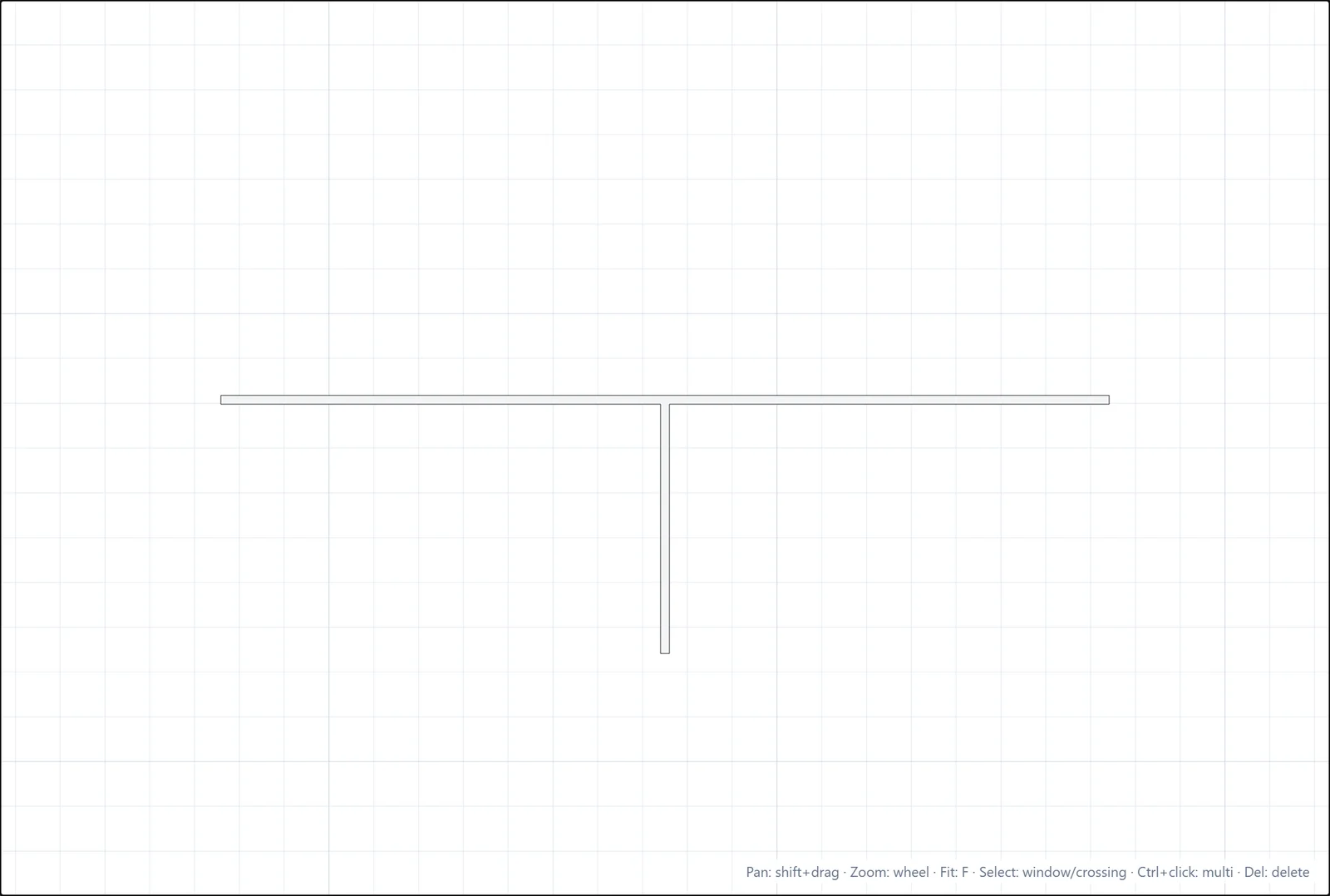
Cut away the part of a wall that sticks out past another one.
- Click Trim (shortcut X).
- Click the cutting wall.
- Click the side of the crossing wall you want to remove.
Extend
The opposite of Trim: click a wall or a line near the end to extend, and it stretches to the next boundary ahead. If there is nothing in front of that end, the status bar says so.
Offset
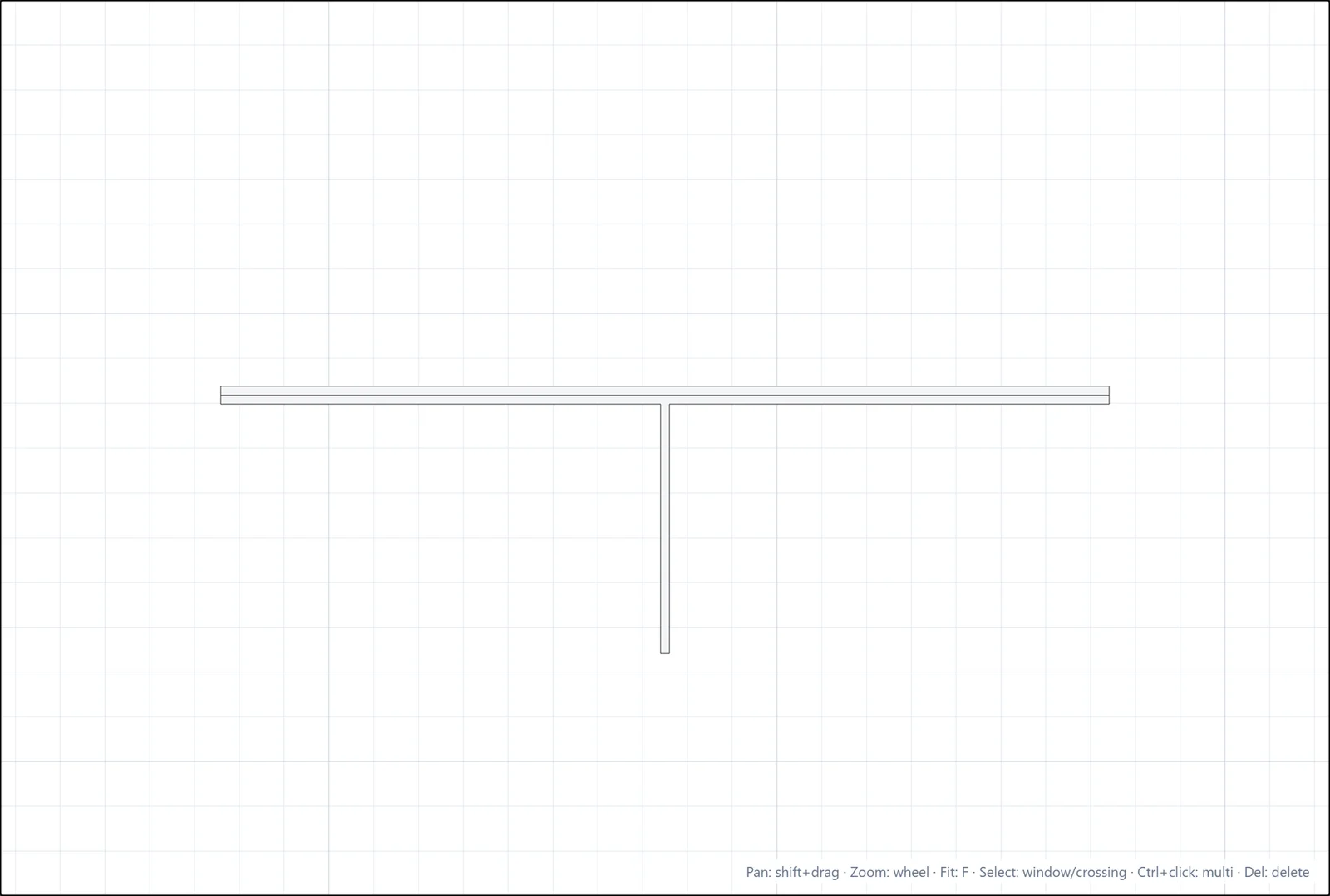
Create a parallel copy at a fixed distance, the fastest way to build corridors and double partitions.
- Click Offset (shortcut O).
- Type a distance and press Enter, or keep the current one.
- Click the wall, then click the side where the copy should land.
Fillet
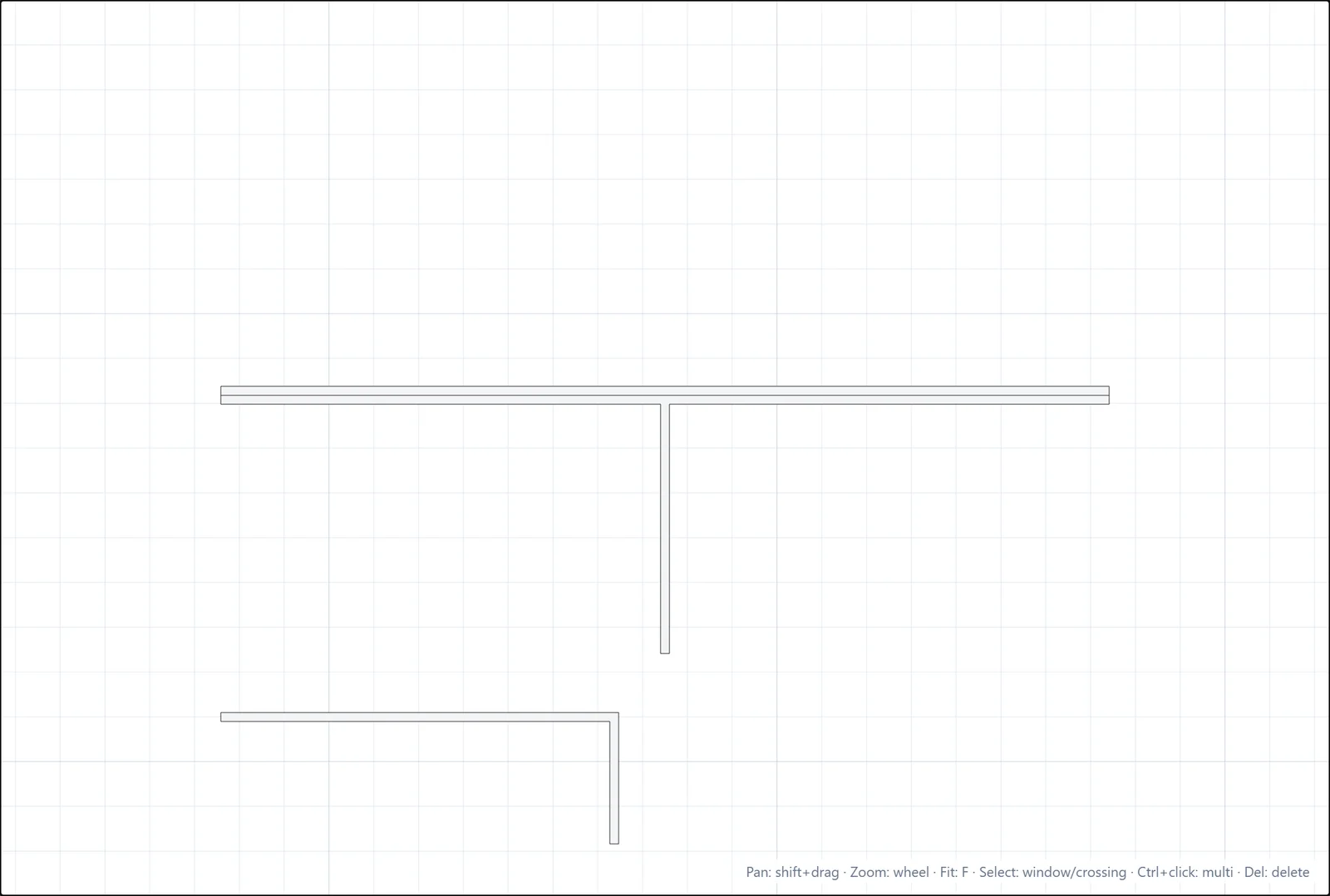
Join two walls (or two lines) into a clean corner, even if they do not touch yet.
- Click Fillet.
- Click the first object, on the side you want to keep.
- Click the second object of the same type, on the side to keep.
The two are extended or shortened to meet, and the status bar confirms "Corner joined." Both objects must be the same type and on the same level; parallel objects cannot form a corner.
Break
Split a line in two: click Break, then click the line at the break point. Each half becomes its own entity.
If you have any questions or need further information, please contact the technical team.