Move, copy and transform
All transform tools live in Home > Modify. They come in two families that behave differently, on purpose.
Move and Copy: pick as you go
No need to select anything first.
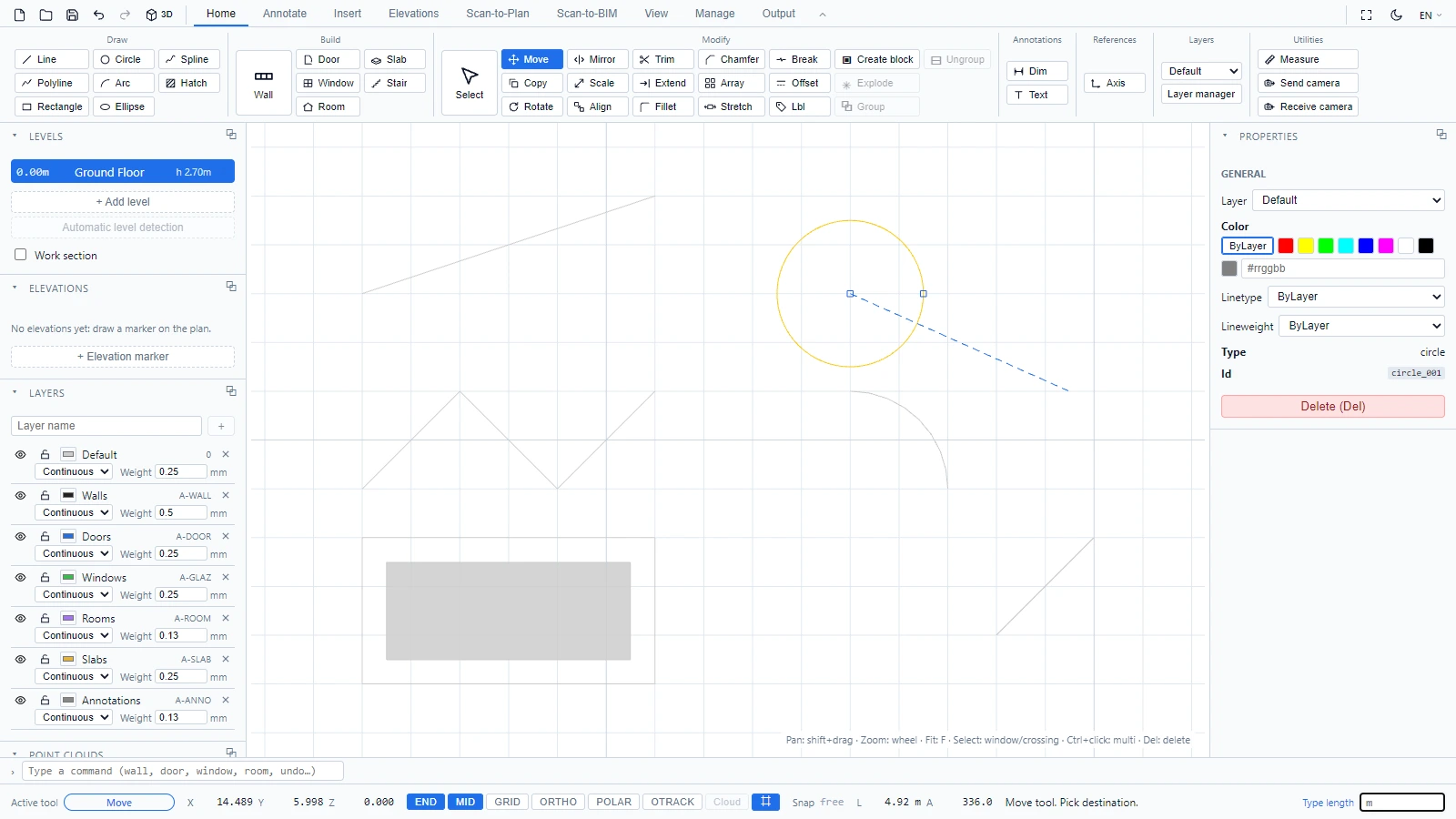
- Move (shortcut M): click the entity, click a base point, then click the destination. The dashed preview follows your cursor.
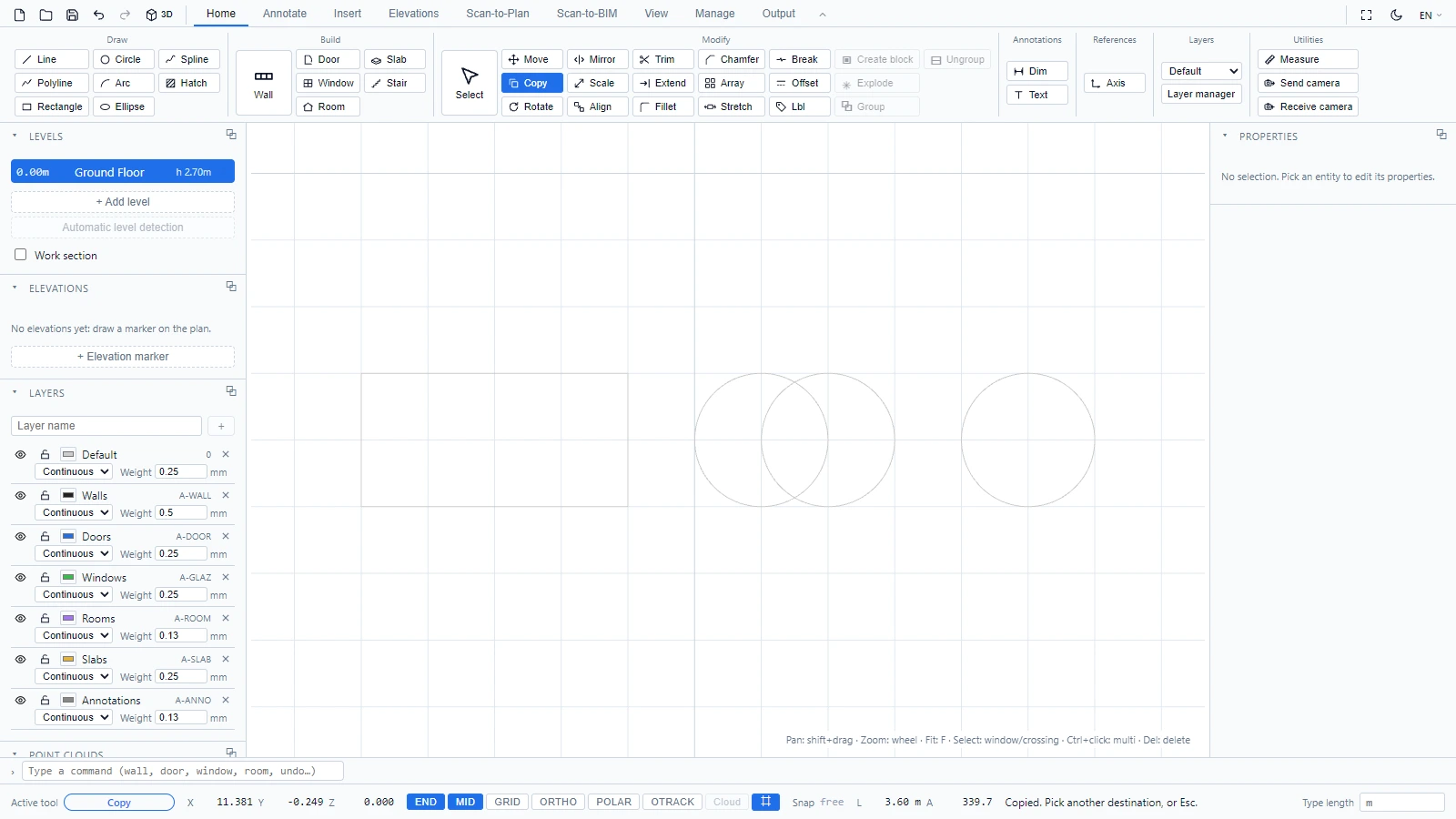
- Copy (shortcut C): click the entity, click a base point, then click as many destinations as you want. The tool keeps stamping copies until you press Escape.
Rotate, Mirror, Scale, Align: select first
These four work on the current selection. Select your objects (see Select and edit objects), activate the tool, and follow the status bar:
- Rotate: click the base point, then click for the angle or type it in degrees + Enter.
- Mirror: click the two points of the mirror axis.
- Scale: click the base point, then type a factor (2, 0.5...) + Enter. Or press R for Reference mode: pick two points (or type a length), then give the new length. Handy to rescale an imported drawing to a known dimension.
- Align: click a first source point and its destination, then a second pair. The selection is moved, rotated and scaled in one operation, and the status bar reports the resulting factor and angle.
If you launch one of them with nothing selected, the status bar simply says "Select entities first."
Every transform is one entry in the undo history: Ctrl+Z takes it back.
If you have any questions or need further information, please contact the technical team.