Doors and windows
Insert a door or a window
- In Home > Build, click Door (shortcut D) or Window (shortcut G).
- Click on a wall. The opening is inserted at the click point and the wall is cut accordingly, in 2D and in 3D.
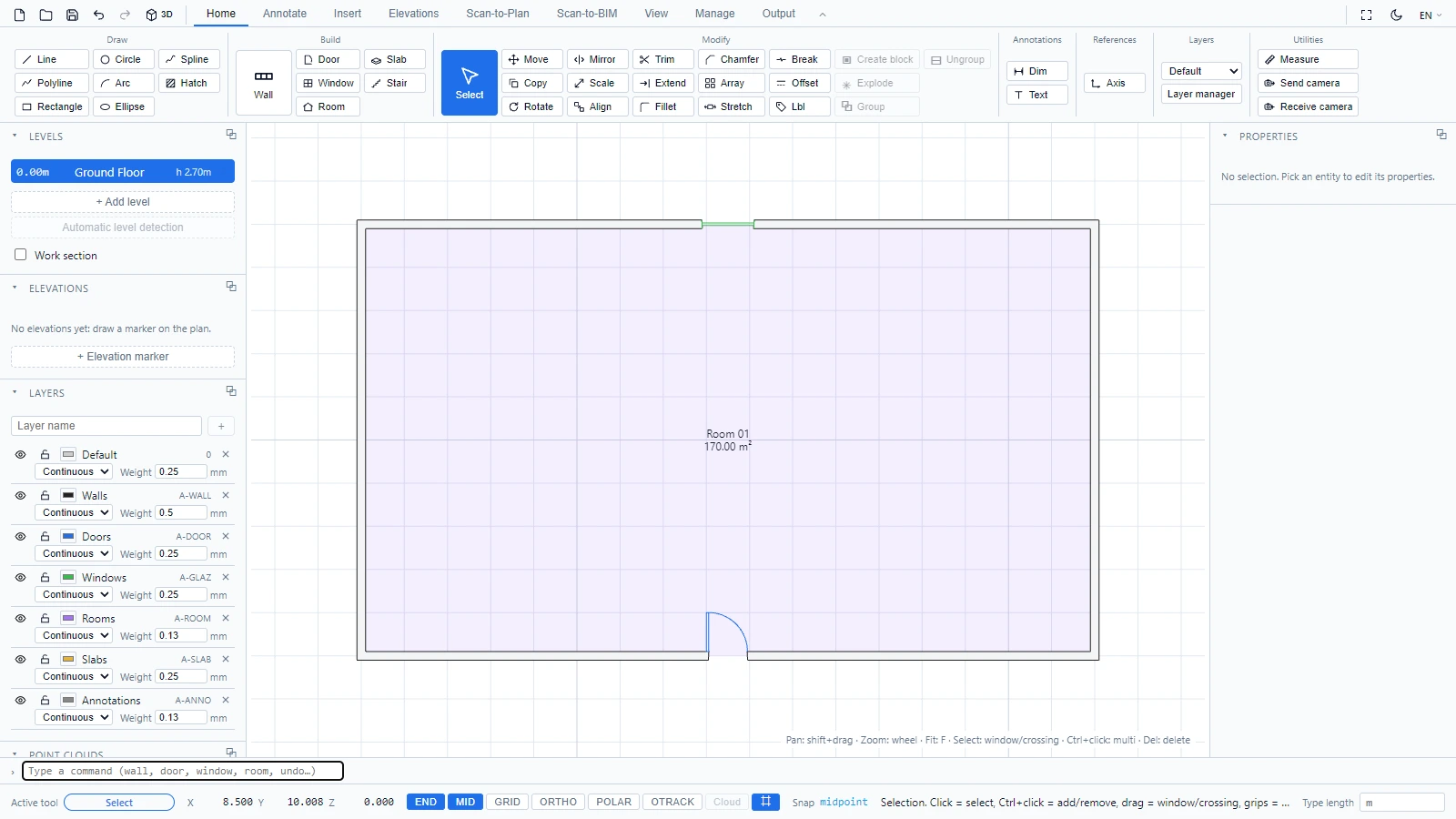
The door is drawn with its swing arc, the window with its glazing lines. Both live on their own layers (A-DOOR, A-GLAZ), so you can control their display from the Layers panel.
Flip the door swing
Select a door, then:
- Press S to flip the hinge side.
- Press Shift+S to flip the swing side (inside or outside), the same way you would use the flip arrows of a dynamic block in AutoCAD.
You can also pick the Swing side in the Properties panel.
Edit the opening
Select the door or window and use the Properties panel to adjust its dimensions and parameters. Deleting the opening (Del) restores the full wall.
If you have any questions or need further information, please contact the technical team.