Select and edit objects
Select a single object
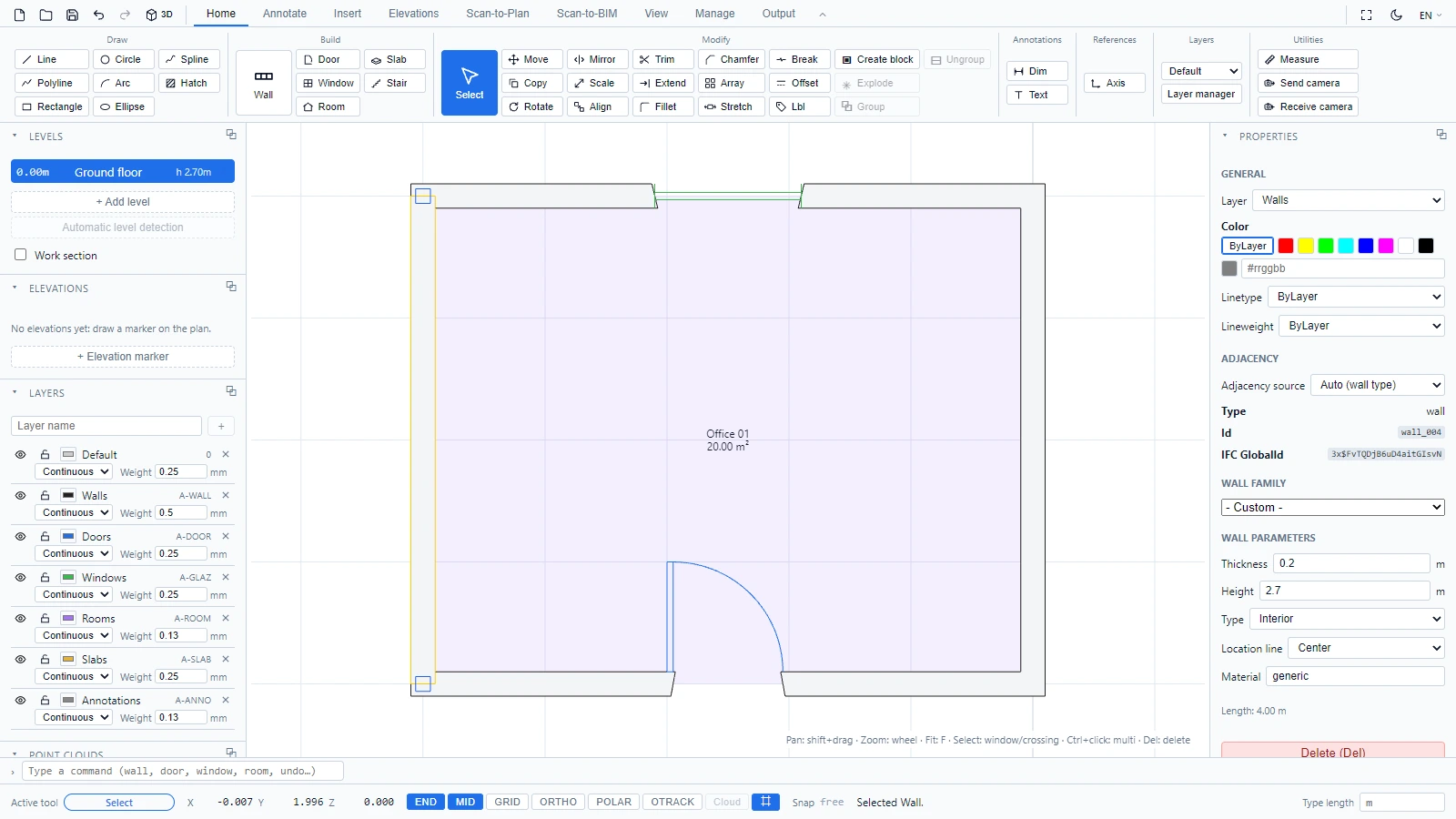
With the Select tool active (it is the default, and Escape always brings you back to it), click any object. It gets highlighted with grips, the status bar confirms what was picked ("Selected wall.") and the Properties panel fills with its parameters.
Select several objects at once
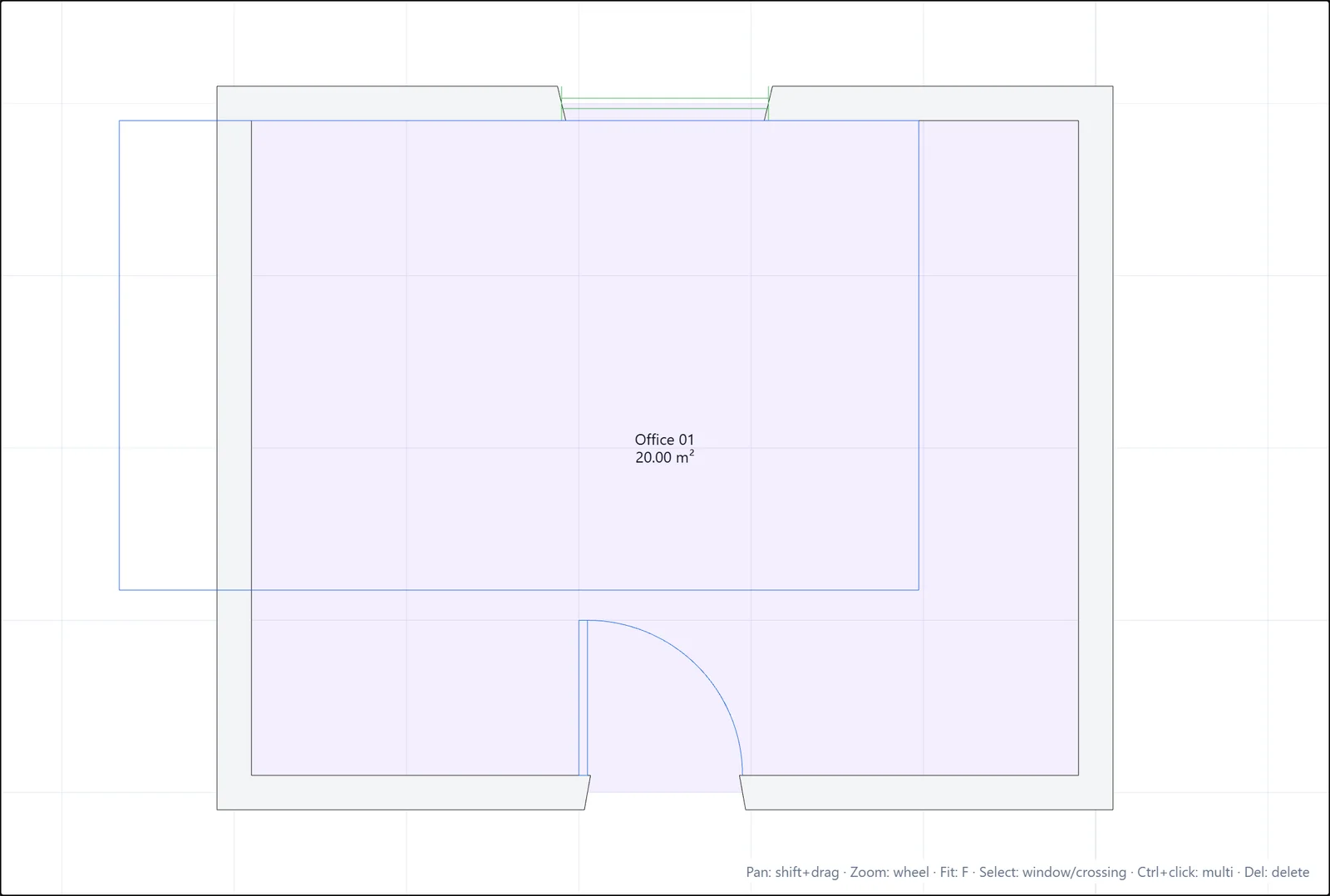
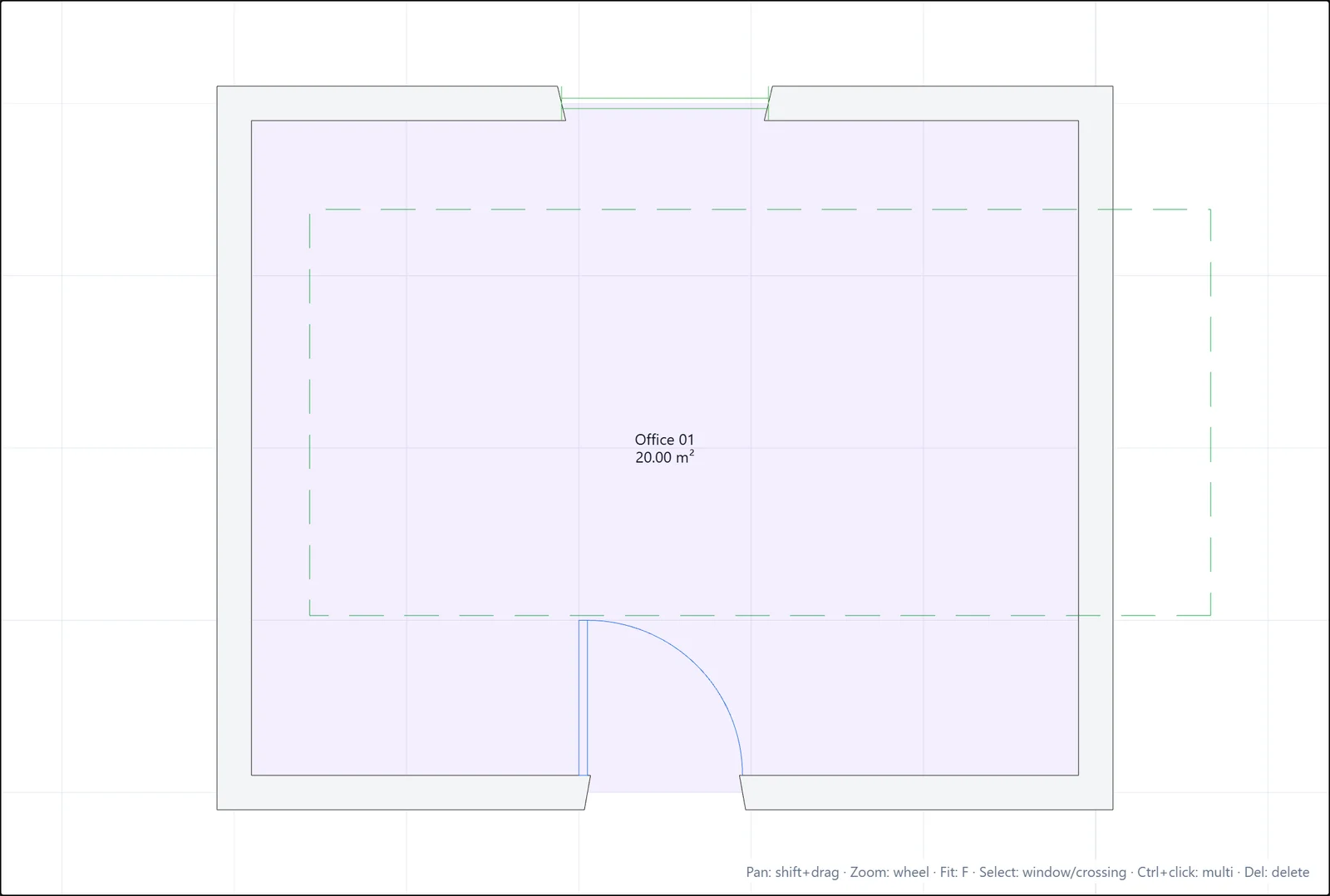
ATIS.cad uses the two selection rectangles you know from AutoCAD:
- Window selection: drag from left to right. The rectangle has a solid border, and only objects that are entirely inside it are selected.
- Crossing selection: drag from right to left. The rectangle is dashed and green, and everything it touches is selected.
You can also hold Ctrl and click to add or remove individual objects from the selection.
Edit parameters in the Properties panel
The Properties panel is where you change what an object is, not just where it sits:
- Wall: family, thickness, height, Interior or Exterior type, location line, material. The panel also reports its length.
- Room: name and number. The area is computed for you.
- Door / Window: dimensions and placement parameters.
Type a new value and press Enter. The drawing and the 3D view update immediately. Every change goes through the undo history, so Ctrl+Z reverts it.
Delete and deselect
- Press Del (or the red Delete button at the bottom of the Properties panel) to delete the selection.
- Press Escape to clear the selection.
If you have any questions or need further information, please contact the technical team.