Exporting 360° Images from Mosaic Processor
This guide explains how to export 360° panoramic images from Mosaic Processor in order to use them in platform.
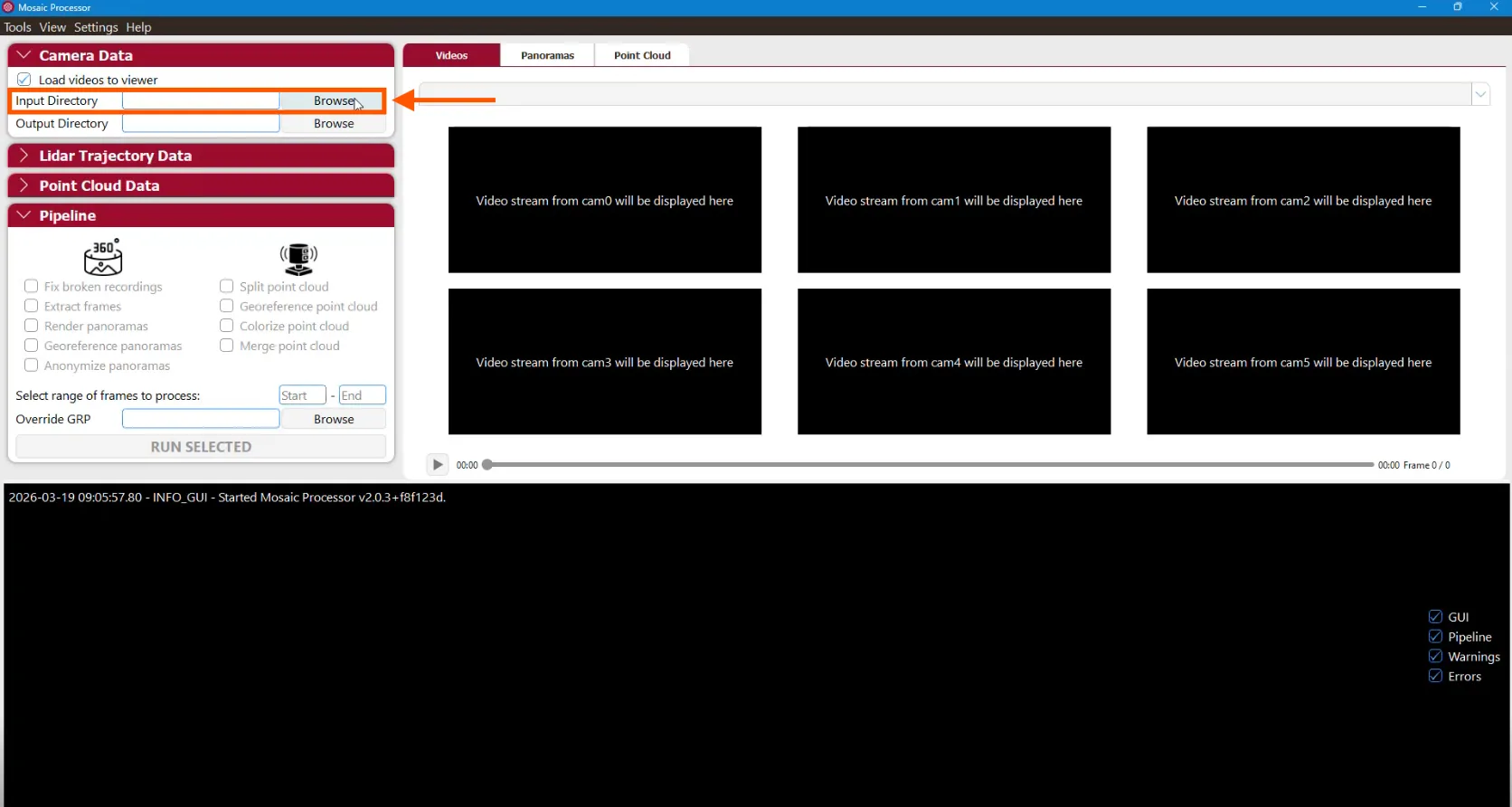
Step 1: Load the Input Directory
Start by selecting your dataset:
-
Click on Browse next to the Input Directory
-
Select the folder containing your recording data
Once selected, the video streams will appear in the viewer.
Step 2: Add Trajectory and Calibration Files
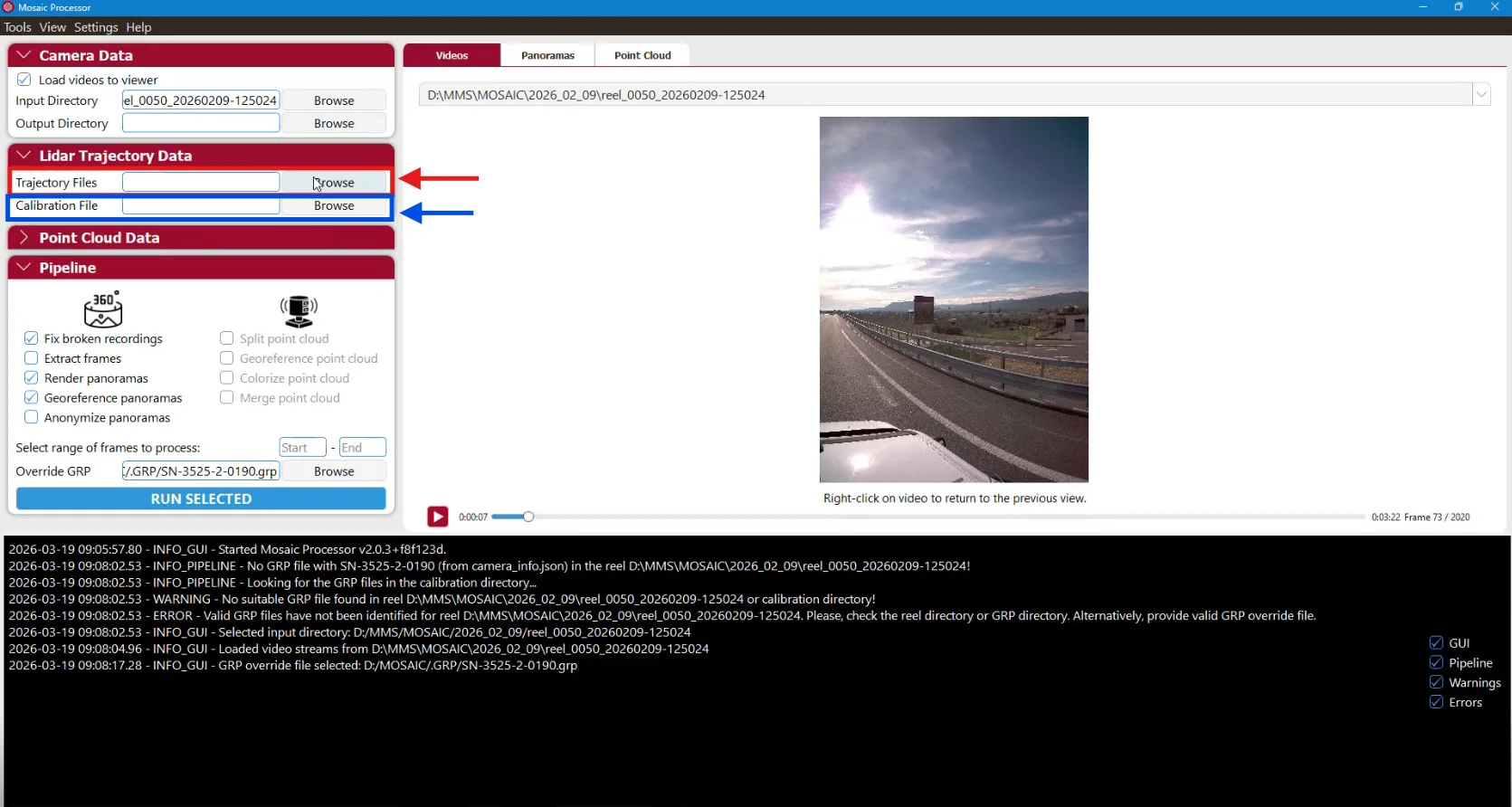
You now need to provide the necessary positioning data:
- In Trajectory Files, select the CSV trajectory file
- In Calibration File, select the calibration file (typically .yaml)
These files are required to correctly position and orient the panoramas.
Step 3: Configure the Export Settings
In the Pipeline section, make sure to enable the following options:
- Fix broken recordings
- Render panoramas
- Georeference panoramas
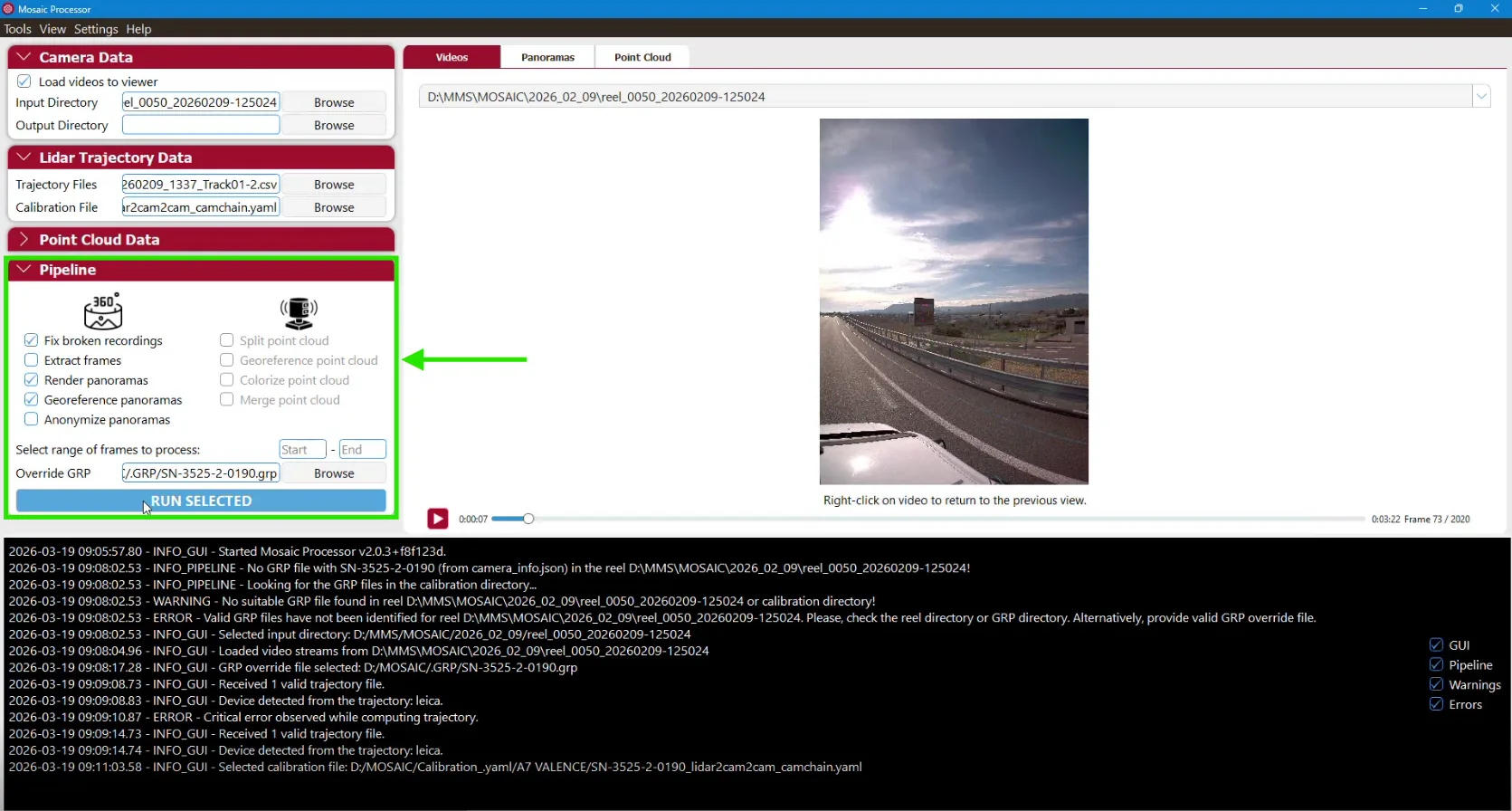
These settings ensure that frames are properly extracted, 360° images are generated, and panoramas are correctly positioned in space.
Once all settings are configured, click on RUN SELECTED to start the process. Mosaic Processor will automatically extract frames, generate the 360° panoramas, and apply the georeferencing based on the provided trajectory and calibration files.
Important Notes
- Make sure your trajectory and calibration files match the dataset
- Incorrect or missing files may result in improperly positioned panoramas
- Always verify that the required pipeline options are enabled before running the process
If you have any questions or need further assistance, please contact the technical team.