Export E57 from Z+F LaserControl
This guide outlines how to export your scan data from Z+F LaserControl by enabling the correct export settings. The steps below will help you generate an .e57 file with integrated 360° panoramas and necessary quality settings.
Step 1: Open the SLAM Export Menu
Once your data is processed and you're ready to export:
-
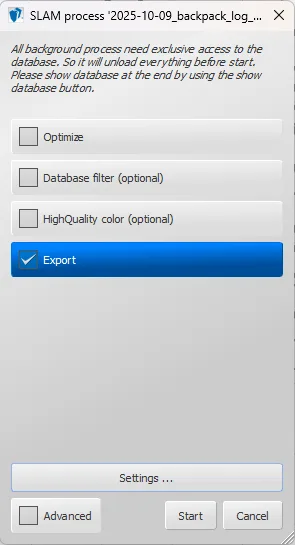
Go to the SLAM Process panel.
-
Check the Export box (you can leave other options unchecked if not required).
-
Click the Settings... button to access the export configuration.
Step 2: Configure Export Settings
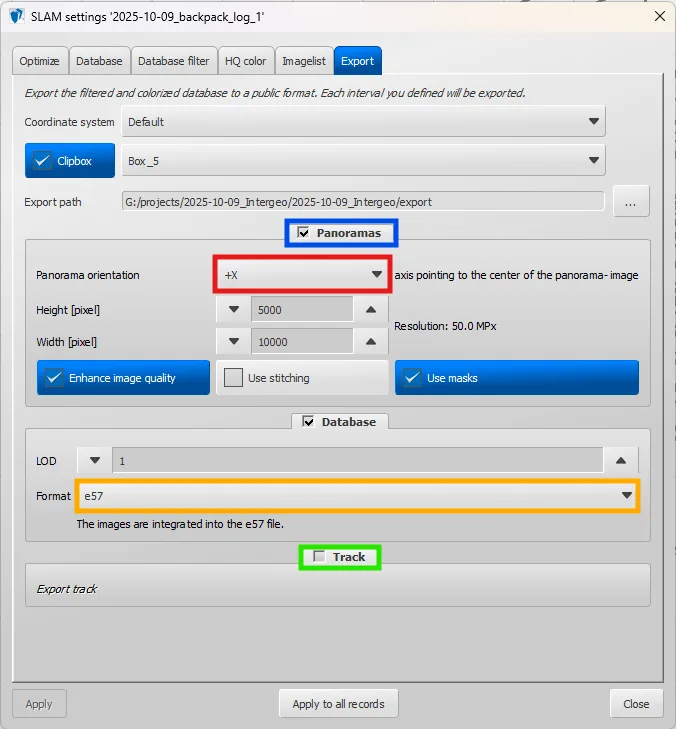
In the Export tab, configure the following options:
-
Panoramas : Enabled
-
Panorama orientation : Set to +X
-
Format : Set to e57
-
Track : Enabled
These settings ensure that the point cloud, panoramas, and trajectory are correctly exported within your .e57 file.
Once the file is exported, you can upload it in your project.
➡️ Follow this article to learn how to import files correctly.
If you have any problem or difficulties, please do not hesitate to contact the platform's team.