Generate a HAR File to Diagnose an Issue with ATIS.cloud
If you're experiencing issues accessing ATIS.cloud or notice that some features aren't working properly (project loading, authentication problems, slowness, etc.), our support team may ask you to provide a HAR file.
This file helps us diagnose the network exchanges between your browser and ATIS.cloud services and identify any blocking issues (firewall, proxy, etc.) in your environment.
Steps to Generate a HAR File from Google Chrome
- Open Google Chrome and navigate to https://webapp.atis.cloud.
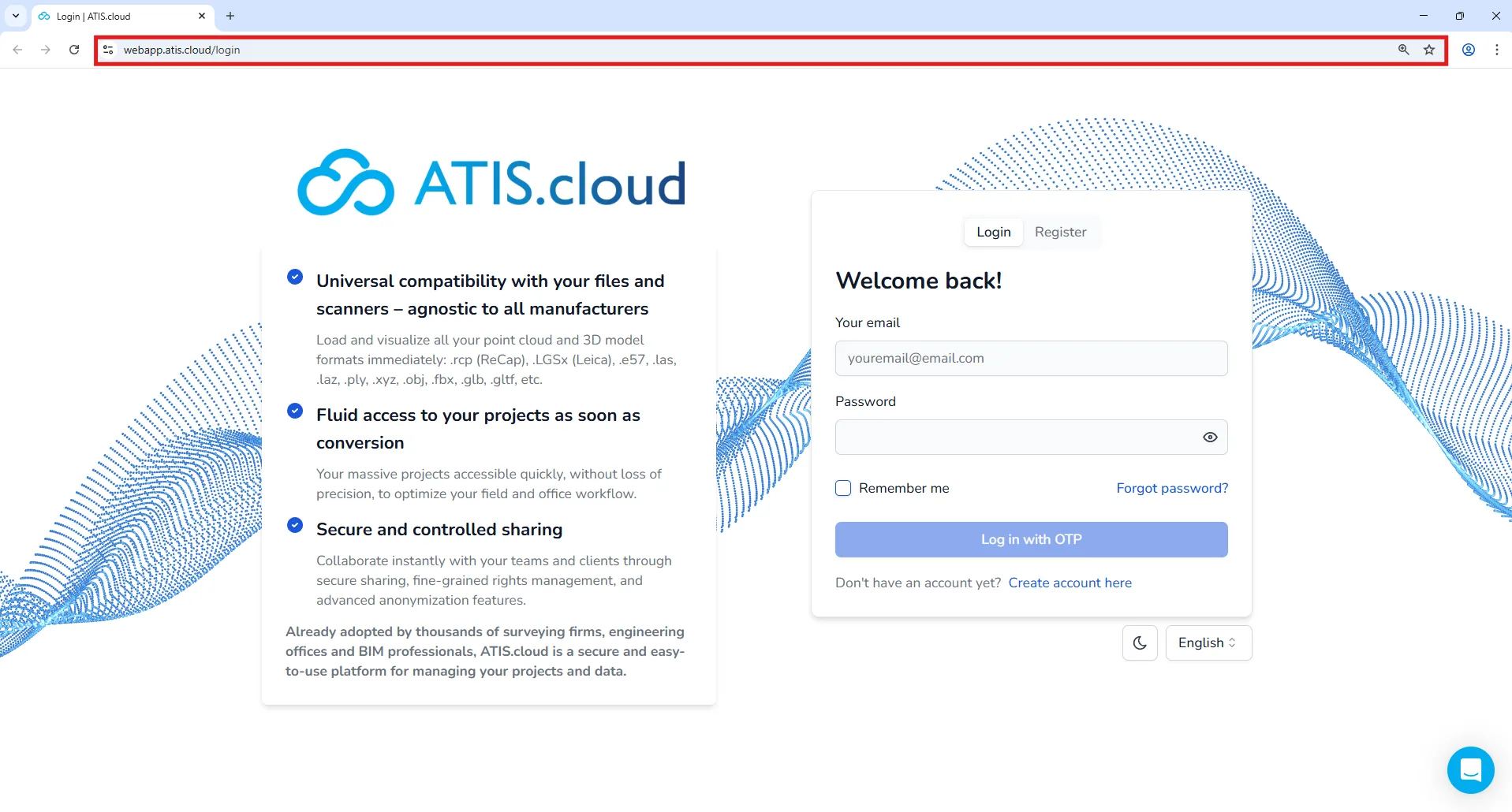
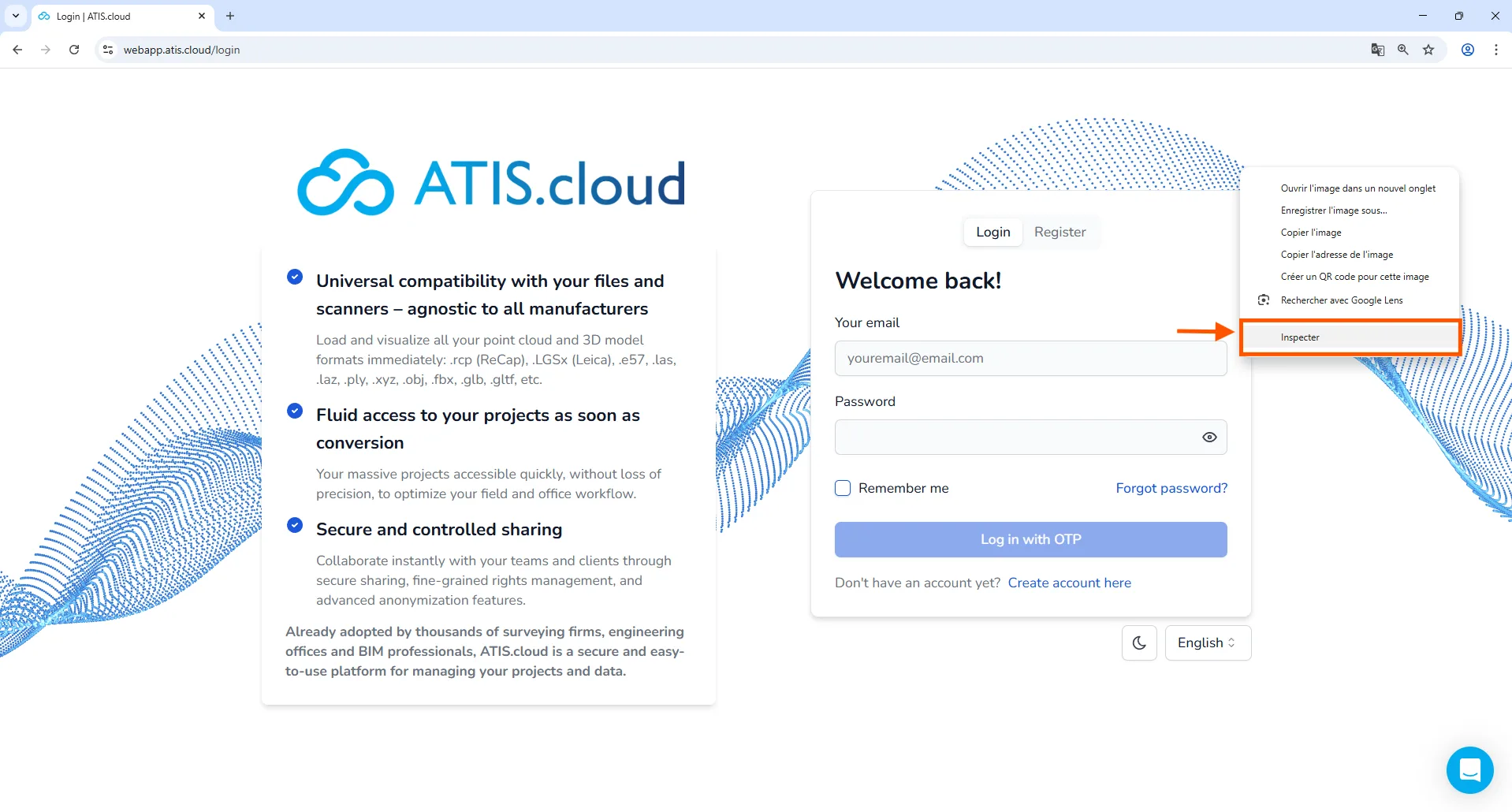
- Right-click anywhere on the page and select Inspect (or press the
F12key).
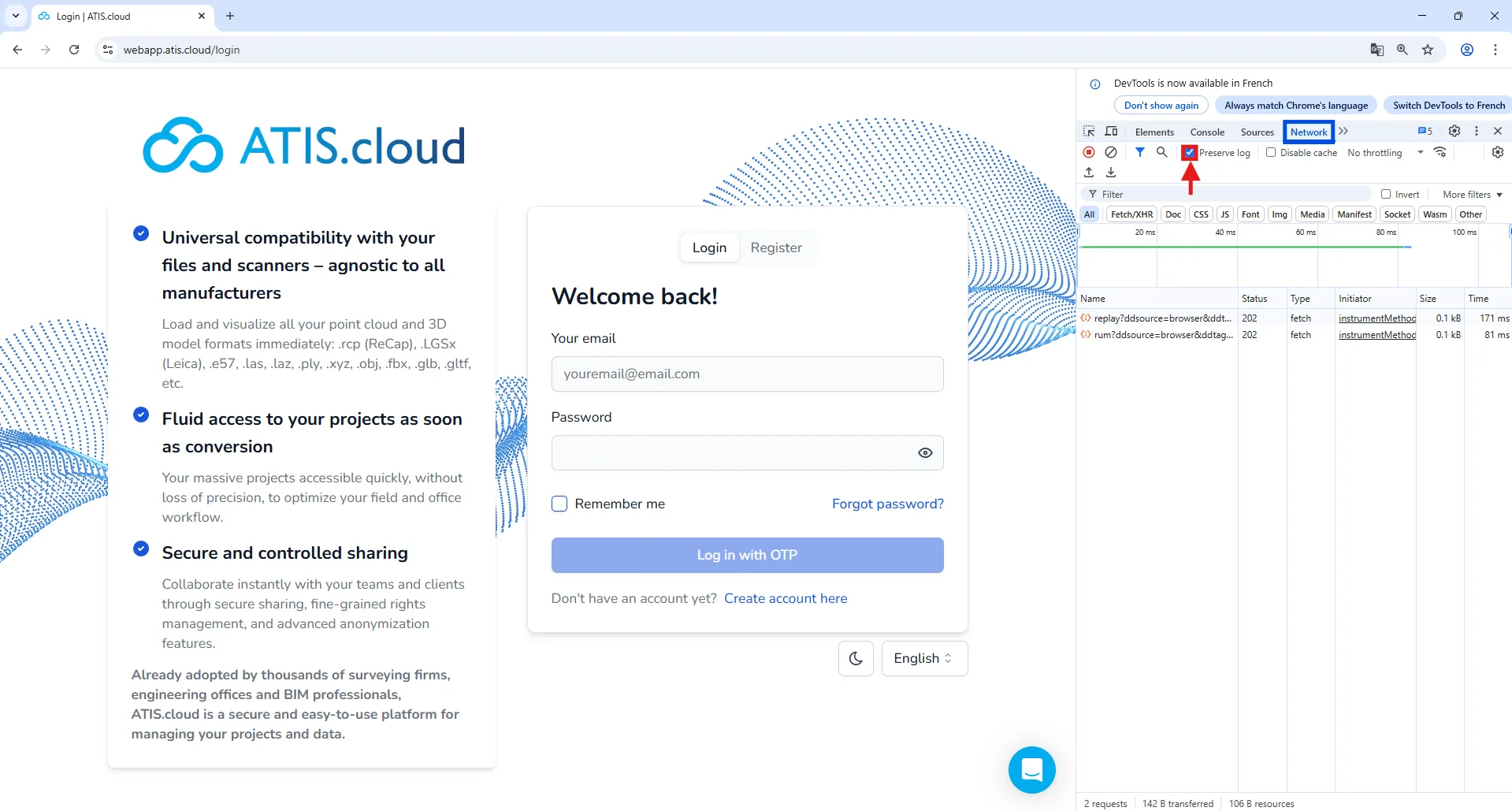
- In the developer panel, go to the Network tab and check the "Preserve log option to keep network logs.
-
Reload the page using the
F5key. -
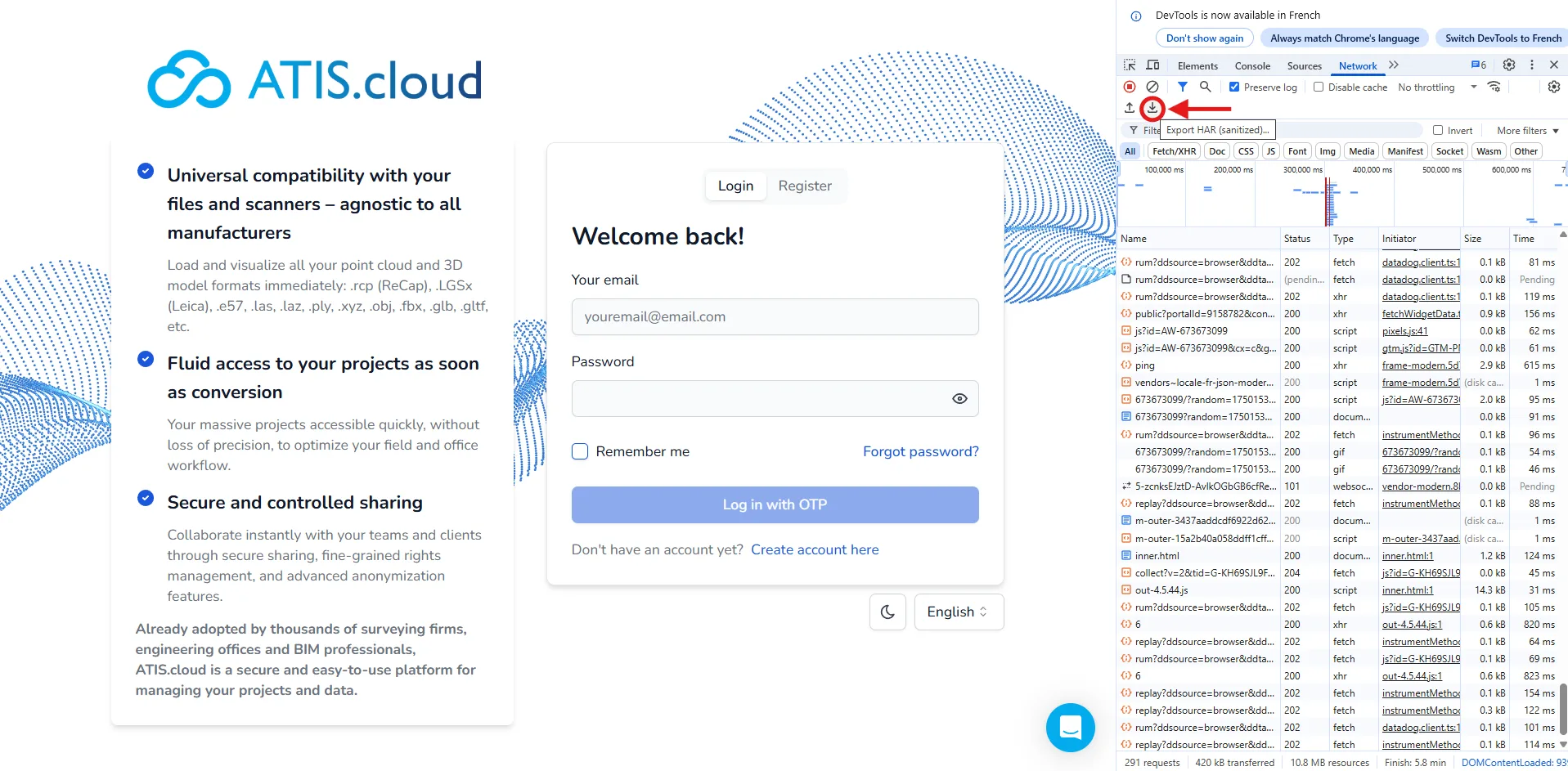
Once the issue is reproduced (blank screen, error message, slowness, etc.), click on Export HAR.
- Send the generated
.harfile as an attachment to support@atis.cloud.
📎 The HAR file does not contain any passwords but may include technical details about your network. Please send it only to our support team using a secure channel.
Point Cloud Not Displaying or Loading Stuck
If your point cloud doesn't display or the loading process gets stuck, it's possible that your corporate network is blocking some HTTP headers, especially those related to the Fetch directive used by our application.
What to Check with Your IT Department
- Is the firewall or proxy blocking the
Access-Control-Allow-Headersincludingsec-fetch-*? - Are the following domains allowed?
https://webapp.atis.cloud*.cloudfront.net*.amazonaws.com
If that's the case, please send us a HAR file (see guide above) so that our team can analyze the network exchanges and help you resolve the issue.
Need help? Contact our team at support@atis.cloud, or schedule a technical meeting if IT intervention is required.