Exporting a Point Cloud from Emesent Aura
If you want to import your point cloud into your project, it is essential to export it in the correct format from Emesent Aura. Here are the steps to follow:
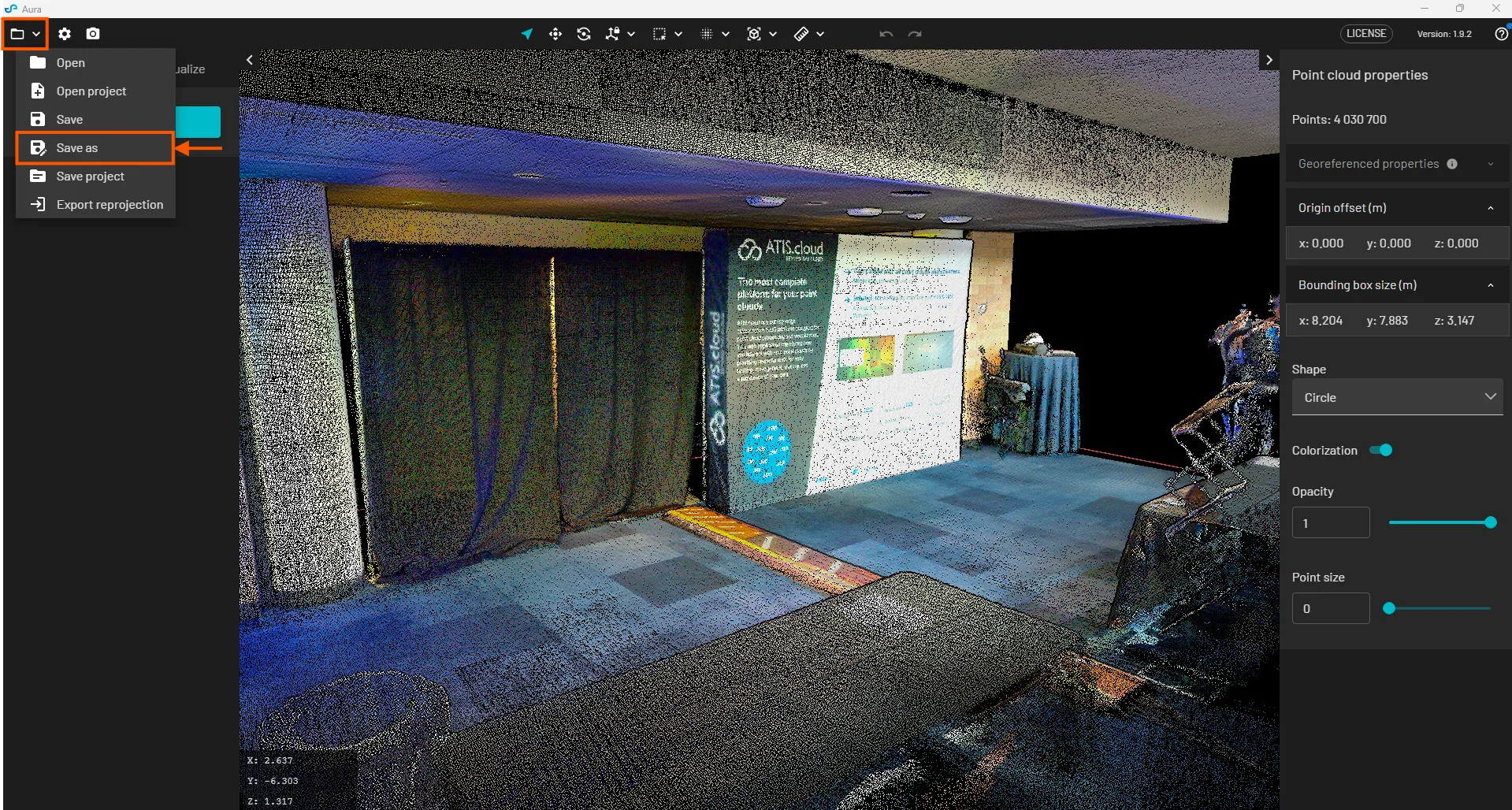
Step 1: Open the Project Menu in Aura
In the Aura interface, click on the project menu at the top left (icon with a downward-pointing arrow).
Then select Save as.
Step 2: Choose a Compatible Format
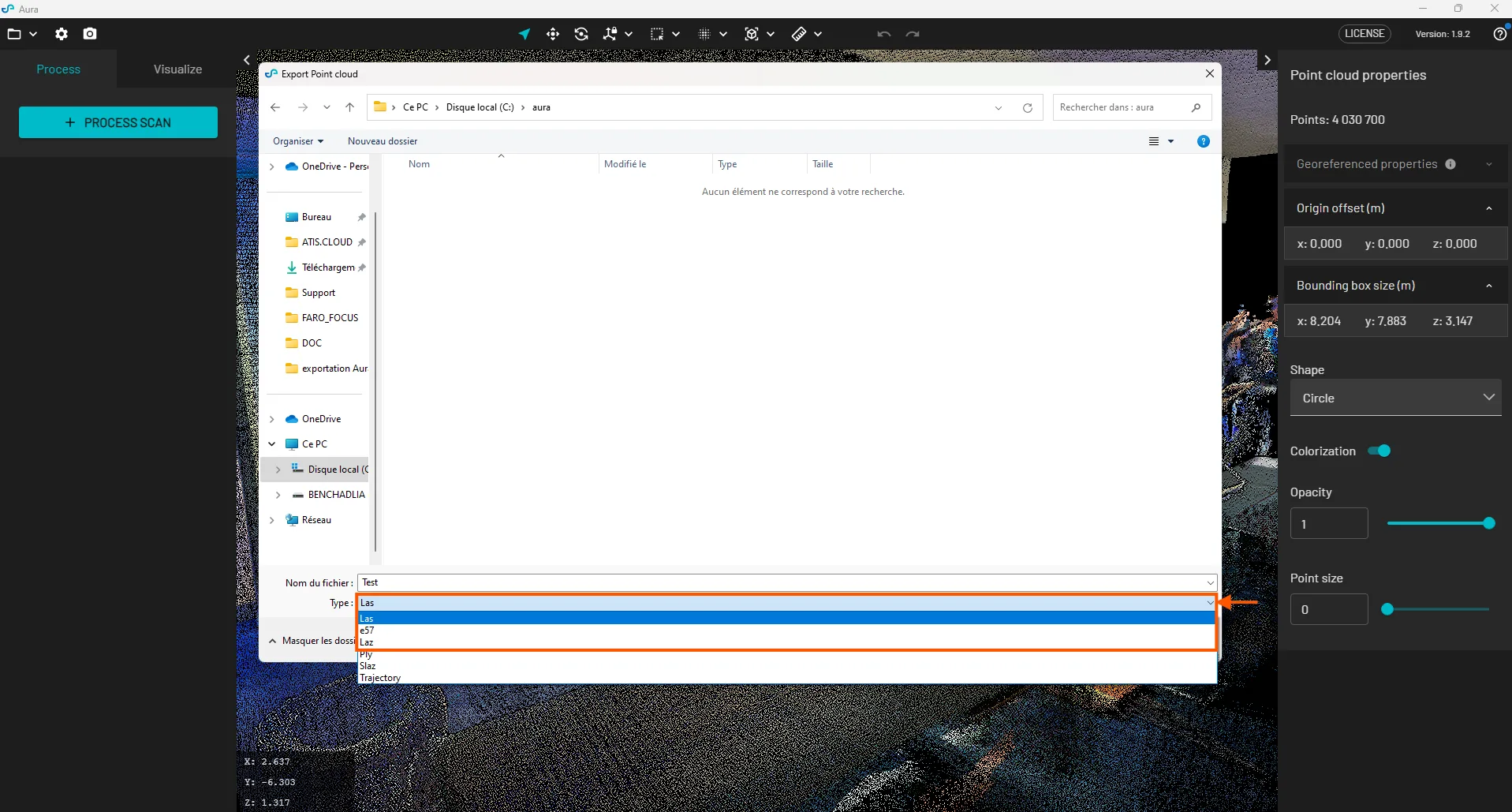
In the save window, select one of the compatible formats :
-
.e57
-
.las
-
.laz
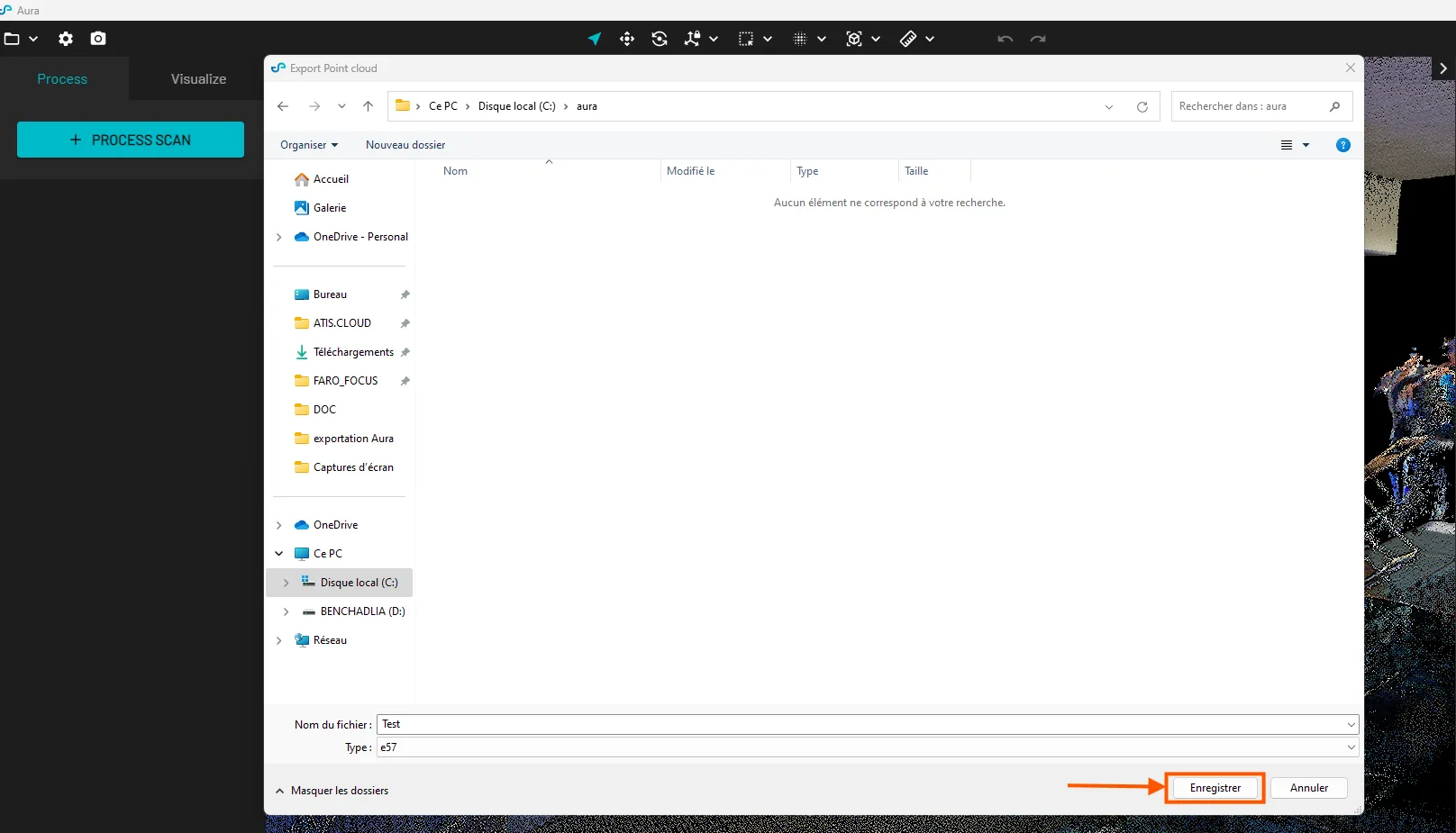
Step 3: Finalize the Export
Once you've selected the format, click on Save to start exporting the point cloud.
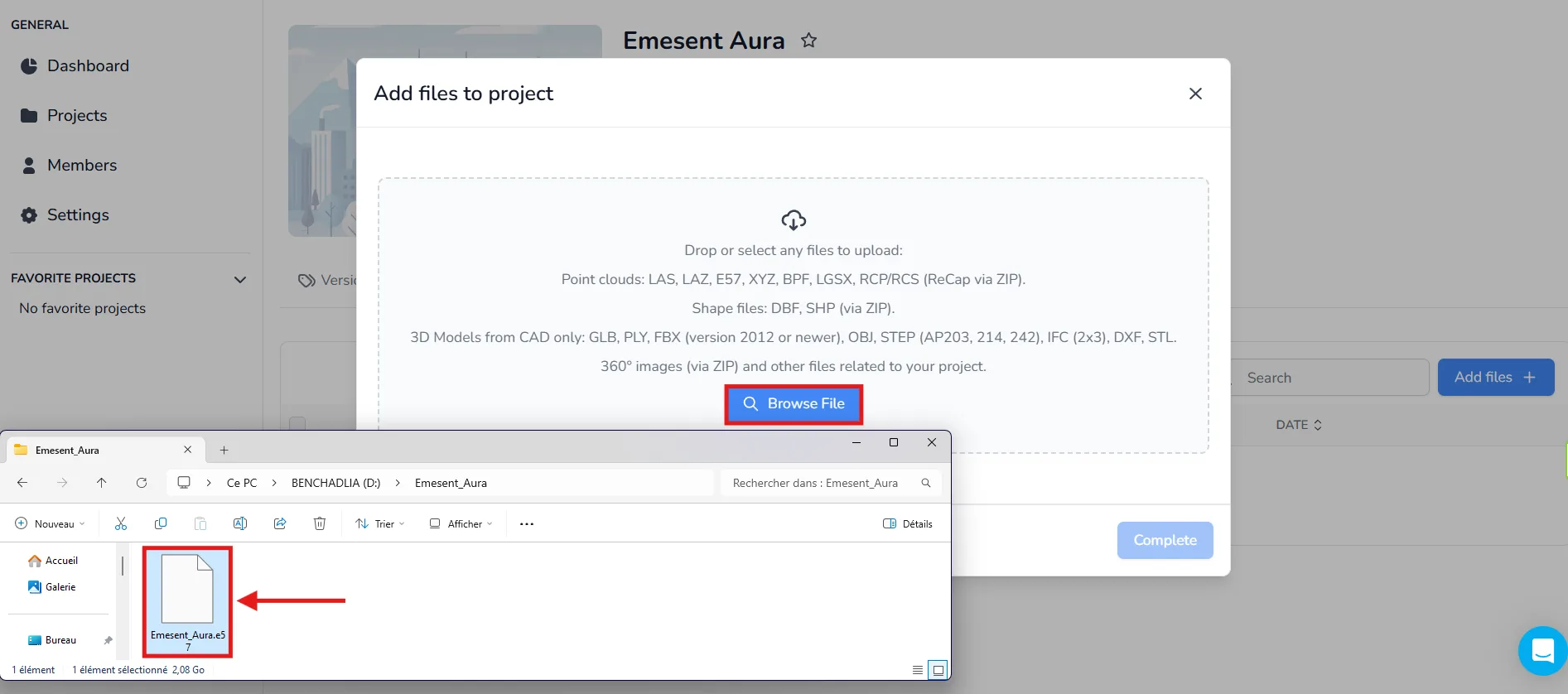
Your file is now ready to be imported into your project.
Go to your project and import the file exported from Aura to visualize your point cloud.
If you have any questions or need further assistance, please contact the technical team.