Importing NavVis Datasets with Panoramic Images
Introduction
This guide provides step-by-step instructions for exporting e57 data from NavVis scanners to the platform.
Prerequisites
- NavVis IVION or Desktop Software: Ensure data is processed using NavVis IVION or desktop software.
- Internet Connection: Necessary for uploading to the platform.
Export from NavVis IVION
Data Processing
- Open NavVis IVION and load your project.
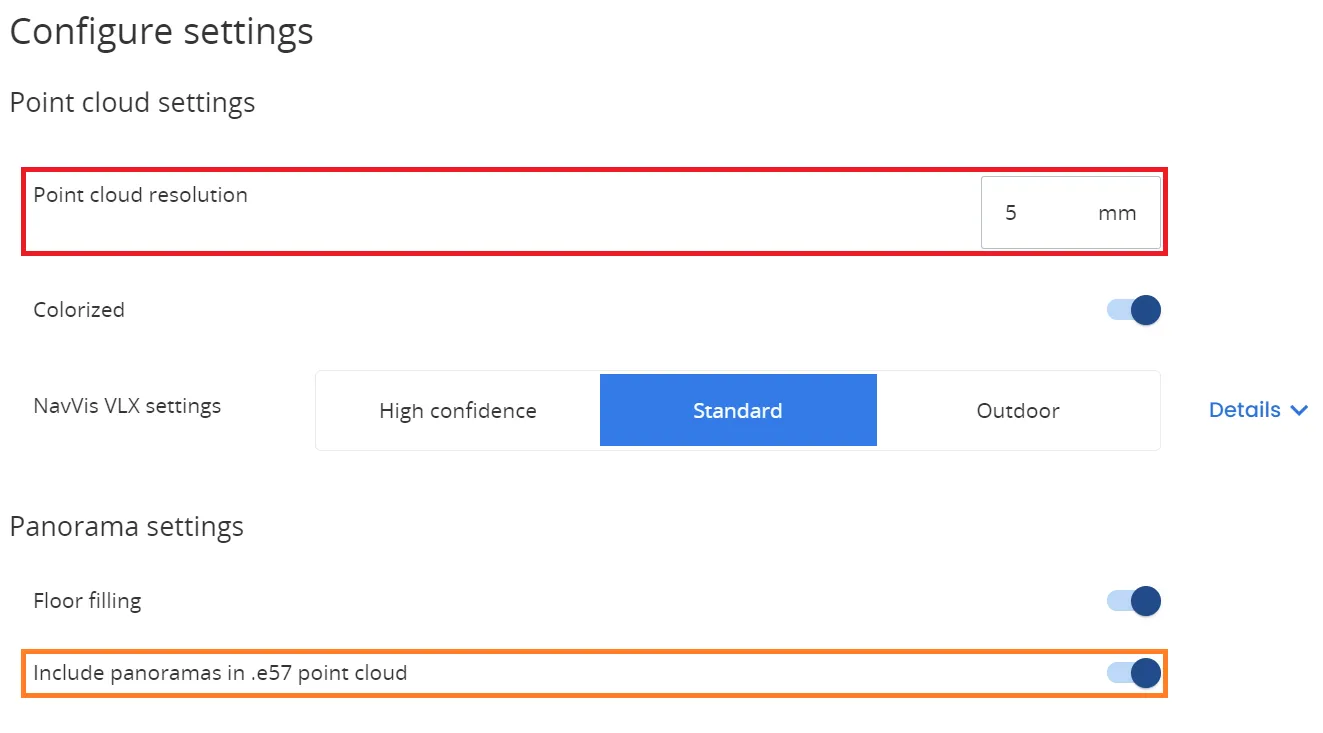
- Set the point cloud resolution to a maximum of 5 mm in settings.
- Enable the Include panoramas in .e57 point cloud option.
Downloading the e57 File
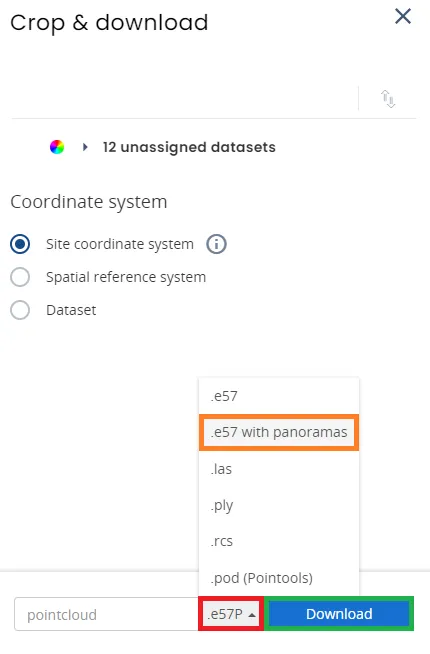
- Once data is processed and aligned, navigate to
Data Processing > Processed Data. - Select the datasets for download.
- Make sure to select the correct format for the export, ".e57 with panoramas" and click Download.
Importing into the platform
Upload to the platform
- Log into your the platform account.
- Create a new project or open an existing one.
- Select the file import tab and upload your e57 file.
For a more detailed explanation, check out this article.
Verification and Finalization
- Follow the upload process and monitor the import status.
- Once imported, the point cloud and panoramic images will appear in your project.
This guide aims to provide a clear and efficient procedure for transferring your data from NavVis to the platform. For more information on downloading processed data from NavVis, refer to NavVis Documentation.
tip
If exporting an e57 with the images isn't possible, you can always export a point cloud that doesn't cointain images and import those afterwards, you can learn more about this second option in this article. However, we do recommend using the process shown in this article if possible.
If you have any question or need any further information, please contact the technical team.