Height Profile
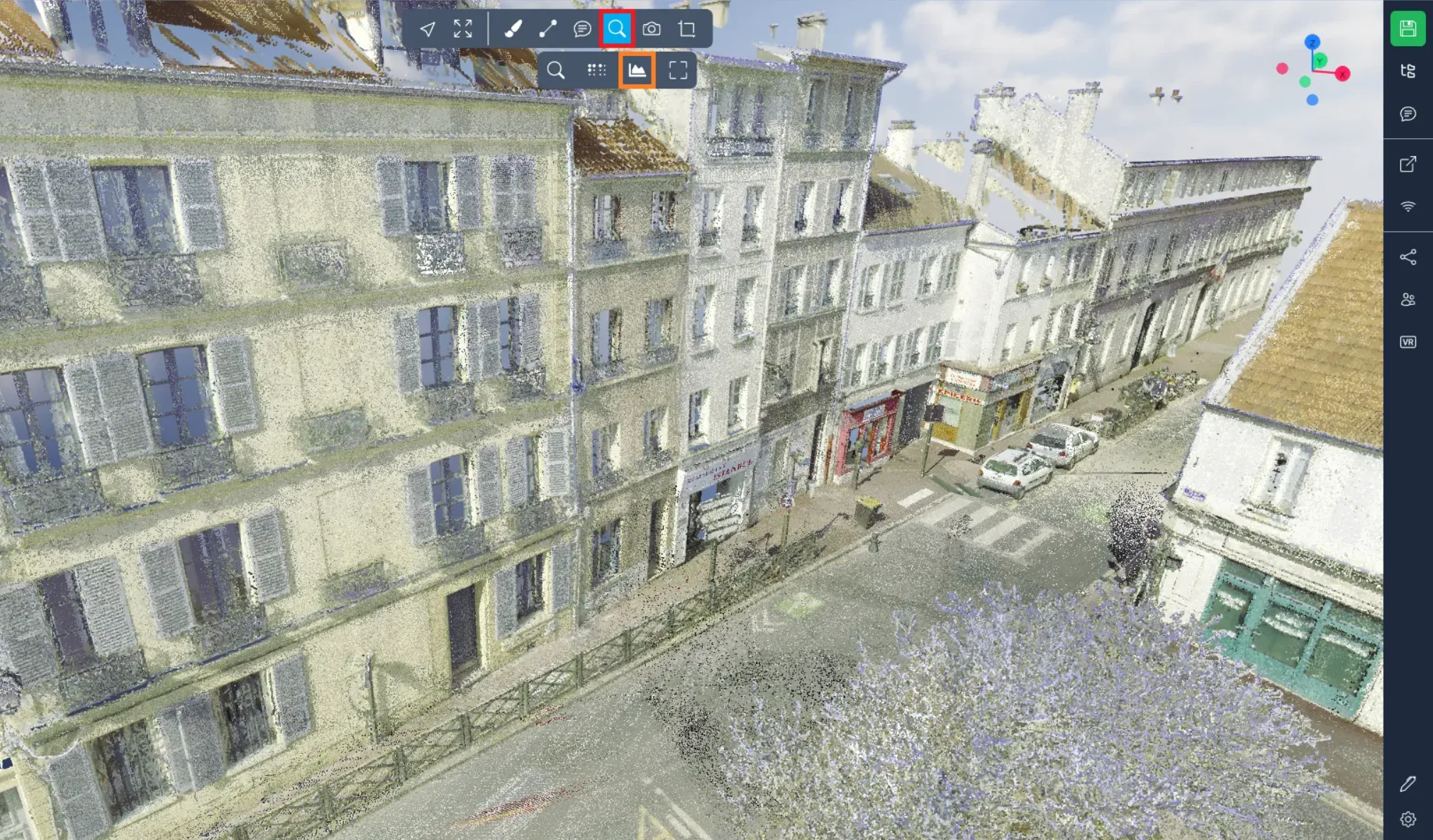
The height profile, that we will be calling just profile in this article, allows you to create a 2D cut of the 3D Application. To use the tool, open the advanced tools menu and click on the profile option.
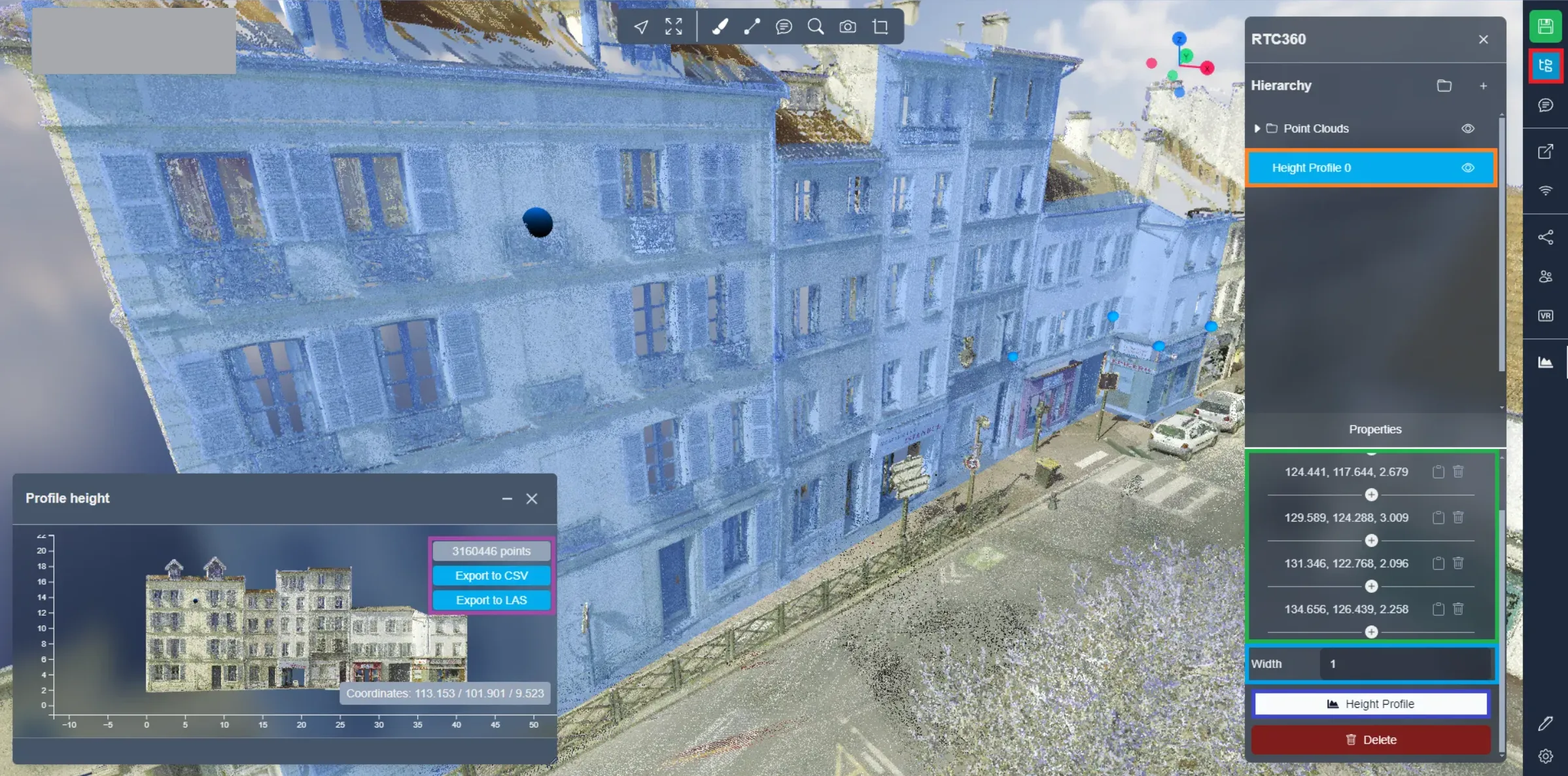
Now click on your point cloud to add dots, these dots define the profile's position. Then open the project menu and click on your profile. In the properties down below, you will find the position of each of your dots and will be able to add new ones. This is also where you will be able to edit your profile's width. Click on the Height profile button to show the window, where you will see your profile in 2D and find buttons to export the point cloud either in CSV or LAS. You can place your mouse on the 2D point cloud to have the coordinates of the selected point displayed at the bottom right of the window.
If you have any problem or difficulties, please do not hesitate to contact the platform's team.