Measuring Tools
In the 3D Application you will find many measurement tools, you can start by opening the measurement menu at the top of your screen.
To drop a measurement point, left-click anywhere on a resource, right-click to stop your measurement. Pressing SPACE will disable left and right clicks, allowing you to move normally without your measurements being affected. Once you have measured, you can move a point by clicking and dragging it.
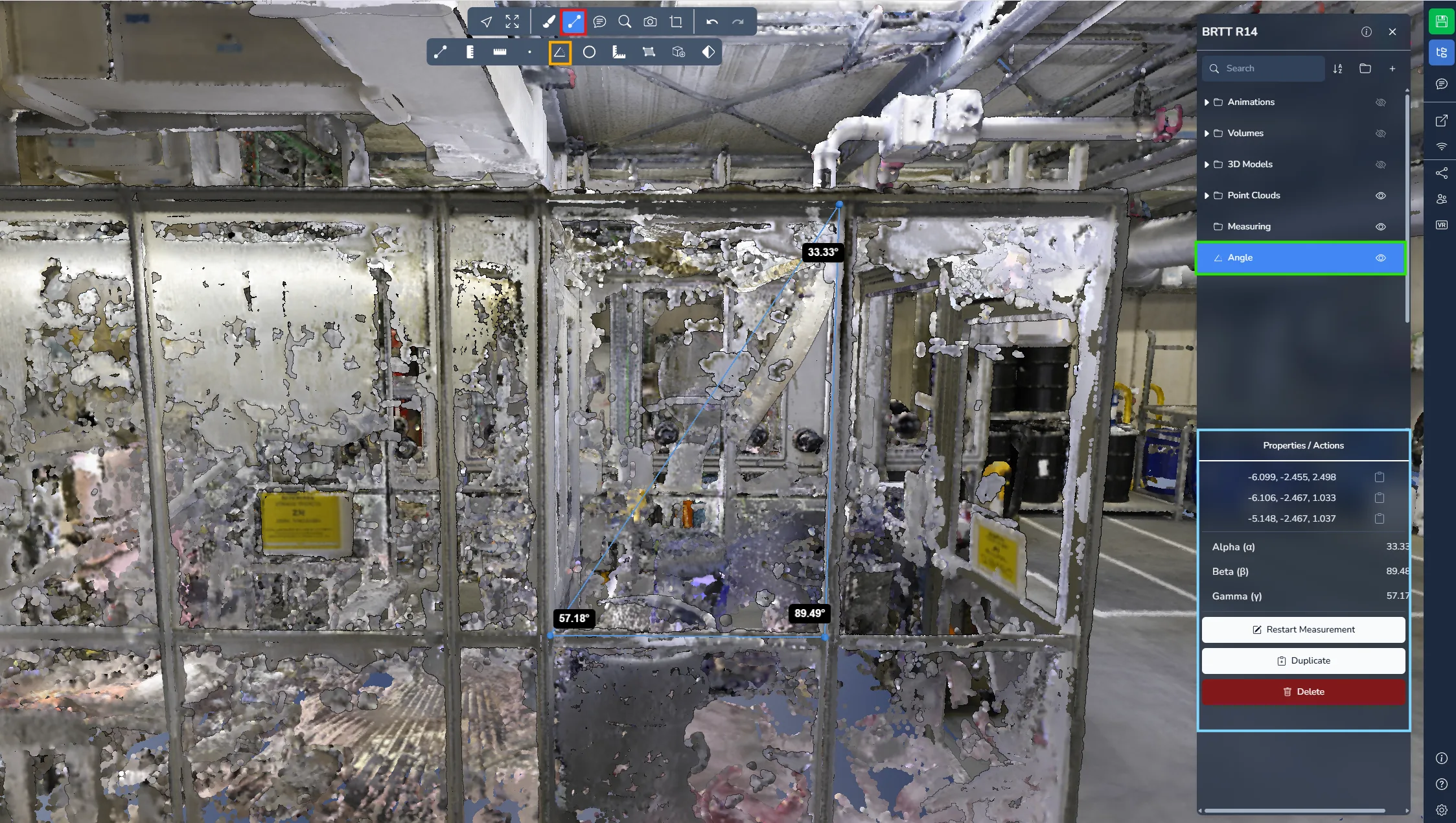
Angle
The angle measurement allows you to create a triangle using three points. The system then calculates and displays the angle value at each point.
Open the project menu and select your measurement for more information and options.
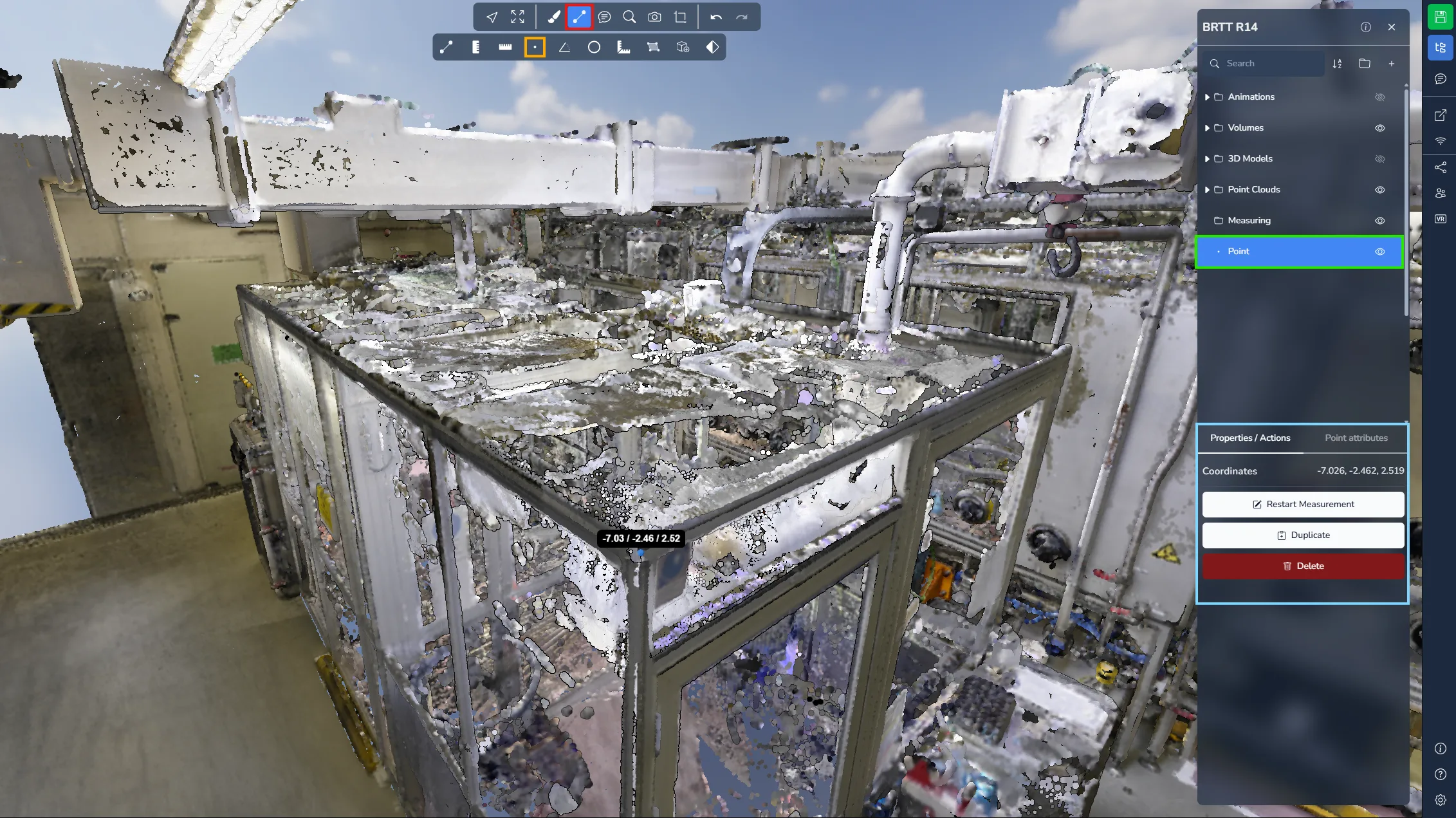
Point
The point measurement allows you to place a single point in the scene and retrieve its exact coordinates. This tool is particularly useful for georeferenced projects where precise positional information is required.
Open the project menu and select your measurement for more information and options.
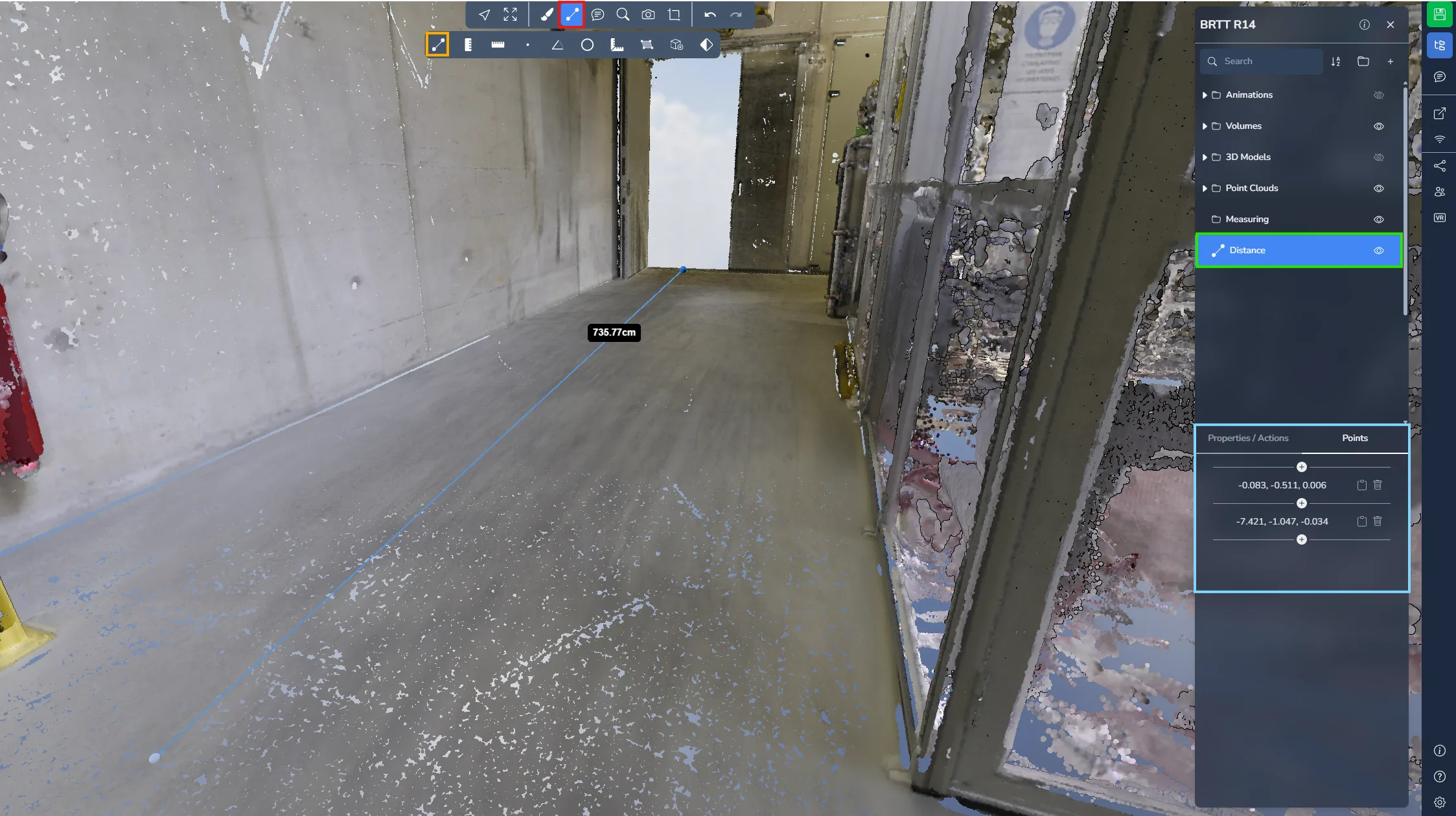
Distance
The distance measurement allows you to place multiple points to measure distances along a path. The tool displays the distance between each segment as well as the total distance between the first and last points.
Don't forget to right-click to stop adding points!
Open the project menu and select your measurement for more information and options.
Ground distance
The ground distance measurement allows you to place multiple points while calculating only the horizontal distance between them. Unlike the standard distance tool, this measurement ignores the Z axis, making it ideal for measuring distances projected onto the ground.
Don't forget to right-click to stop adding points!
Open the project menu and select your measurement for more information and options.
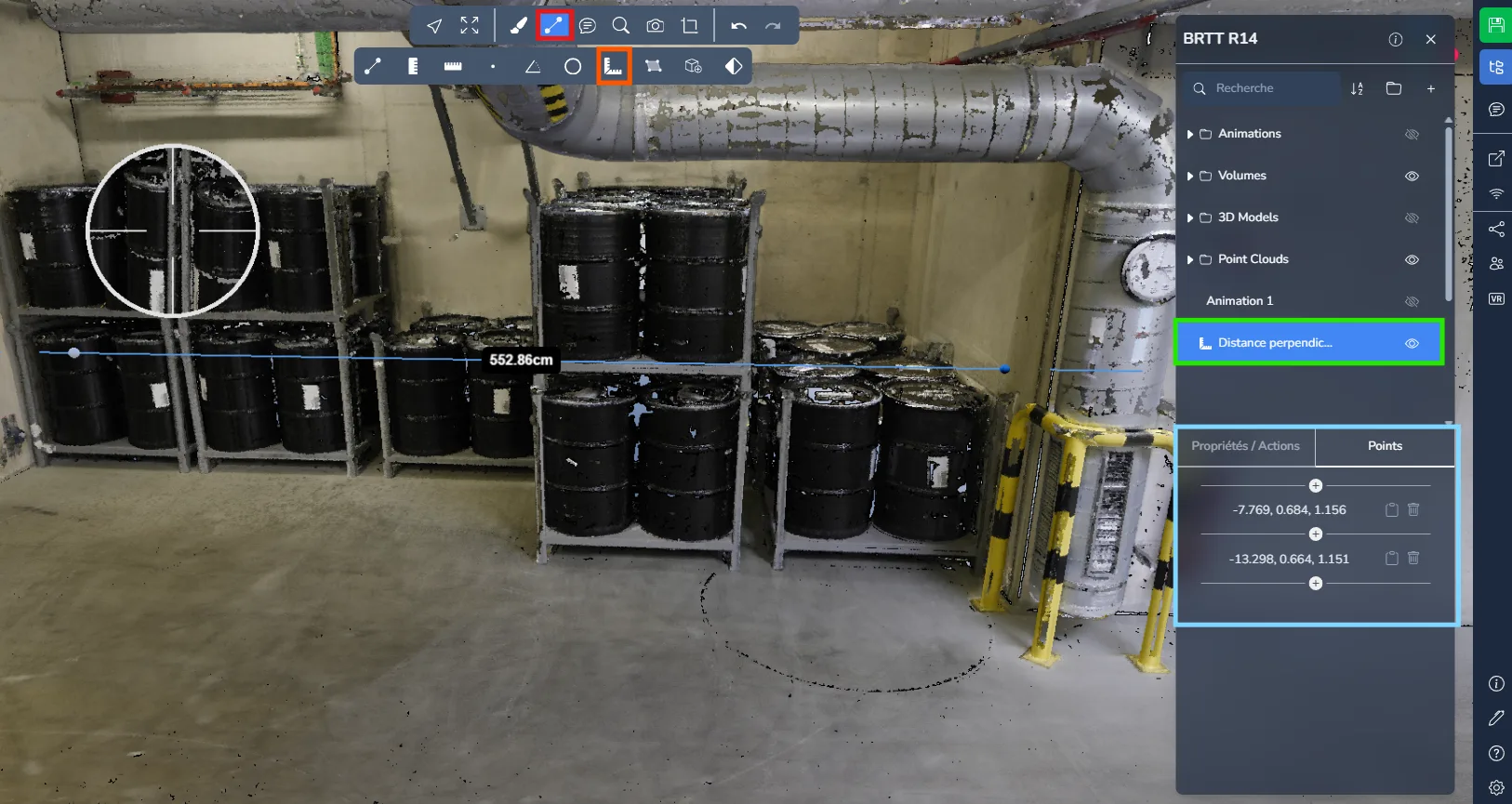
Perpendicular Distance
The perpendicular distance measurement allows you to measure the shortest distance between a point and a line. After defining the reference line with two points, a third point is placed to calculate the perpendicular distance between this point and the line.
This tool is particularly useful for clearance verification, alignment checks, or measuring distances from an object to a reference axis or surface.
Open the project menu and select your measurement to access additional information and options.
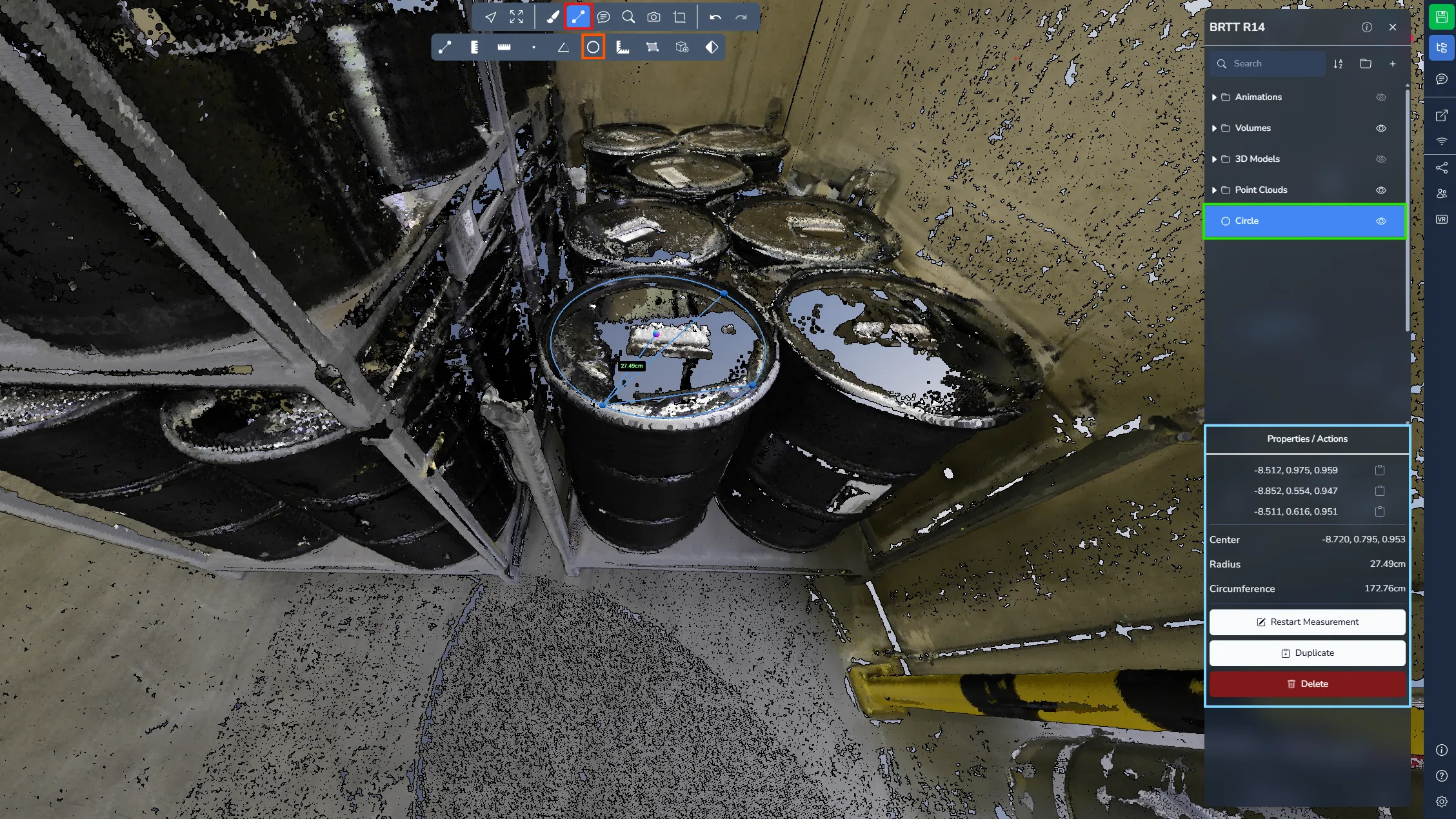
Circle
The circular measurement allows you to create a circle using three points. Once defined, the system calculates the radius, circumference, and the center position of the circle.
Open the project menu and select your measurement for more information and options.
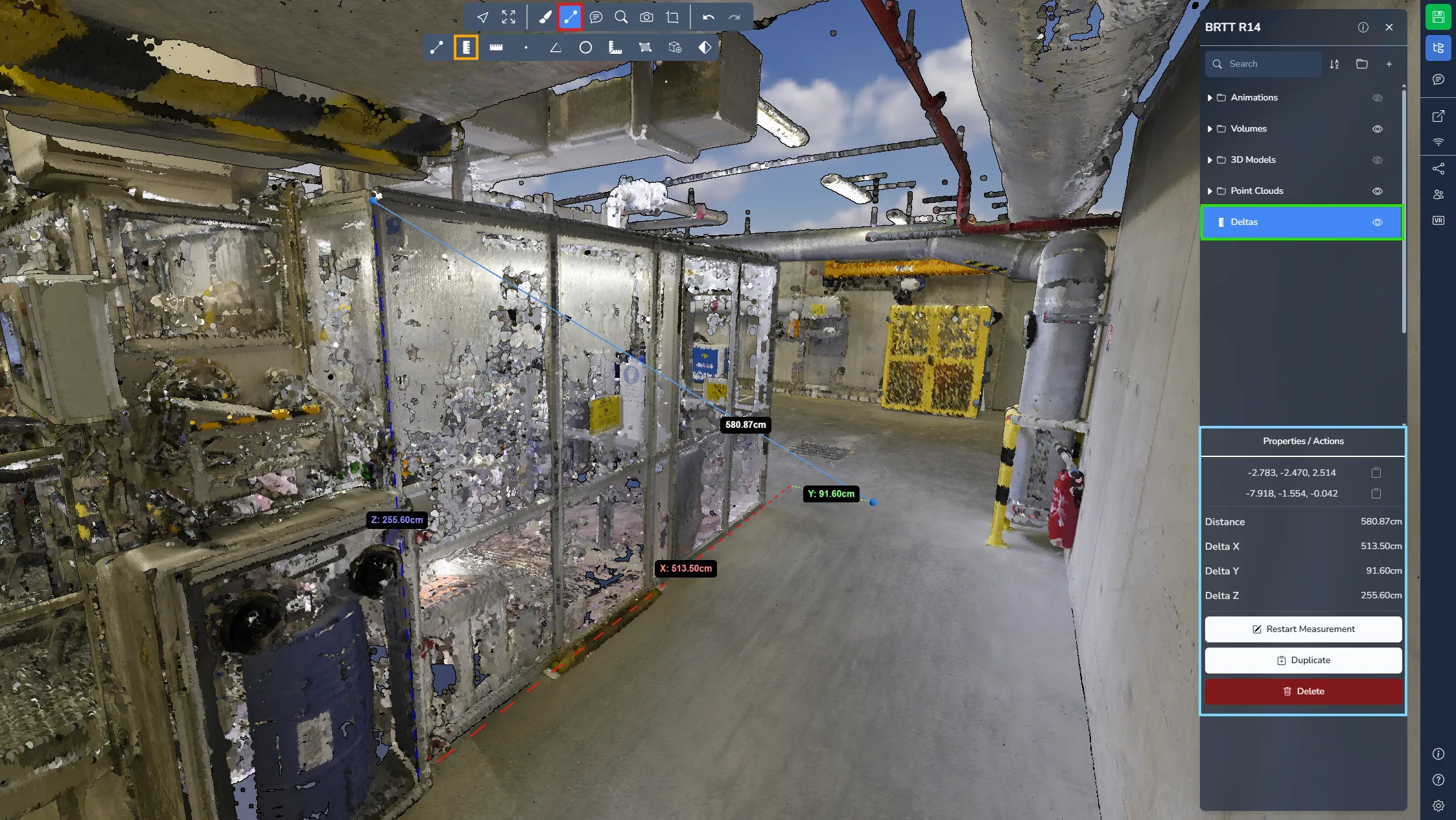
Delta
The delta measurement allows you to place two points and obtain both the direct distance between them and the axis differences.
The tool provides:
-
X value → difference along the East / West axis
-
Y value → difference along the North / South axis
-
Z value → difference in elevation between the two points
Because the Z value represents the height difference, this measurement is often informally used to measure height variations.
Open the project menu and select your measurement for more information and options.
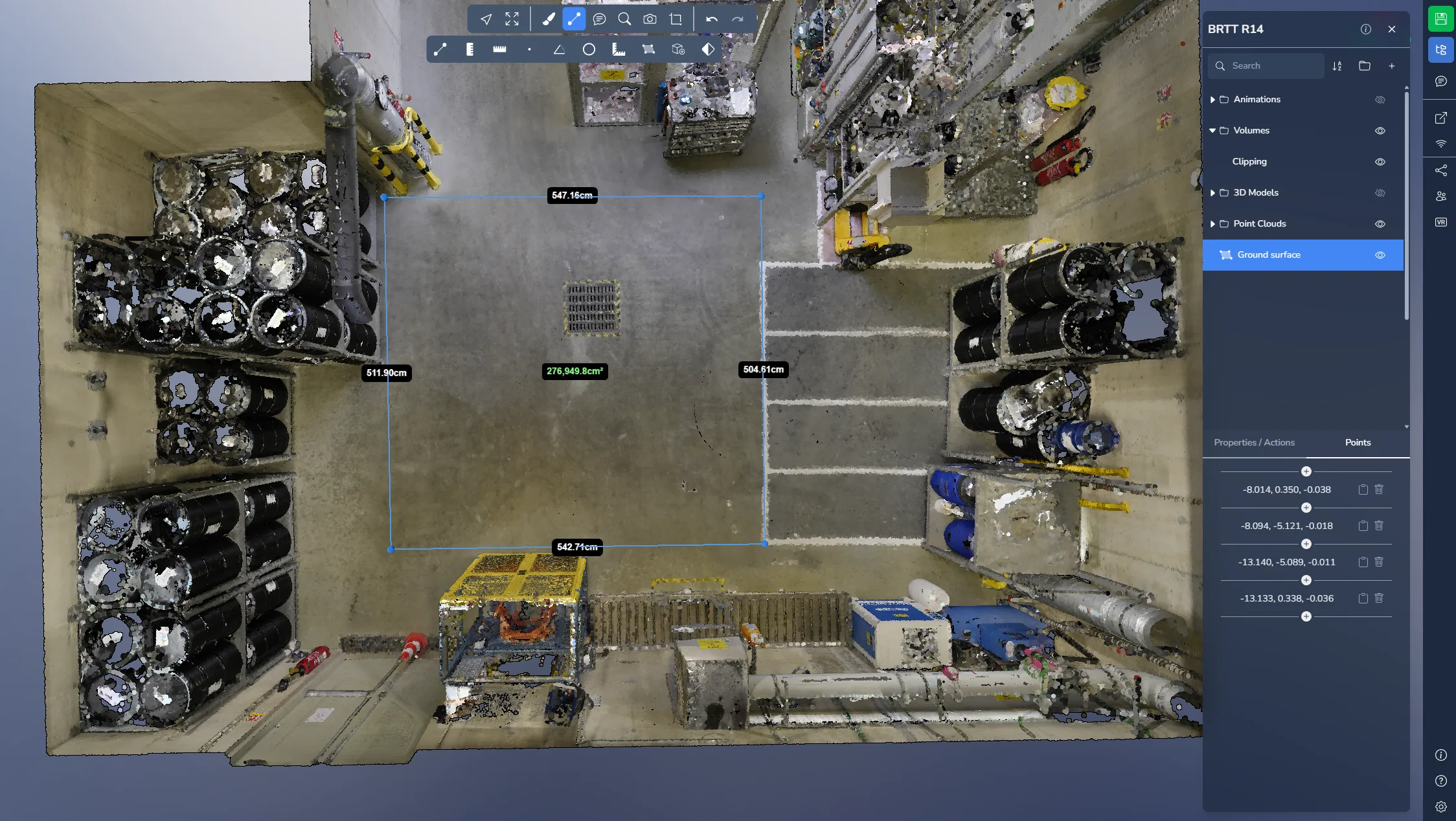
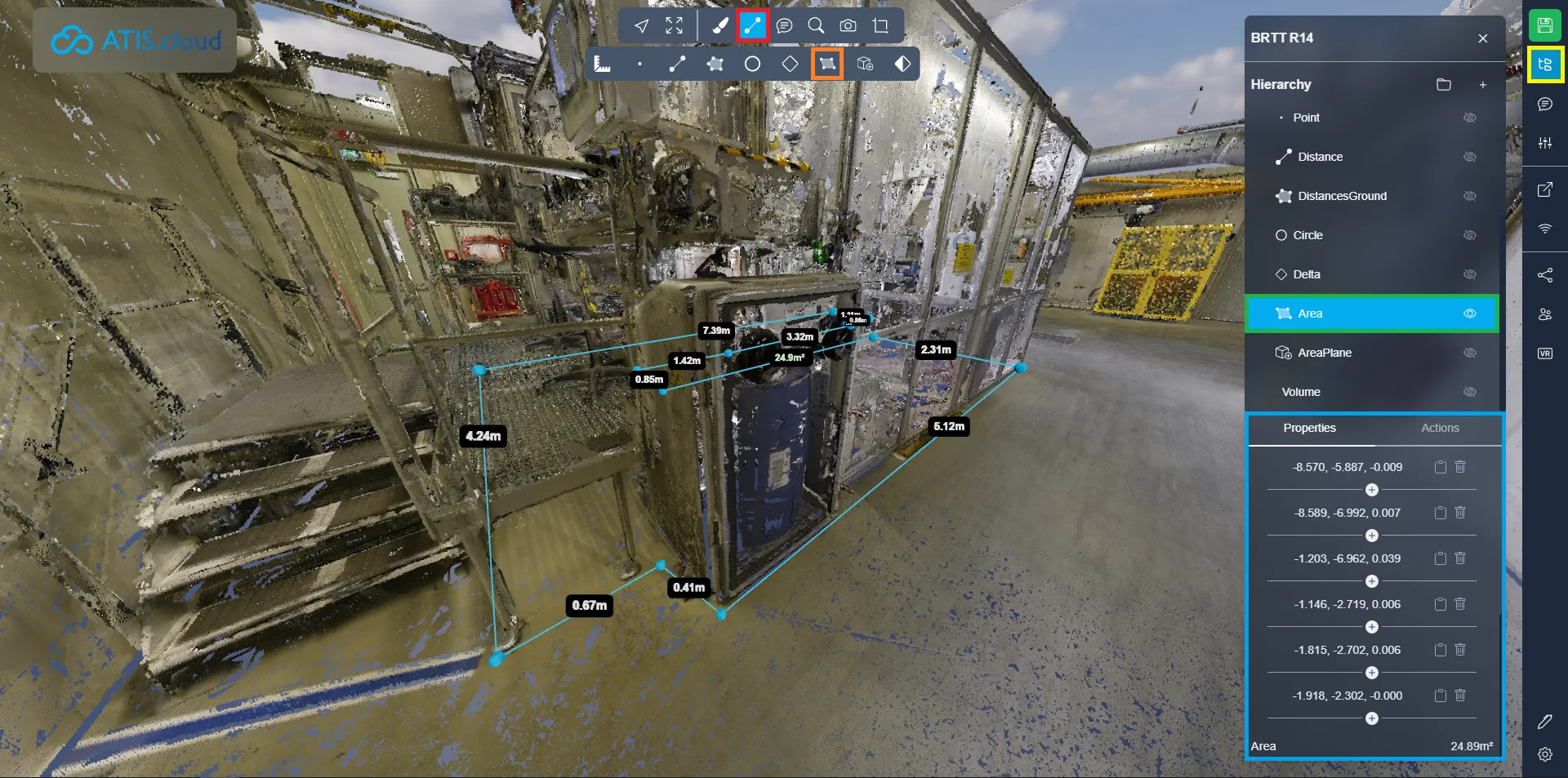
Floor area
The floor area measurement allows you to define a surface by placing multiple points. The system calculates both the segment distances and the horizontal area of the defined polygon.
The area calculation ignores the Z axis, ensuring an accurate ground area even if the points are not perfectly aligned on the floor.
Don't forget to right-click to stop adding points!
Open the project menu and select your measurement for more information and options.
Area plane
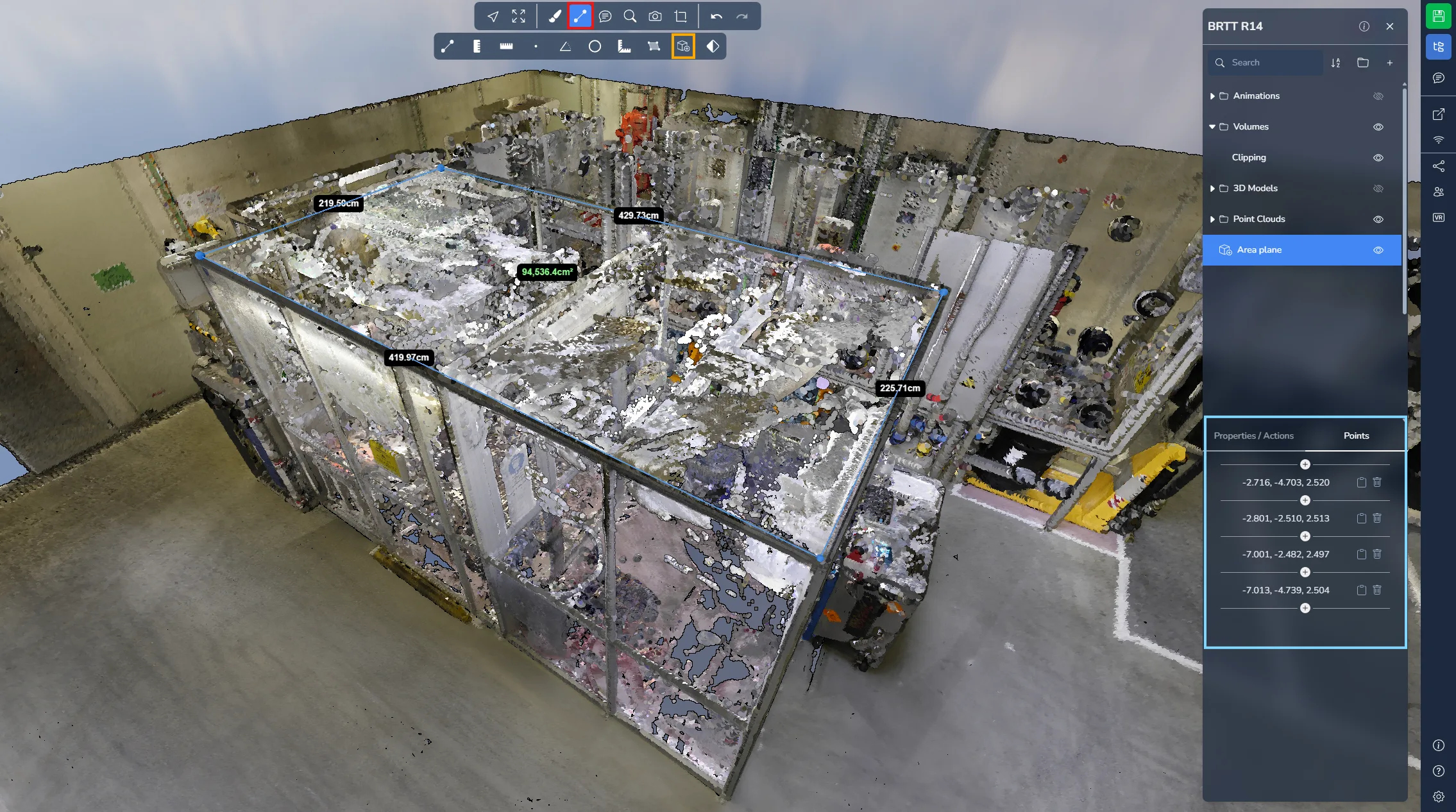
The area plane measurement allows you to define a surface using multiple points. Unlike floor area, this tool calculates the surface area in a defined plane.
The first three points determine the orientation of the measurement plane. All subsequent points are projected onto this plane. Once the plane orientation is defined, it cannot be modified, so it is recommended to place the first three points carefully.
Don't forget to right-click to stop adding points!
Open the project menu and select your measurement for more information and options.
Volume
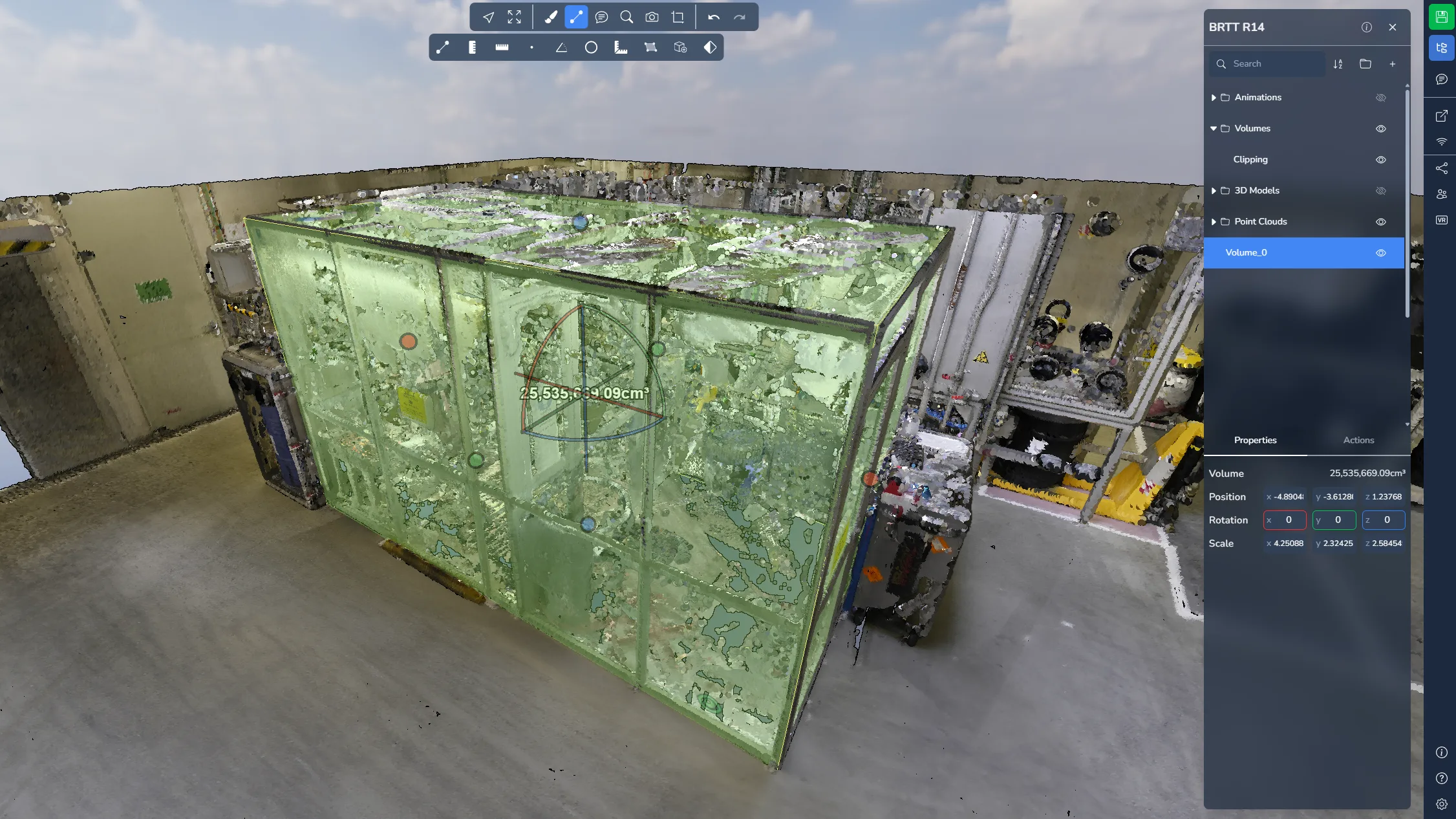
The volume measurement allows you to place a 3D box within the scene. Similar to the clipping box, the cube can be resized and repositioned using the available handles.
This tool allows you to estimate the volume contained inside the defined box. You can learn more about the cutting cube in this article.
Open the project menu and select your measurement for more information and options.
Stockpile
The stockpile measurement calculates the volume of a pile or a hollow directly from the point cloud, for example a stockpile of material or an excavation.
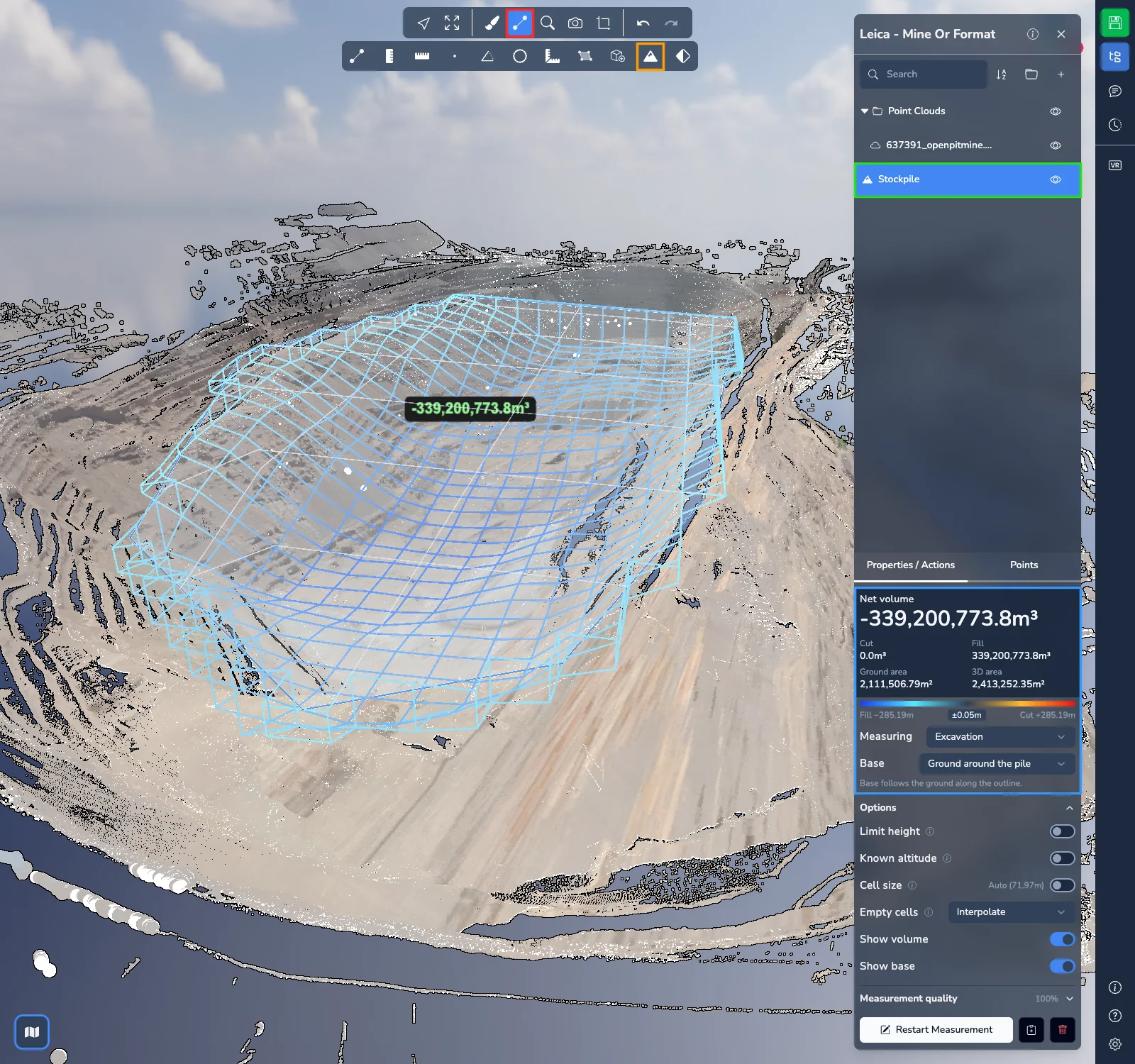
Click the outline of the zone on the ground, around the pile or the hollow. The volume is computed from the points inside the outline. In the scene, a wireframe shows the measured volume between the base and the points, coloured by height: warm colours above the base, blue colours below it. Cells filled by interpolation are drawn with dashed lines. A label gives the net volume.
Don't forget to right-click to stop adding points!
Open the project menu and select your measurement to read the results and adjust it in its properties:
- Net volume at the top, the Cut volume (material above the base) minus the Fill volume (space below the base), with the Ground area and the 3D area of the zone. An excavation therefore shows a negative net volume.
- The colour scale under the results gives the height range below and above the base. Parts within a few centimetres of the base are drawn in a neutral colour; this does not change the volumes.
- Measuring: choose Stockpile or Excavation. A stockpile is measured from the top of the points, an excavation from the bottom.
- Base: the surface the volume is measured from.
- Ground around the pile: the base follows the ground along the outline. Use it when the whole toe of the pile is visible.
- Flat or evenly sloping ground: a plane fitted to the outline, for a slab or an even slope.
- Pile against a wall or in a bay: a flat base at the lowest point of the outline, for a pile whose toe is partly hidden. On sloping ground it overestimates the volume.
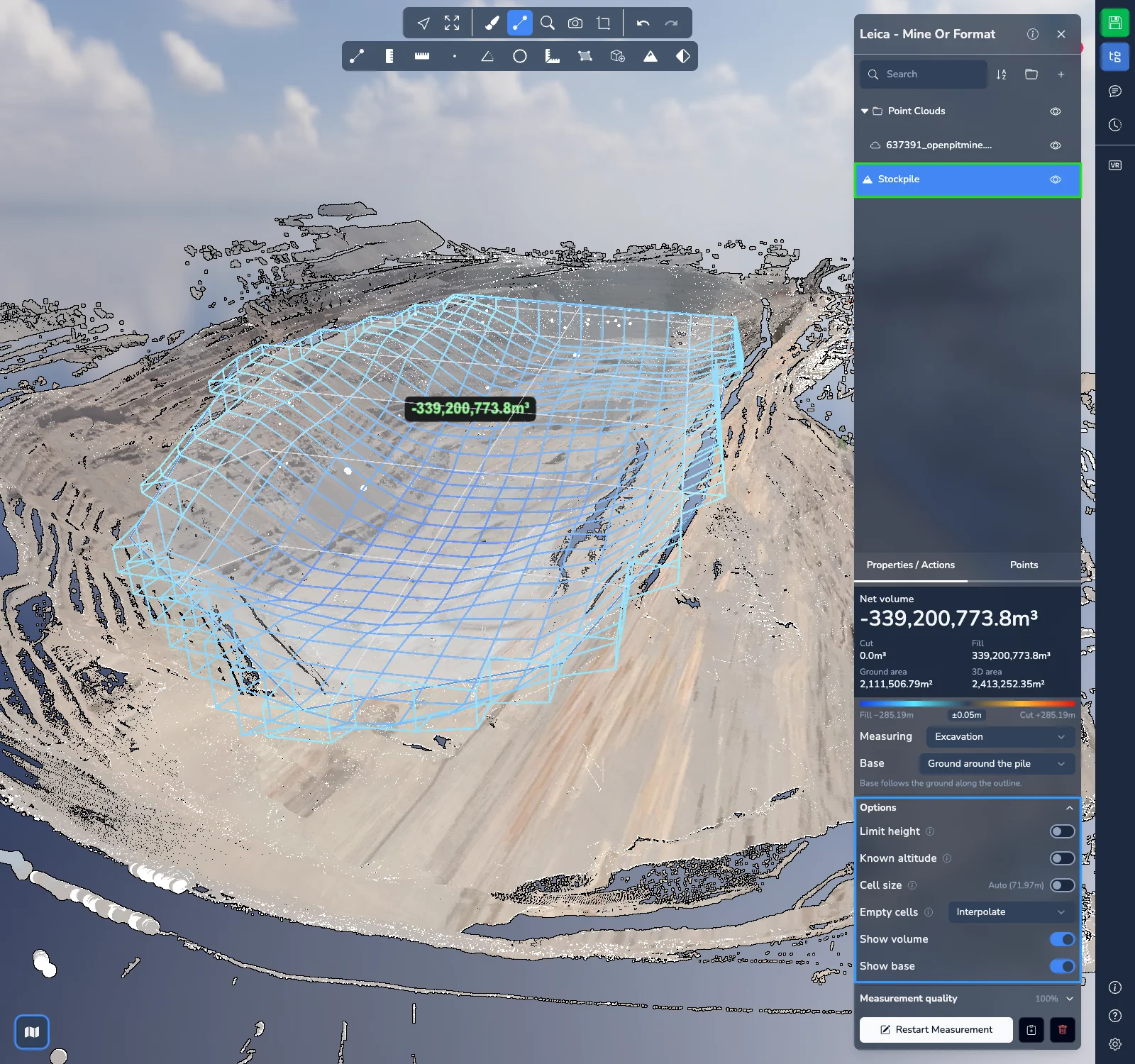
Expand Options to adjust the calculation:
- Limit height keeps only the points between a lowest and a highest altitude, for example a pile under a roof or a conveyor. Type the altitudes or pick them in the scene.
- Known altitude measures from a flat base at an altitude you enter: stock in a bay whose floor is hidden, a fill up to a design level, or a dig down to a planned depth. It replaces the Base choice.
- Cell size is set automatically. Turn it on to enter your own size: smaller cells give more detail but take longer to compute.
- Empty cells sets what happens to the cells inside the outline that have no points. Interpolate, the default, fills holes up to about 2 m wide from the cells around them. Unscanned zones too wide to interpolate are left empty and reported under the results. You can also choose Leave empty, Minimum height, Mean height, Maximum height or Typed value.
- Show volume and Show base show or hide the wireframe and the base in the scene.
Expand Measurement quality to see the share of the zone that contains points, the cell size used, the share of filled cells and of filled volume, the unfilled zones, the corrected cells (isolated spikes) and the cells ignored for lack of points. A low coverage means part of the zone has no points, so the volume may be underestimated.
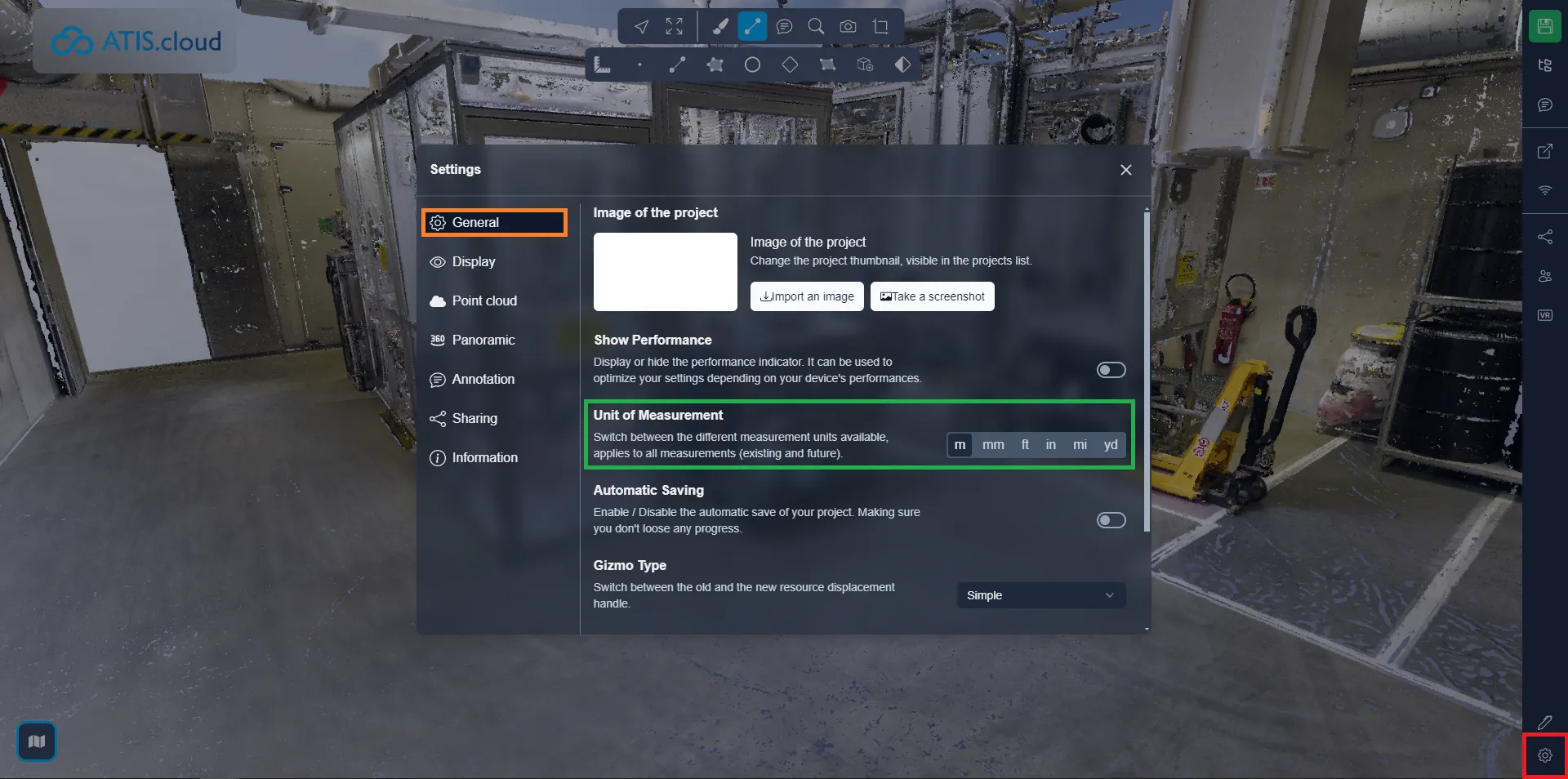
It is possible to change the unit of measurements, to do this, open the settings menu and the General tab, then select the unit you prefer to work with. It will update any metrics already in place and affect any new ones you create.
If you run into any issues, our support team is here to help. Happy exploring!